How To > Ensure task completion
Tallyfy keeps tasks and approvals on track with automated reminders, clear deadlines, and…
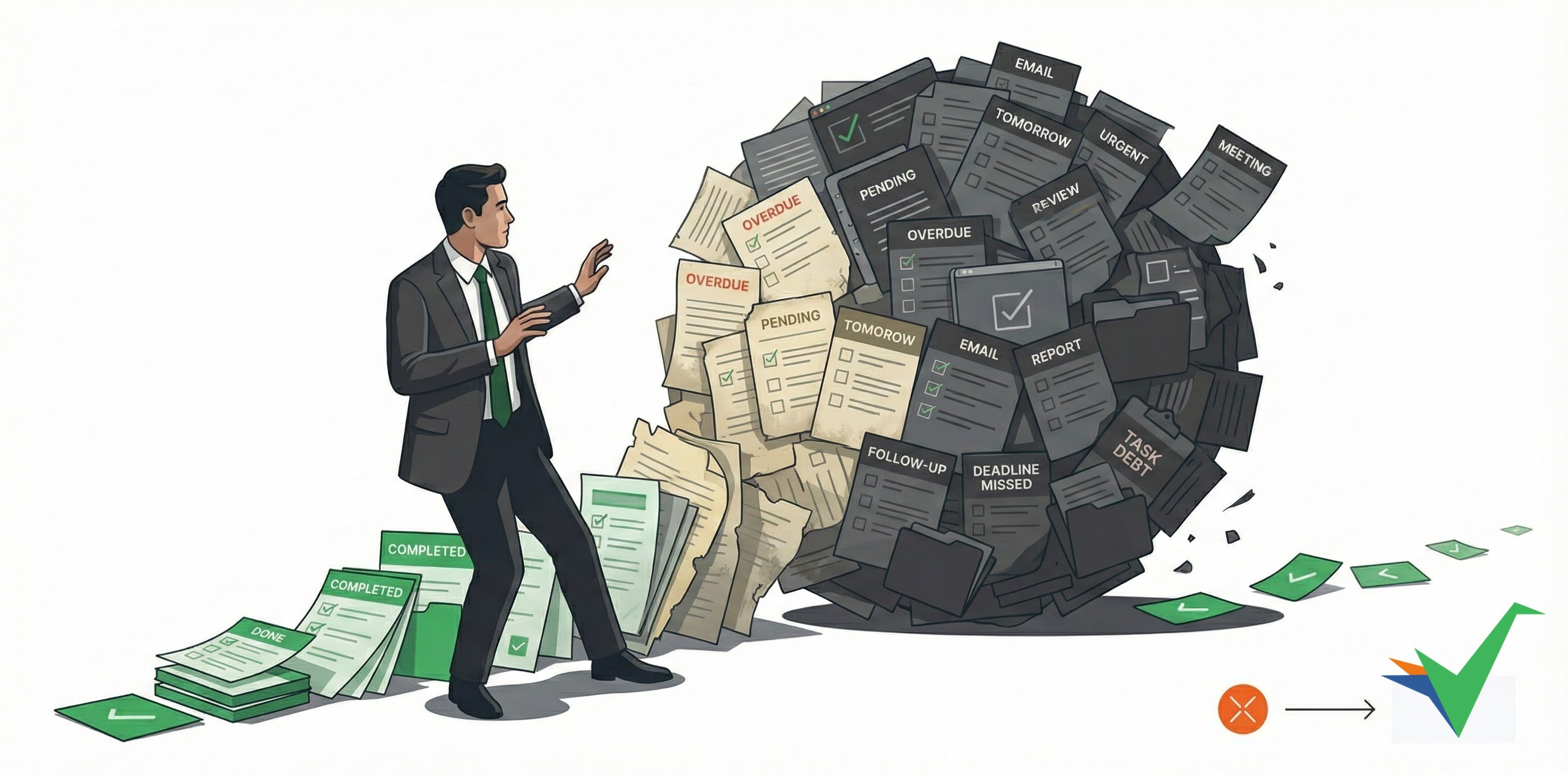
Task debt happens when incomplete tasks pile up faster than your team finishes them. Like technical debt in software, it compounds, making it harder to focus, creating stress, and killing productivity.
The fix isn’t working harder. It’s designing workflows that prevent buildup in the first place.
You keep moving incomplete tasks from one to-do list to the next. Every overdue item starts feeling urgent, making it harder to tell what actually matters. The cascading effect looks like this:
Task debt doesn’t just slow completion rates. It hurts creativity, decision-making, and wellbeing. The longer tasks sit incomplete, the heavier they weigh on your mind.
The most effective way to prevent task debt? Expiring tasks - a Tallyfy feature that auto-completes tasks at their deadline if nobody finishes them first. Think Mission Impossible: “This message will self-destruct in 5 seconds.” If nobody acts by the deadline, the task completes itself.
Expiring tasks are perfect for sharing information that’s helpful but not critical:
Expiring tasks let you share information without creating debt. Team members get notified and can engage if they want, but the task won’t sit there forever. At the deadline, it marks itself complete and disappears from the overdue list.
You can also prevent task debt through smarter workflow design:
Bundle related work. Instead of creating ten separate approval tasks, combine them into one review task with multiple form fields. Fewer items means less psychological burden.
Set realistic deadlines. Tasks with impossibly short deadlines immediately become overdue. Build buffer time based on actual completion patterns, not optimistic estimates.
Eliminate low-value tasks. Audit your templates regularly. If a task consistently gets skipped without consequences, it probably shouldn’t exist.
Use conditional logic. Configure automations to only create tasks when truly needed. Skip approval steps for low-risk items. Route work based on actual requirements, not worst-case scenarios.
How you assign tasks directly affects debt accumulation:
Balance workloads. Before assigning tasks, check what people already have. Tallyfy’s tracker view shows who has what on their plate. Distribute work evenly instead of overloading specific people.
Use job title assignments. Assign to job titles rather than specific people for routine tasks. This distributes work automatically and prevents bottlenecks when someone’s unavailable.
Group assignments with Take Over. For tasks that need one person from a group, assign to the group and let someone claim ownership via Take Over. This stops tasks from sitting unowned while everyone assumes someone else will handle it.
Already drowning in task debt? Here’s how to dig out:
Apply the two-minute rule. Scan your overdue tasks. Anything that takes less than two minutes, do it now. This quickly shrinks the visible backlog.
Batch similar tasks. Group related overdue items and handle them together. Processing ten expense reports at once beats doing them one at a time.
Convert to expiring tasks. Informational items that keep getting pushed? Make them expiring. They’ll auto-complete at deadline, clearing your backlog.
Cut ruthlessly. Some tasks simply won’t get done. Cancel them. Document why if needed, then move on.
Renegotiate deadlines. For tasks that matter but can’t happen immediately, set new realistic deadlines. This removes them from the overdue list while keeping accountability.
Preventing task debt long-term means building sustainability into your workflows:
Regular reviews. Schedule monthly reviews of task completion rates. If certain tasks consistently go overdue, eliminate them, extend deadlines, or convert them to expiring tasks.
Feedback loops. Encourage team members to flag tasks that don’t add value. They’re closest to the work and can spot unnecessary steps.
Process metrics. Use Tallyfy Analytics to track completion patterns. Look for bottlenecks and recurring delays, then fix root causes, not symptoms.
Cultural shift. Move from “complete everything” to “complete what matters.” Not every task deserves equal priority. Some information just needs to be available, not actively consumed.
Here’s how to create expiring tasks in Tallyfy:
Expiring tasks still trigger notifications, so assignees know information is available. They just don’t create permanent debt if ignored.
How To > Ensure task completion
How To > Improve accountability
Tracking And Tasks > More about tasks
Tasks > Escalating overdue tasks