Admins can remove a member by deactivating their account under Settings > Organization >…
Delete your account
Permanently deleting your Tallyfy account
Section titled “Permanently deleting your Tallyfy account”Only an Administrator can delete a Tallyfy organization. This action is irreversible - all data is permanently removed.
-
Log in to Tallyfy as an Administrator for the organization you want to delete.
-
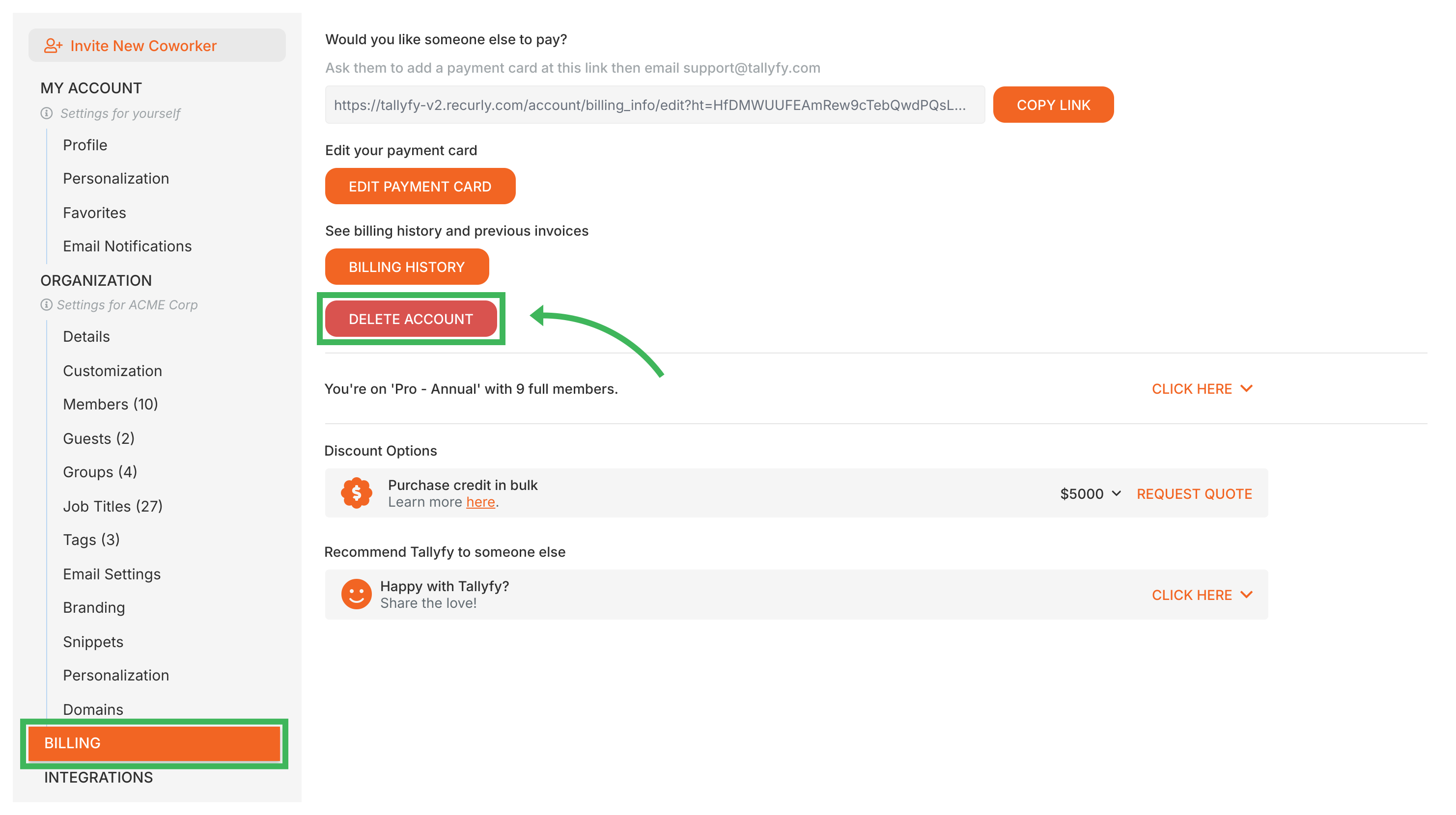
Go to Settings > Billing.
-
Click the DELETE ACCOUNT button.
-
You’ll be taken to our official account closure form ↗. Complete and submit it.
-
The form arrives with your Organization ID already filled in when you come from the button. Check it is the account you actually want to close, and type it in yourself if the box is empty.
Deletion is permanent and irreversible!
- Once deleted, all organizational data, processes, templates, and user information are permanently removed. Nothing can be restored.
- You must use the official closure form ↗. Informal requests like support emails won’t be processed due to privacy and security policies.
Data retention after deletion
Section titled “Data retention after deletion”- 30-day export window - export any data you need before final deletion
- 90-day backup retention - recovery may be possible via support
- Permanent deletion - after 90 days, all data is irreversibly removed
After you submit the form, a Tallyfy team member will review your request and confirm when deletion is complete. All billing stops permanently at that point.
Related articles
Section titled “Related articles”Edit Processes > Delete a process
Tallyfy requires Admin users to first archive a process before the permanent delete option…
Org Settings > Remove a member
To remove a member from a Tallyfy organization, admins must first deactivate them. Tallyfy…
Manage your Tallyfy subscription, seats, payment methods, and invoices from Settings > Billing…
About Tallyfy