A Tallyfy automation pairs conditions with actions on a template, so running processes adapt to…
Create an automation
Automating processes
Section titled “Automating processes”Automations let you build “if-this-then-that” logic so your workflows adapt automatically - no manual adjustments needed.
How an automation works
Section titled “How an automation works”Every automation has two parts:
- IF a specific event happens (the Condition) - like a task completion, a form field value, or an approval decision…
- THEN Tallyfy runs a defined action (the Action) - like revealing hidden steps, reassigning tasks, or changing deadlines
Example scenario: In an Employee Onboarding process, you want to show different steps based on whether the new hire is a “Field worker” or an “Office worker”.
Setting up form field automation for onboarding
Section titled “Setting up form field automation for onboarding”- Create the template: Build your “Employee Onboarding” template. Step 1 collects basic info. Step 2 is “Field Training” and Step 3 is “Office Orientation”.
- Add the form field: In Step 1, add a form field for the employee’s role. Use the Radio Button type with two options: “Field worker” and “Office worker”.
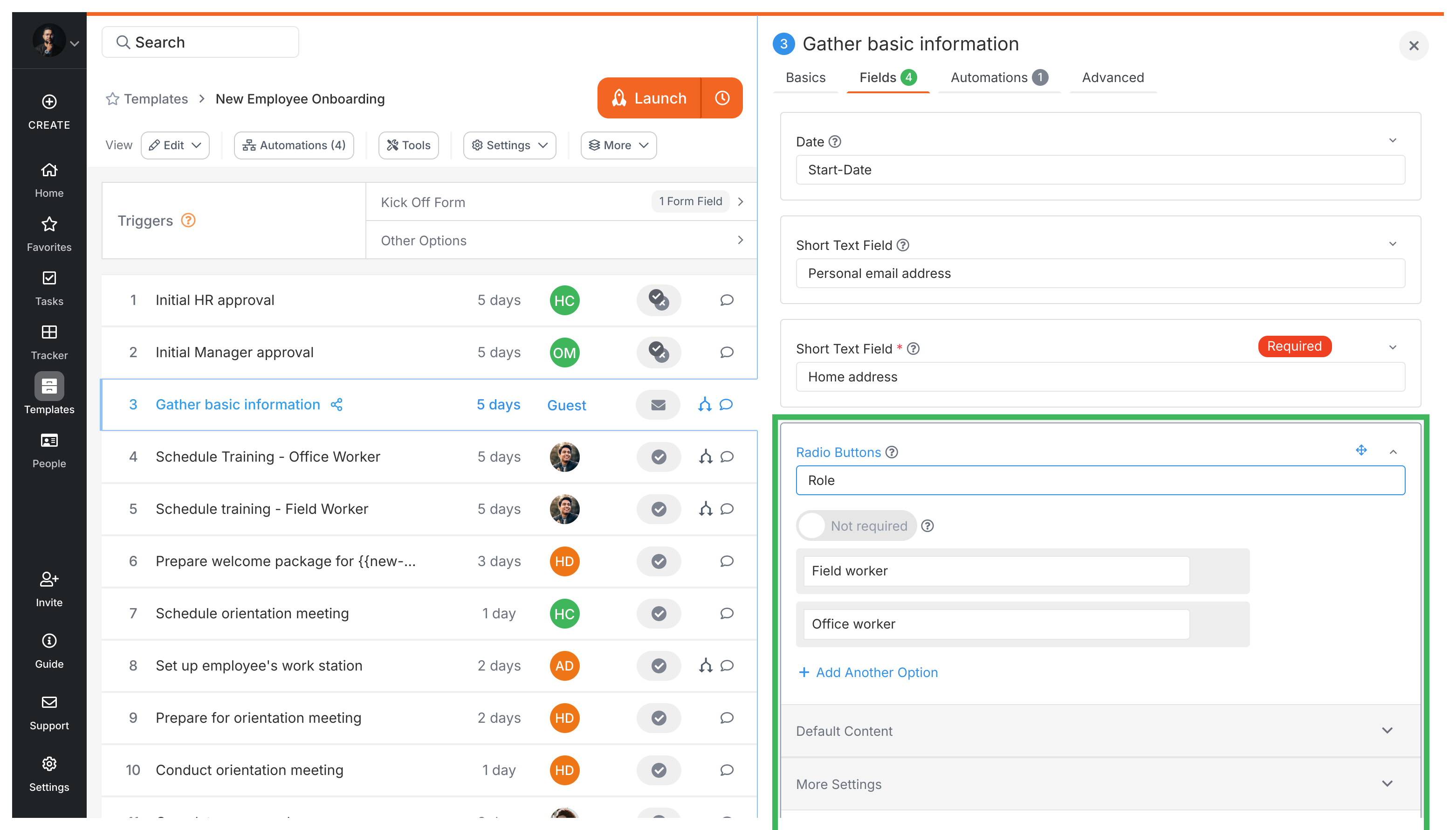
- Let the automations hide them: You don’t hide Step 2 (“Field Training”) or Step 3 (“Office Orientation”) yourself. Tallyfy hides any step a Show action targets when the process launches, so both start hidden once the automations below exist.
- Create automation 1 (for Field Worker):
- Go to the Automations section in the template editor.
- Click Add Automation.
- IF condition: The “Role” form field (from Step 1) Is “Field worker”.
- THEN action: Visibility > SHOW Step 2 (“Field Training”).
- Name it descriptively, e.g., “Show Field Training if Role is Field Worker”.
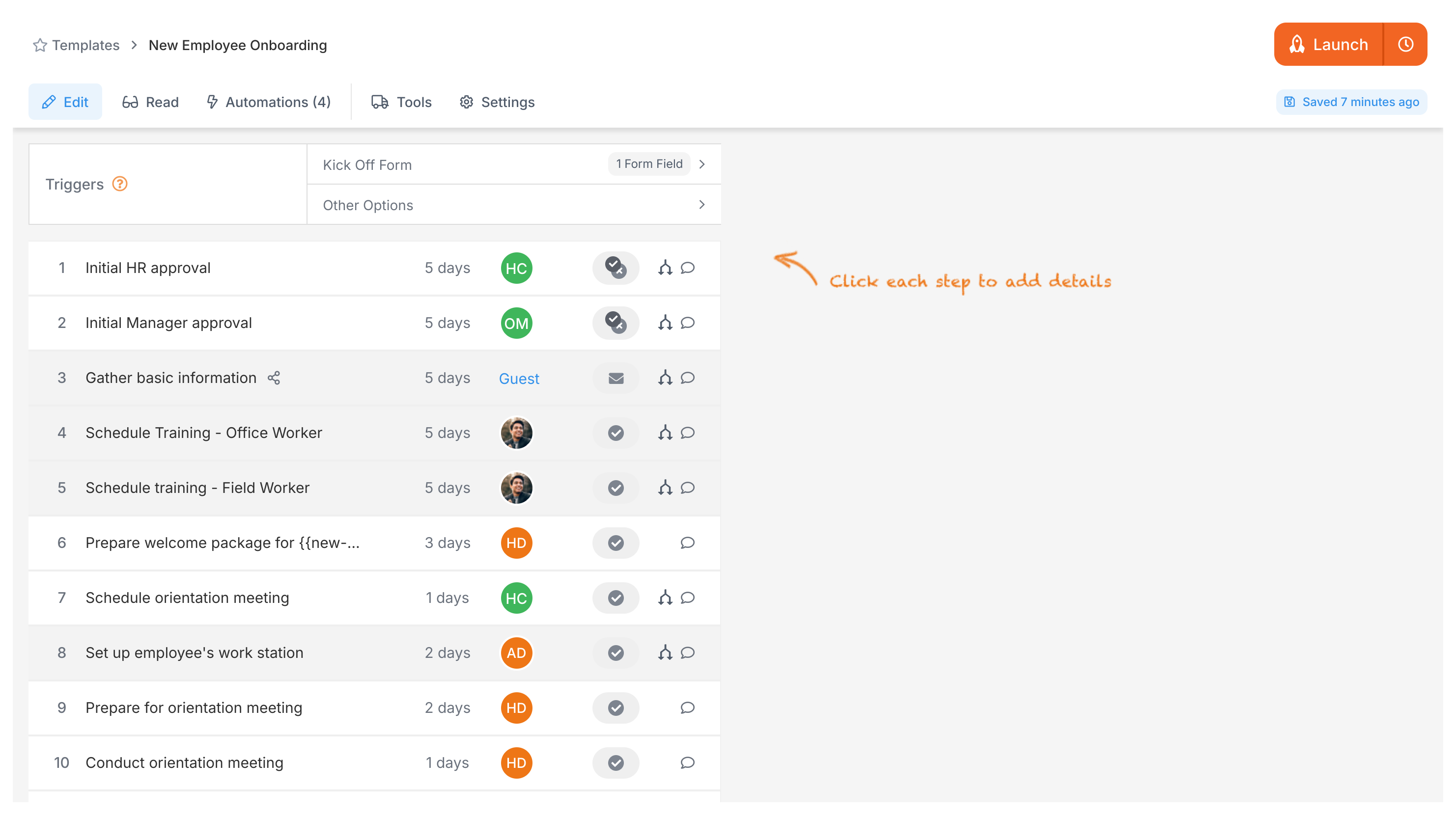
- Create automation 2 (for Office Worker):
- Add a second automation.
- IF condition: The “Role” form field (from Step 1) Is “Office worker”.
- THEN action: Visibility > SHOW Step 3 (“Office Orientation”).
- Name it descriptively, e.g., “Show Office Orientation if Role is Office Worker”.
- Launch the process: When you launch this process, you’ll only see Step 1 at first. After the user picks a role and completes Step 1, the matching automation fires and reveals the right follow-up step.
Here’s what happens at runtime:
- Only Step 1 appears at first.
- Once the employee picks their role in Step 1, the relevant step (2 or 3) becomes visible and assigned. Assignees get automatic notifications.
- Assignees click the task link in their email to complete their step.
Related articles
Section titled “Related articles”Automations > Conditional visibility
Tallyfy lets you show or hide entire workflow tasks based on form field values using automations…
Tallyfy’s conditional logic is the IF half of an automation. It checks kick-off and step form…
Automations > Logic operations explained
Tallyfy automations pair an If with a Then instead of using flowcharts. They check user inputs…
About Tallyfy