Launch a process manually by clicking Launch Process on any template card and naming the…
Launch a process
How to launch your first process
Section titled “How to launch your first process”Here’s how to launch a process from a template you’ve already created. A process is a running instance of your template - think of the template as a blueprint and the process as a live, trackable copy.
- Go to Templates: Click Templates in the left sidebar to see your templates.
- Find your template: Locate the template you want to launch.
- Click Launch: Click the Launch Process button on the template card.
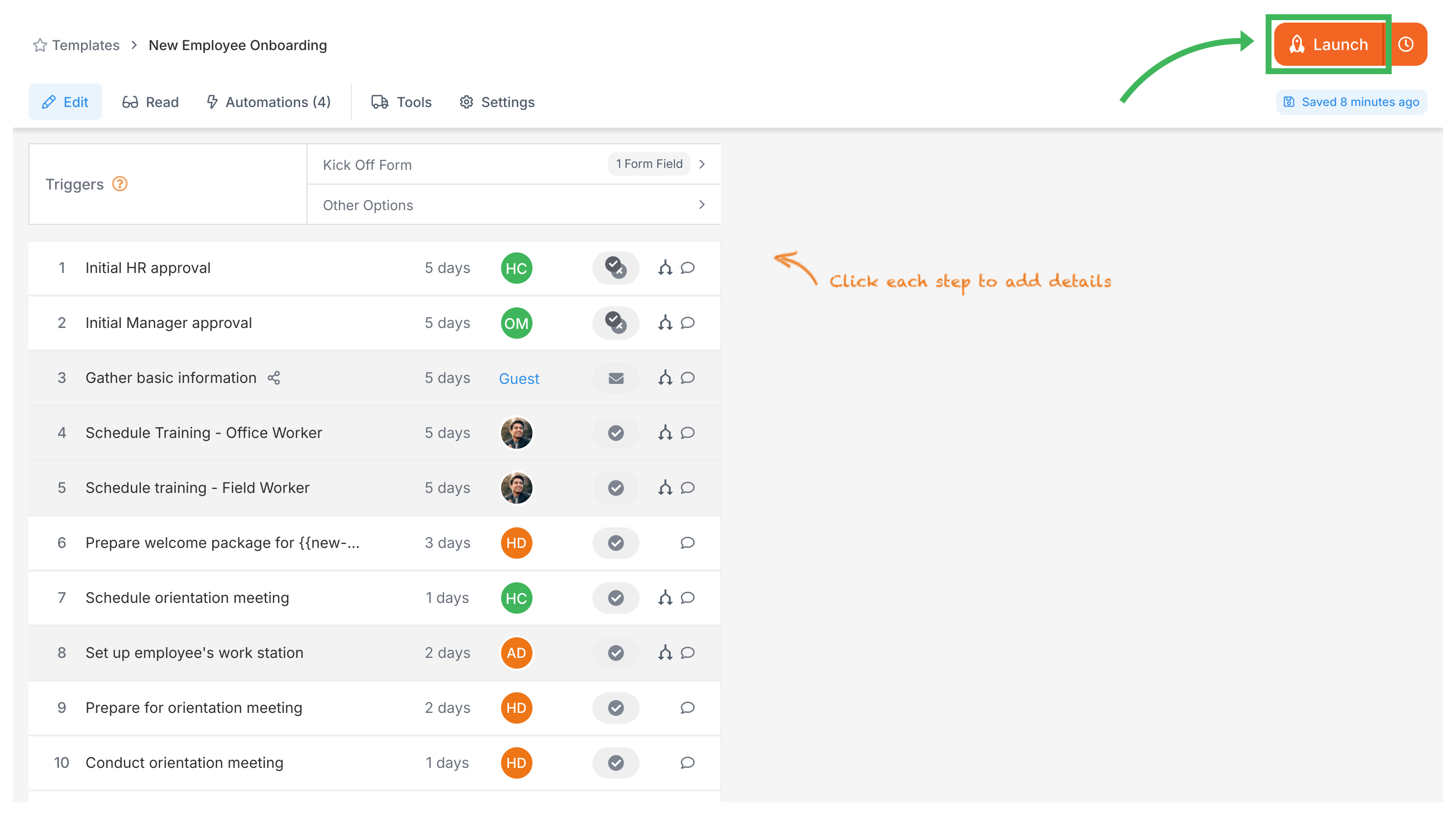
- Fill kick-off form (if applicable): If your template has a kick-off form, fill in the required starting information.
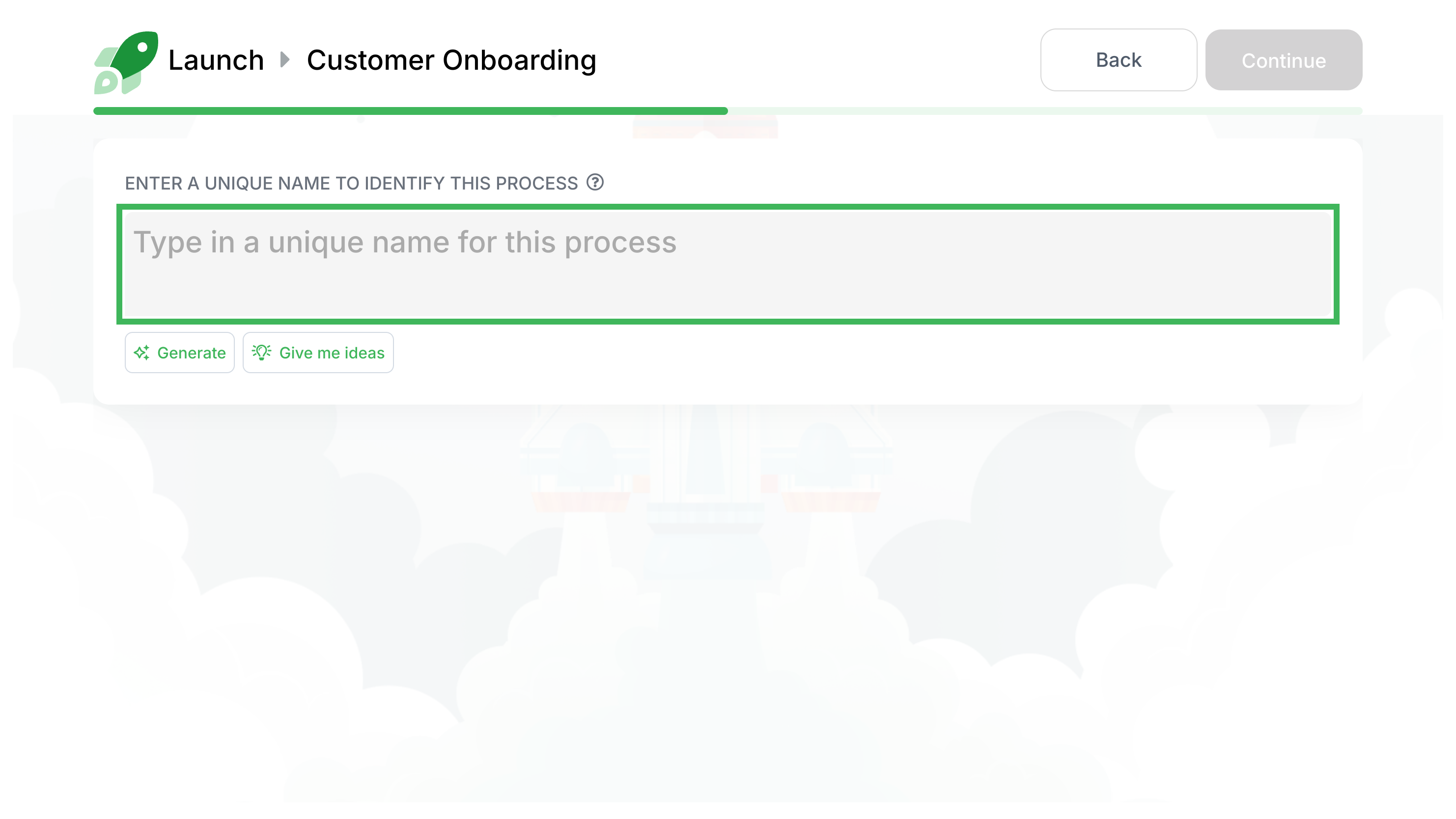
- Name your process: Give it a clear, unique name (e.g., “Onboarding - John Doe”). You can click Generate for automatic name suggestions.
- (Optional) Review and edit: Click Review & Edit to change assignees, deadlines, or remove optional steps before launching. See Edit before launch for details.
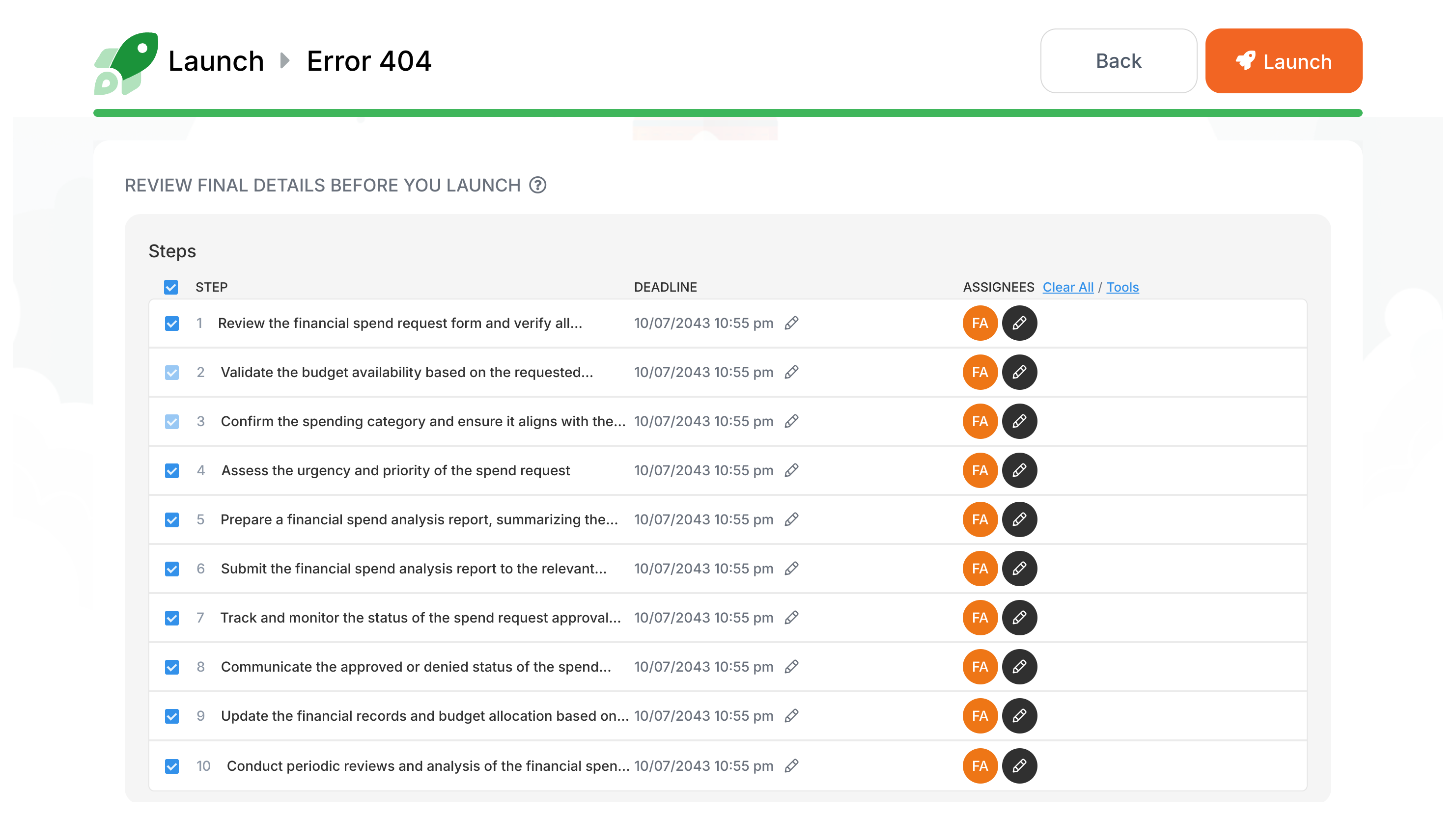
- Launch!: Click the final Launch button to start your process.
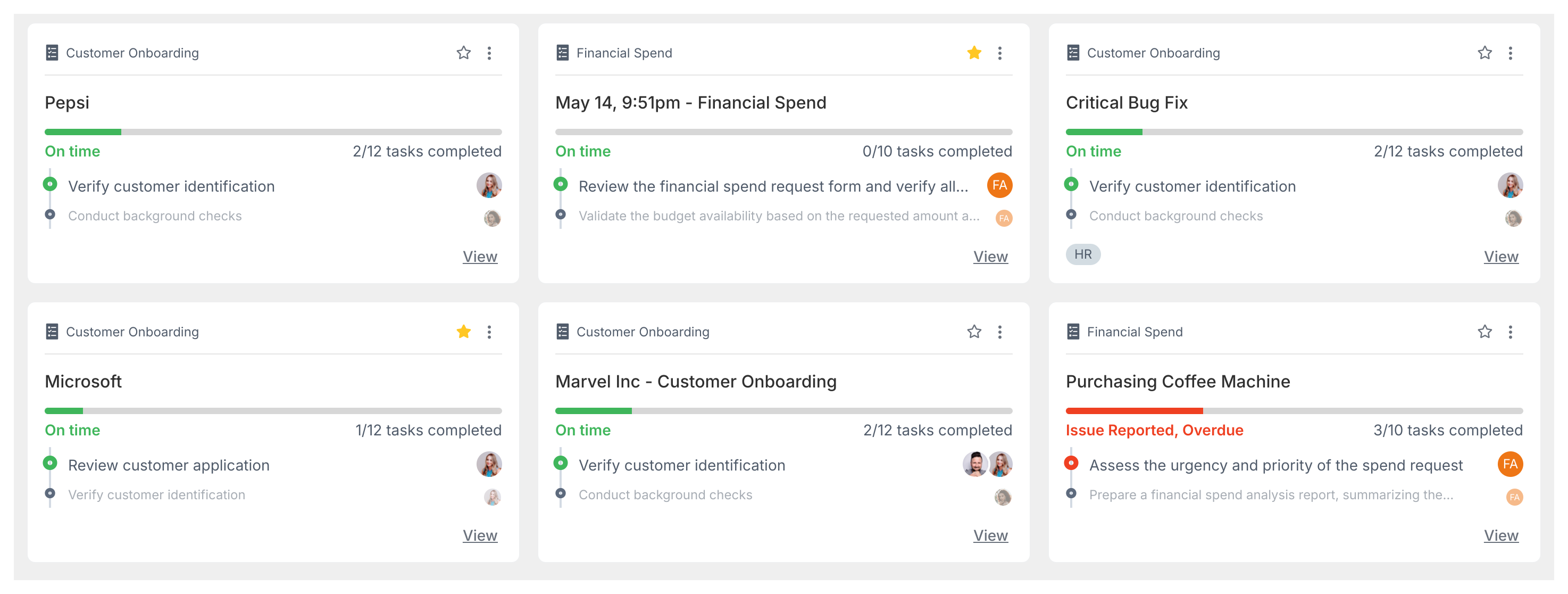
- Track progress: Your process is now active and assignees get automatic notifications. Monitor progress in the Tracker view.
Related articles
Section titled “Related articles” Tallyfy lets you launch reusable templates into independent trackable processes, each with its…
Tracking And Tasks > Processes
A process is a live, running instance of a template that you launch and track daily. Each…
Get started with Tallyfy. These four step-by-step tutorials cover organization setup, dashboard…
About Tallyfy