Skip to content

Check notifications

View notifications

Click the bell icon in the top right corner of Tallyfy to open your notifications dropdown. It shows recent alerts, with a link to your full notification history.

Tallyfy notifies you when someone assigns you a task, comments on your work, completes a task you’re involved in, reports or resolves an issue, updates a deadline, or mentions you. If you’ve got unread notifications, a count badge appears on the bell icon.
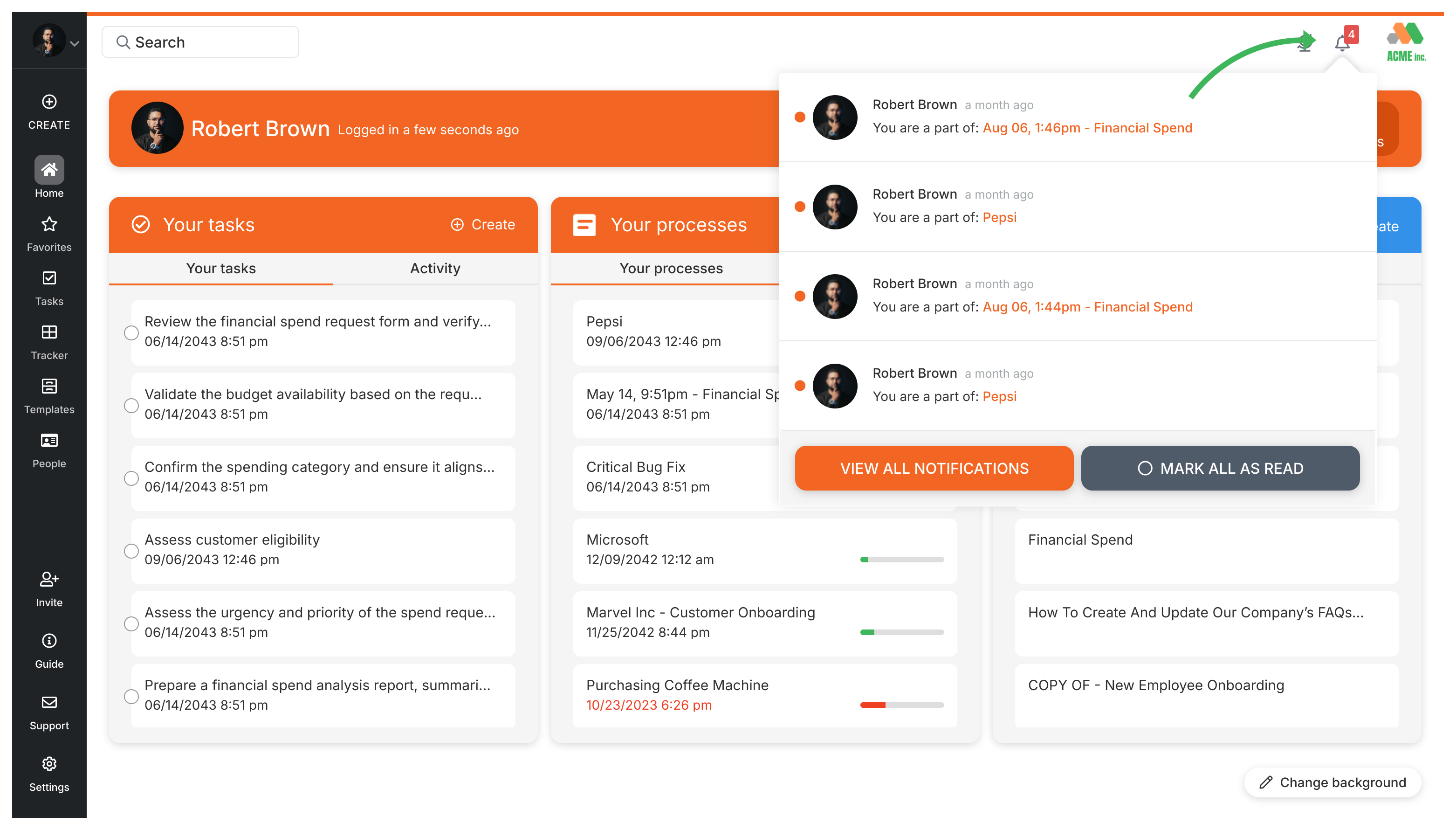
Task notifications in notification dropdown

How to view all notifications

  1. Click the bell icon in the top right corner.
  2. In the dropdown, click VIEW ALL NOTIFICATIONS.

This takes you to your complete notification history - every alert, update, and message in one place. You can also click MARK ALL AS READ to clear your unread count.
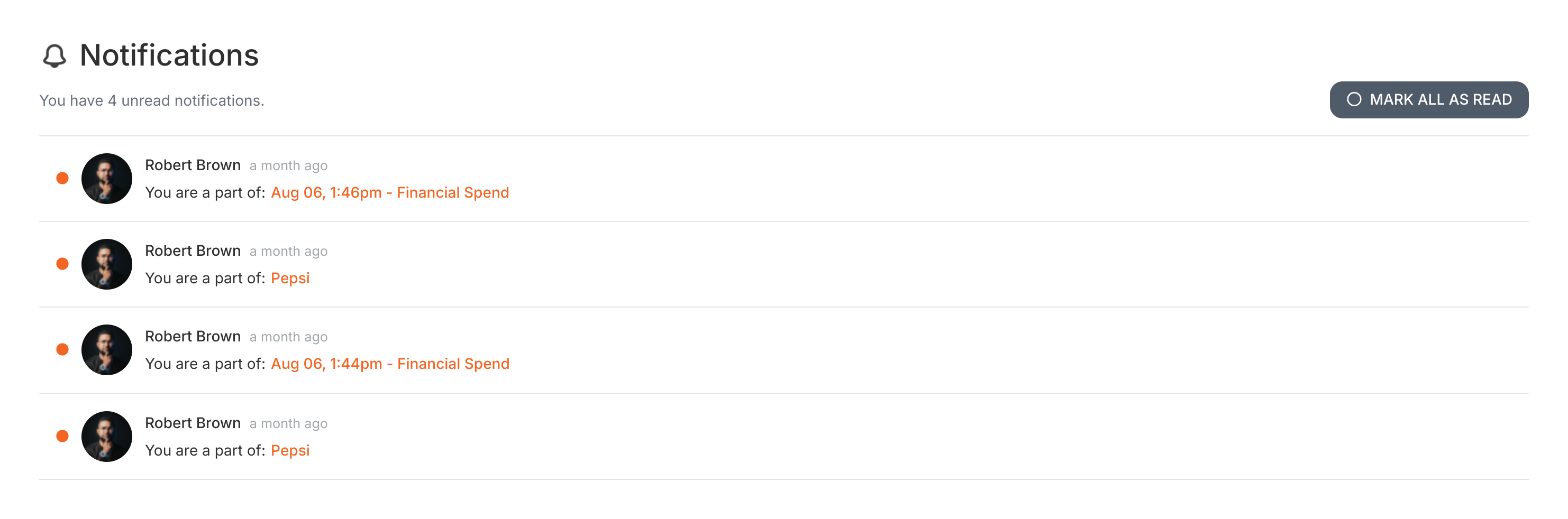
Notification center displaying all messages

Miscellaneous > See product updates

Tallyfy lets you check the latest product updates either by clicking your name in the top-right corner and selecting “Latest Updates” or by visiting the changelog page at tallyfy.com/changelog for detailed release notes and feature announcements.

How To > Ensure task completion

Tallyfy ensures tasks and approvals get done on time through automated reminders and escalation paths while also helping teams reduce overload by bundling related work and setting clear deadlines with built-in commenting and @mentions for direct follow-up.

Tracker View > Check process activity

View the activity log for any running Tallyfy process to see task completions, deadline changes, comments, and other events - with the most recent at the top.

Tracking And Tasks > Tasks view

The Tasks view in Tallyfy is your master to-do list - showing all tasks from every running process plus standalone one-off tasks, with filters for assignee, status, tags, and more.