Skip to content

Track running processes

Track running processes

Open the Tracker from the left sidebar to get a high-level view of all running processes across your Tallyfy workspace.
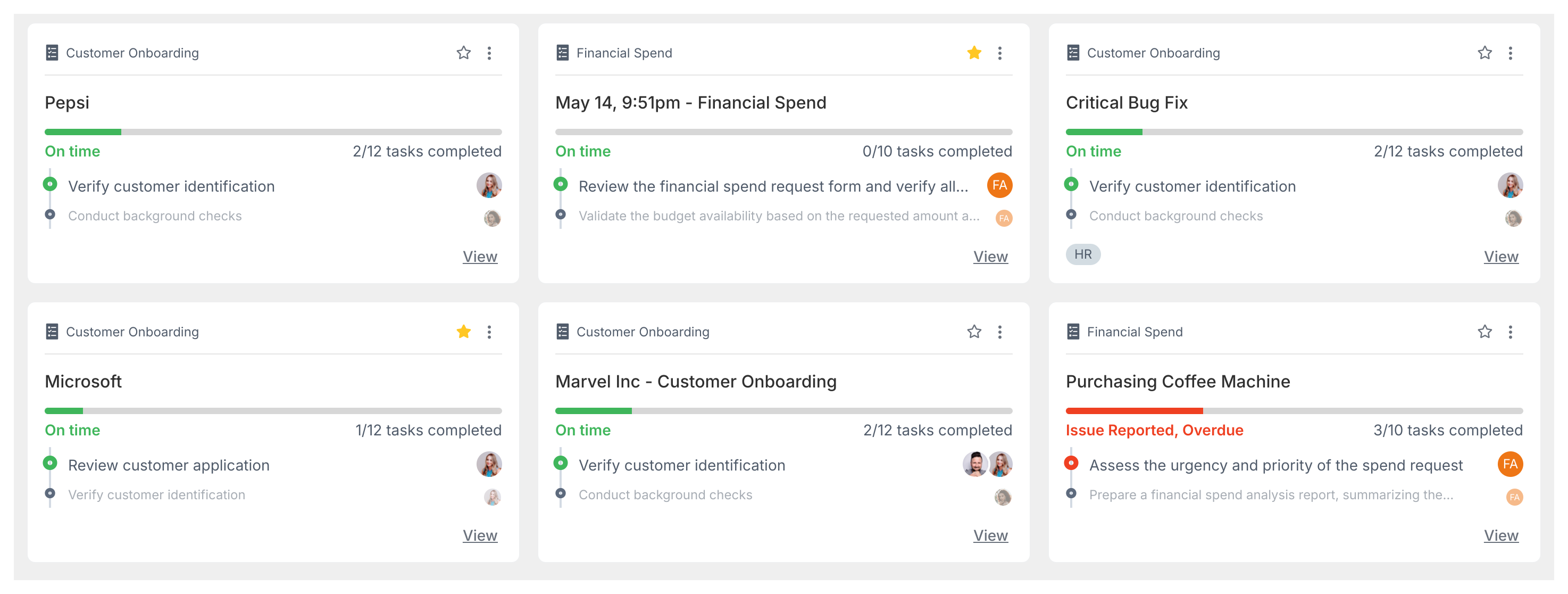
What does the Tracker view show?

Tallyfy process tracker tab view view view

Each running process appears as a card showing the process name, source template, current status (On-time, Due soon, or Overdue), tasks completed, next due date, and who’s assigned the next task.

How can I sort and filter processes?

  • Sorting - Use the sort dropdown to order processes by Newest/Oldest, Most Delayed, or alphabetically (A-Z or Z-A). Process list with sorting dropdown highlighted
  • Filtering - Click Add Filter to show only processes matching specific criteria - like assigned person, tags, template, status, type, or folder. See Customize the Tracker view.

What do the status colors mean?

  • On-time - Running normally, no deadlines missed.
  • Due soon - One or more tasks are due within 24 hours.
  • Overdue - A task deadline hasn’t been met.
  • Problem - Someone’s reported a blocker on a task.

Pro > Tracking

Tallyfy has two tracking views in the sidebar. Tracker View monitors entire workflows across…