Tallyfy Snippets let you create personalized welcome messages and instructional content for new team members. You’ll configure them in Settings > Organization > Personalization under two options:
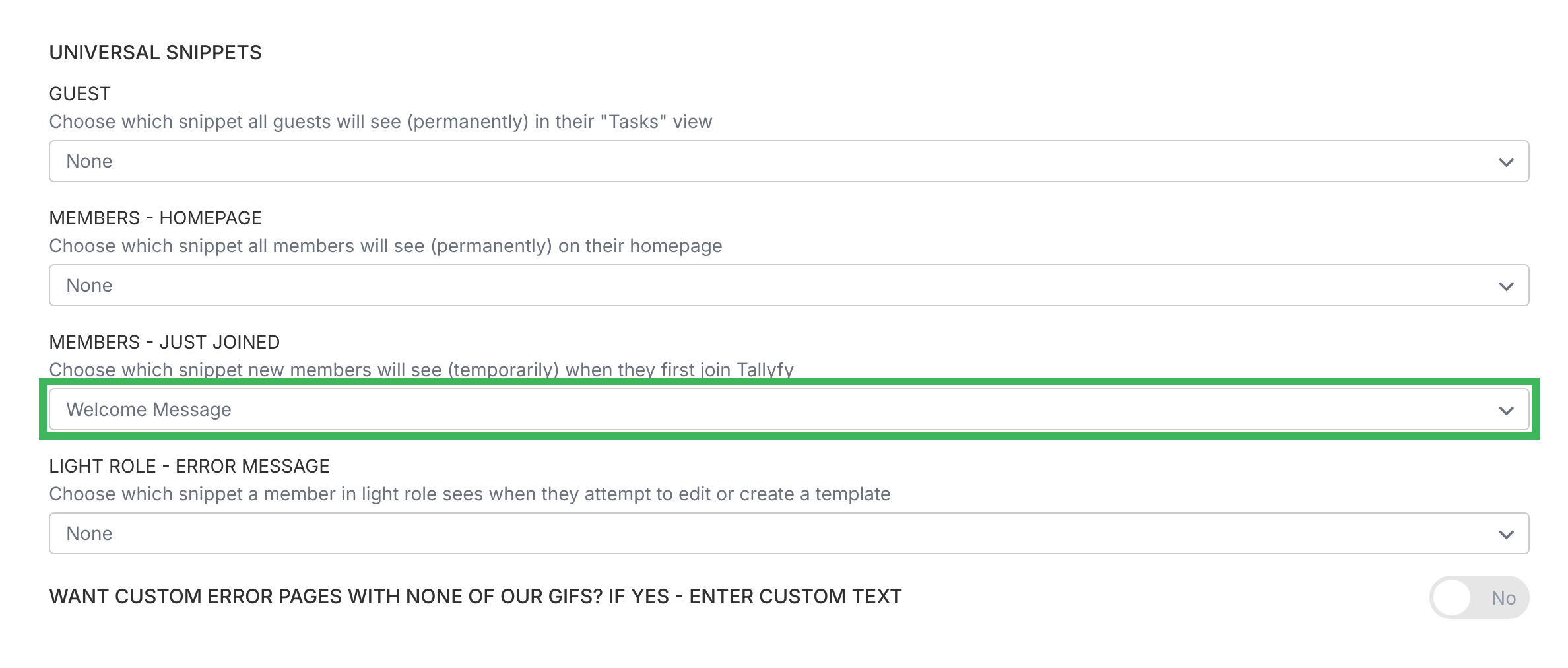
MEMBERS - JUST JOINED: This snippet appears only the first time a new member logs in after accepting their invite. It’s ideal for one-time welcome messages, links to training videos, or key onboarding documents.
MEMBERS - HOMEPAGE: This snippet always shows on the Tallyfy homepage for all members in your organization. Use it for ongoing announcements, links to company resources, or support information.
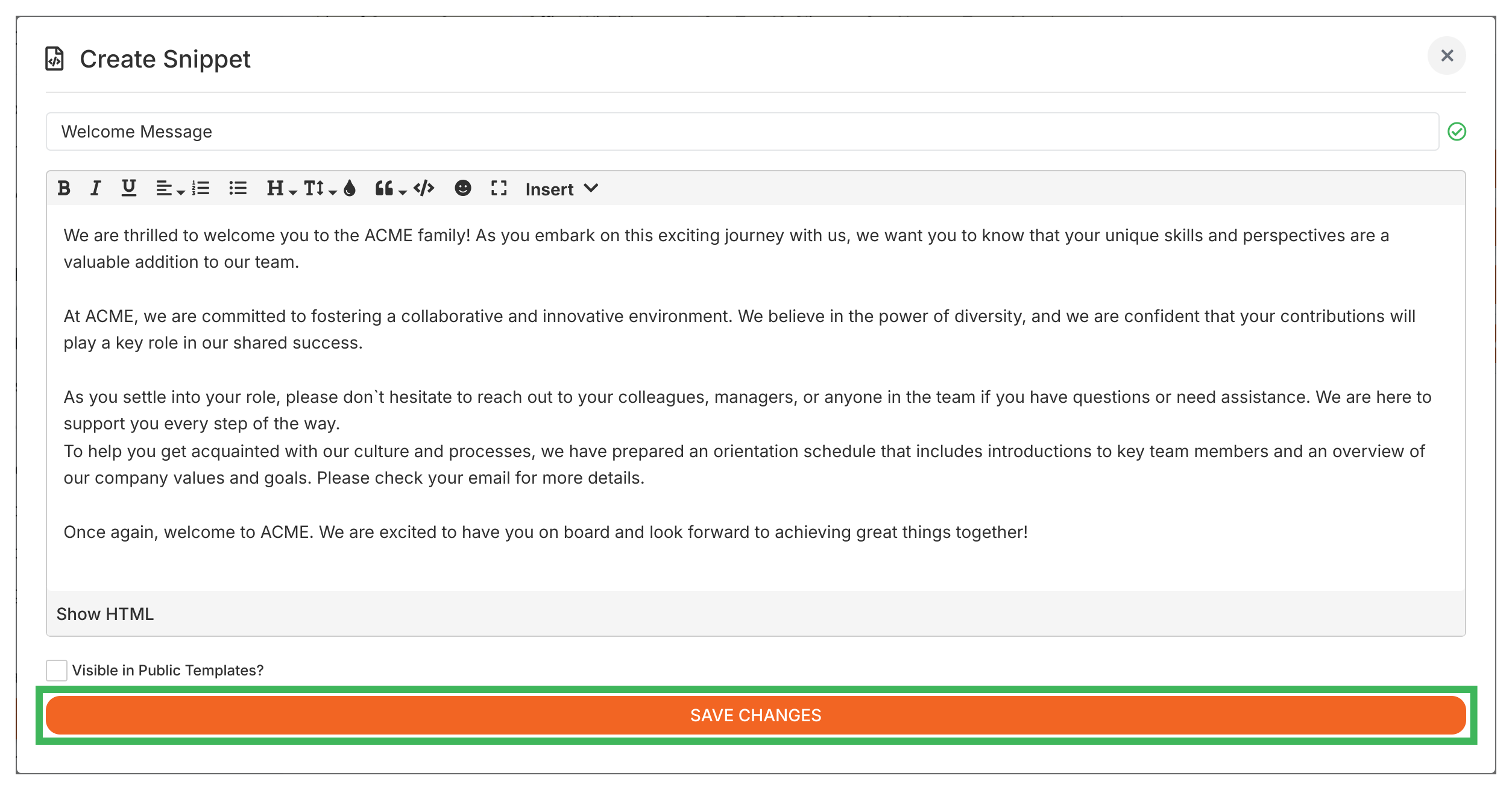
First, create the content as a Snippet: Go to Settings > Organization > Snippets. Click Create Snippet. Enter a title (e.g., “New Hire Welcome Message”) and add your desired text, images, or videos. Click Save.
Then, assign the Snippet: Go to Settings > Organization > Personalization.
Locate the setting for either MEMBERS - JUST JOINED (for the one-time message) or MEMBERS - HOMEPAGE (for the permanent message).
From the dropdown menu, select the Snippet you created in Step 1.
Save your changes.
That’s it. Your chosen snippet will now appear in the right spot for your members.