Tallyfy’s advanced task options in template steps control behaviors like auto-launching linked…
Edit steps
Editing steps in templates
Section titled “Editing steps in templates”In a Tallyfy template, you can add steps and change any step’s description, assignees, type, form fields, deadline and advanced settings.
Adding new steps
Section titled “Adding new steps”Open your template in Edit mode, scroll to the bottom, click Add Step, type a name, and press Enter.
Modifying existing steps
Section titled “Modifying existing steps”To modify a step:
- Go to the Templates library
- Find your template and click the Edit icon (pencil symbol)
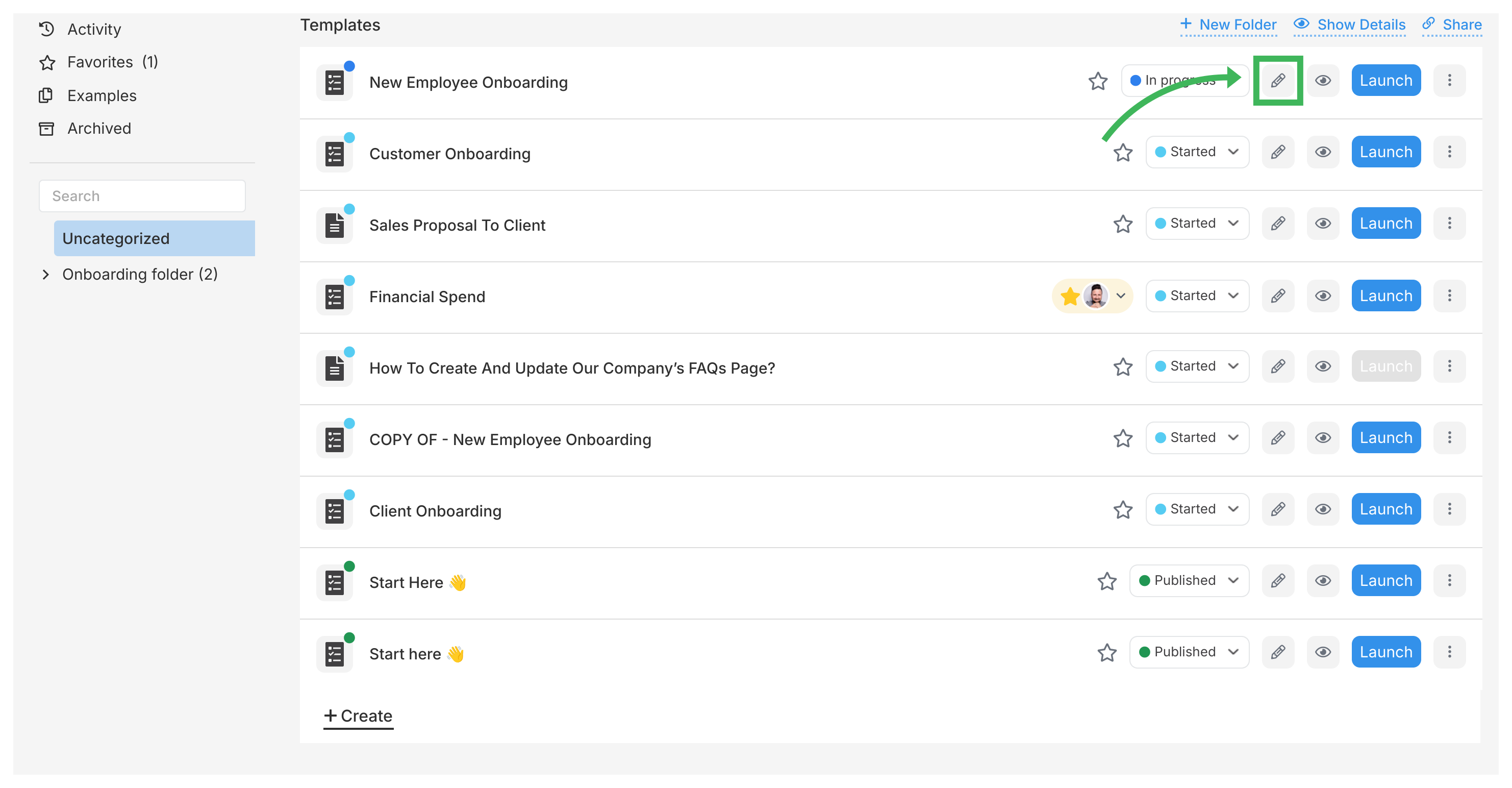
In edit mode, click any step to open its details panel on the right. Here’s what you can change:
Step description
Section titled “Step description”Write instructions for the task. You can add text, formatting, images, files, links, tables, videos, variables, and snippets.
- Click the step you want to edit.
- Click the Description area in the details panel.

- Use the toolbar to format text, add links, images, etc. See Insert Media for details.
- Tallyfy saves changes automatically.
Assignment
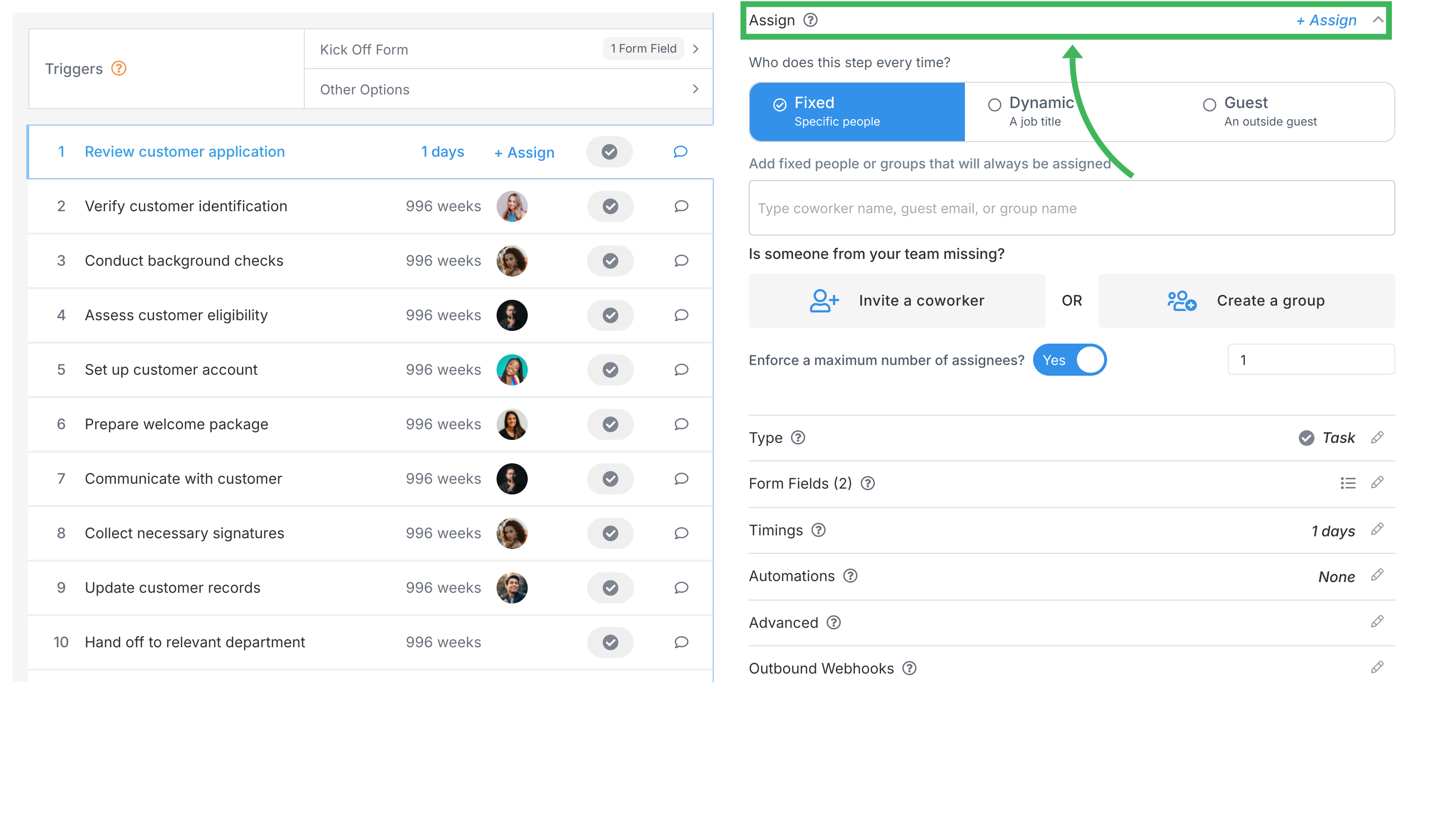
Section titled “Assignment”- Click the step you want to assign.
- Go to the Assign tab in the details panel.
- Pick an assignment method:
- “Nobody right now”: What happens at runtime depends on the Assign launcher automatically setting (in the Advanced tab). It’s ON by default - the person starting the process gets assigned. If OFF, the task stays unassigned.
- Assigning Groups: Create the group first in Tallyfy before assigning a task to it.
Step type
Section titled “Step type”The type sets the buttons on the task. A Task step shows COMPLETE, an Approve/Reject step shows APPROVE and REJECT, and an Expiring step shows ACKNOWLEDGE. The two email types send an email. See Step Types Explained for details.
- Click the step you want to change.
- Click the Type dropdown in the details panel and pick the new type.
Form fields
Section titled “Form fields”- Click the step.
- Go to the Form fields tab in the details panel.
- Click Add field to create a new one, or click an existing field to edit it.
See Types of Form Fields for details.
Deadlines and timings
Section titled “Deadlines and timings”-
Click the step.
-
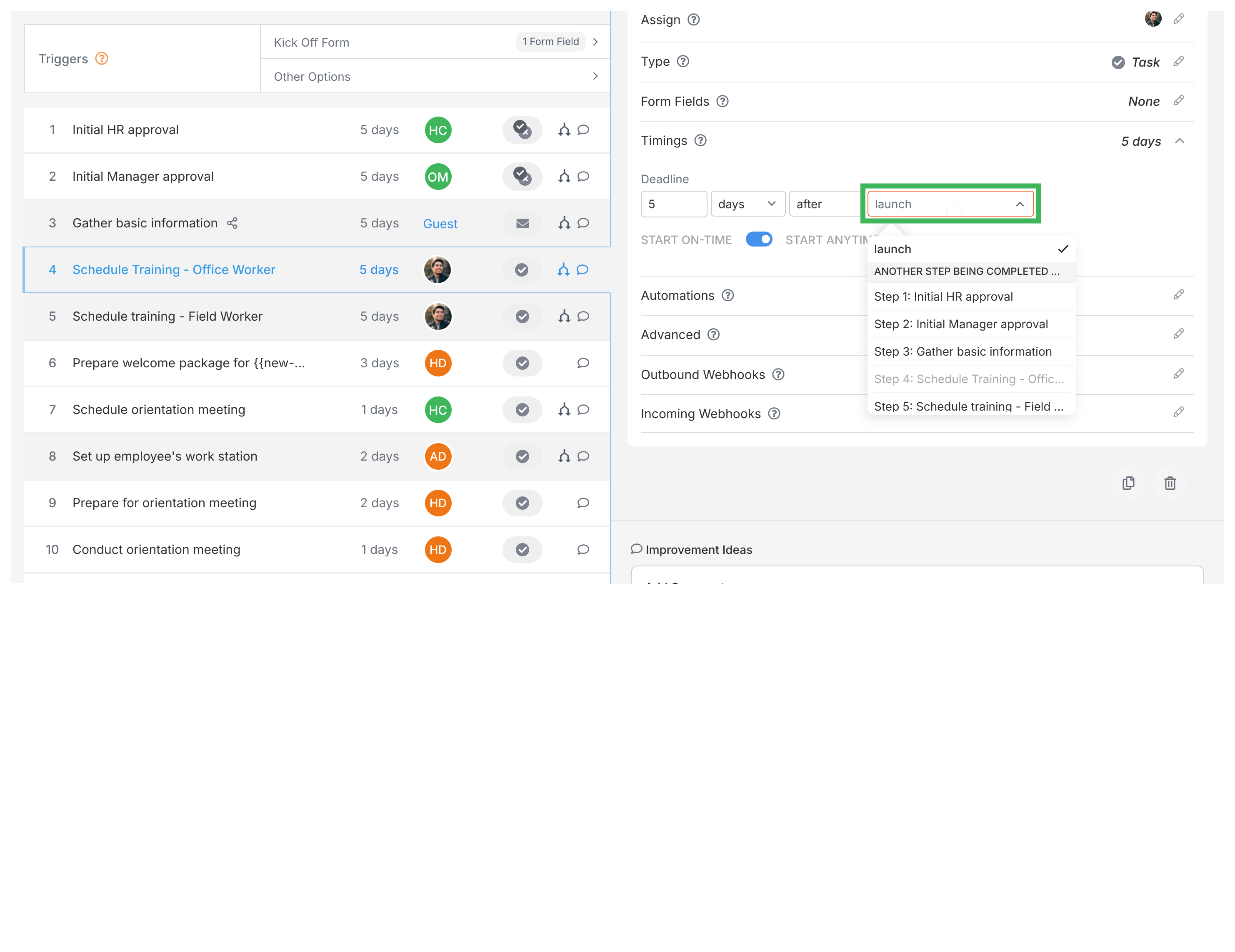
On the Basics tab, click the Timings row to expand it.
-
Set the deadline (when work should be complete) relative to:
- Process Launch: Due X time after the process starts (default).
- Another Step: Due X time after another specific step. That counts from the other step’s due date while it’s still open, then from its actual completion time once it’s done.
- Future Step Completion: Due X time before a later step’s due date. Useful for working backward from a final deadline (e.g., “Draft due 3 weeks before Publish Date”).
The gap has to be at least 1, and it can’t reach further than 1000 weeks. Full detail on how a deadline is worked out, including where your work week applies, is in how a step deadline is worked out.

-
Choose Start On-Time or Start Anytime:
- Start On-Time: Suggests when work should begin. Guidance only - not enforced.
- Start Anytime: No suggested start time (default).
Advanced settings
Section titled “Advanced settings”- Launch another process when complete: “Yes” auto-starts another process (from a different template) when this task finishes. You can inject tasks into the current process or start a separate one. See Launch another process guide.
- All assignees must complete this task: “Yes” means the task isn’t done until every assignee marks it complete. An Administrator who isn’t assigned can still click Complete, but each click completes it on behalf of one assignee who hasn’t finished, so the task stays open until everyone’s part is done.
- Assign launcher automatically: ON by default. If a step has no assignees, the person who launches the process gets assigned. Turn OFF to leave it unassigned.
- Task is mandatory and cannot be removed at launch: “Yes” means this step can’t be removed when someone launches the process.
- Only assigned members can complete or edit: “Yes” restricts the task to assigned people only (Administrators always have access).
- Emit a webhook when this task is completed?: “Yes” sends the whole process as JSON to the URL you enter, via a webhook, when this task is completed.
- Prevent guests from making or seeing comments: “Yes” hides comments from any guests assigned to this task.
- Unique Step Alias: An internal ID for this step, used for webhook and API integrations.
- Tags: Add tags to this step for filtering and organization.
Related articles
Section titled “Related articles”Edit Templates > Assign steps in the Tallyfy template builder
Tallyfy lets you assign template steps to specific members, groups, job titles, or guests…
Edit Task > Assign members or guests after launching
Tallyfy lets you assign people to tasks at three stages: inside a template as defaults, during…
Tallyfy’s Template Tools let you bulk-create steps by pasting a list and bulk-assign people or…
About Tallyfy