Skip to content

Launch via a kick-off form

Full-seat members

Kick-off forms sit at the beginning of a Tallyfy template and collect information before the main workflow starts. They work for both internal team members and external people - customers, partners, or vendors can submit a public kick-off form to launch a process automatically.

Unlike standalone forms, kick-off form data flows directly into the process steps that follow.

A kick-off form only asks for information once. After that, the same answers show up everywhere the process needs them.

One form fills fields that many tasks reuseKick-off formCollected onceStep 1Step 2Step 3Info tab Submitted oncePre-fillsPre-fillsPre-fillsStays visible

Diagram description: The kick-off form is submitted once and stored with the process. Every step that follows can read the same stored answers, and the Info tab on any task shows them too. Nobody re-enters the same field twice.

What to notice:

  • The form is filled in once, at launch. You can re-open it later to correct an answer.
  • The same stored answers pre-fill every step that needs them, from the first to the last.
  • Anyone on the process can see the original answers from the Info tab on any task, without going back to the form.
  1. Go to the Templates library.
  2. Open a template in Edit mode.
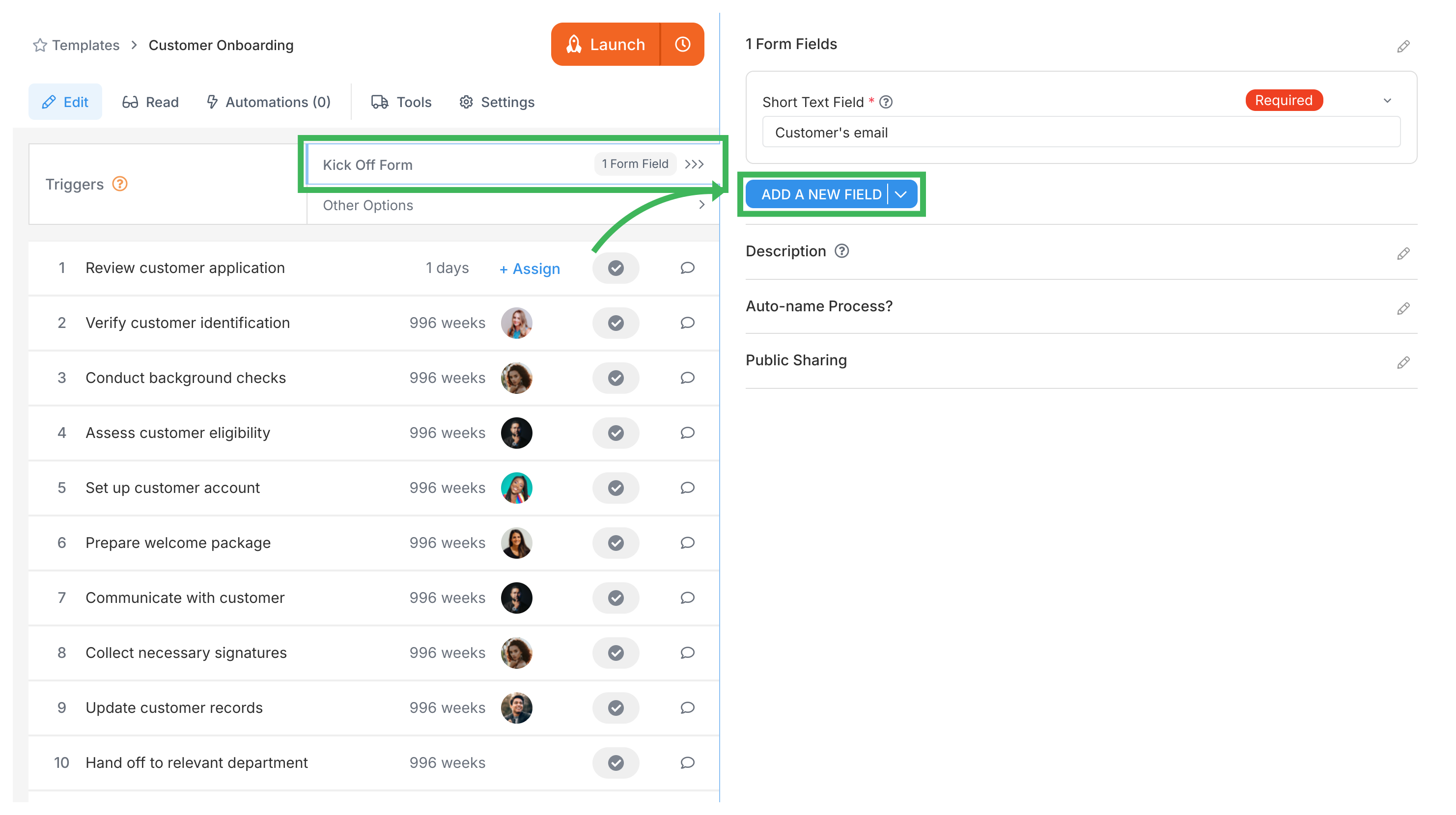
  3. In the left sidebar, click Triggers.
  4. Select Kick-off Form.
  5. Click + Add Field to add questions (form fields).
  6. Configure each field - name, type, required toggle, help text, options, and default content if needed.
  7. Save your template.
Add kickoff forms to template view view view
Field typeUse for
Short TextNames, IDs, brief responses
Long TextDescriptions, detailed explanations
DropdownPick one from a predefined list
Multi-selectPick multiple from a list
Radio ButtonsPick exactly one option
DateScheduling, deadlines
EmailEmail addresses
File UploadDocuments, images, attachments
TableStructured tabular data
Assignee selectorPick people to assign within the process

Mark fields as Required only if the process can’t start without that data. Required fields prevent automatic launching via email triggers or some API calls that don’t supply the field values.

  1. Click Launch Process on the template.
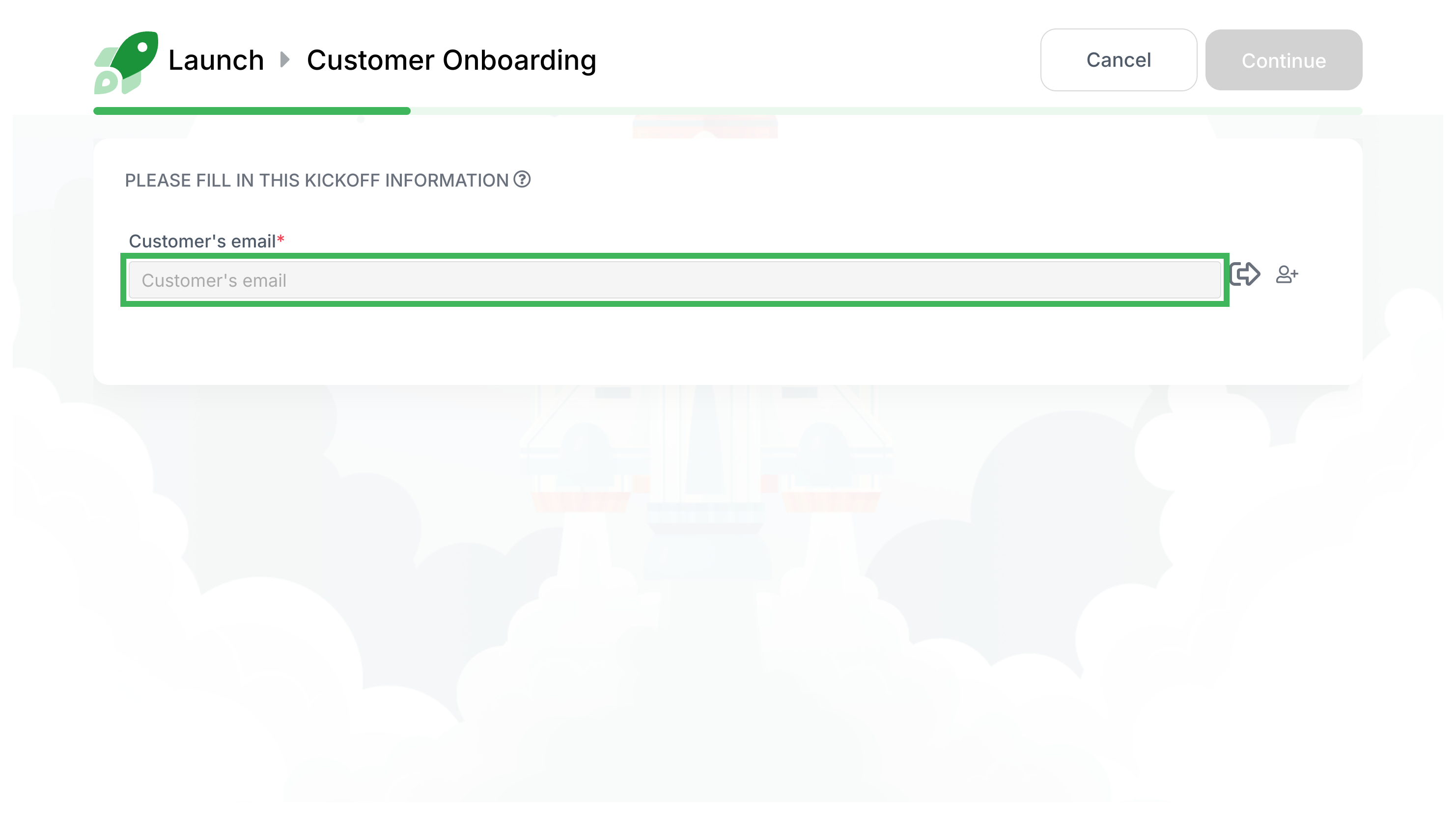
  2. The kick-off form appears.
  3. Fill out the fields (required fields show a *).
  4. Click Submit.
  5. The process starts with the submitted data.
Customer Onboarding kickoff form with email input field (55 chars)

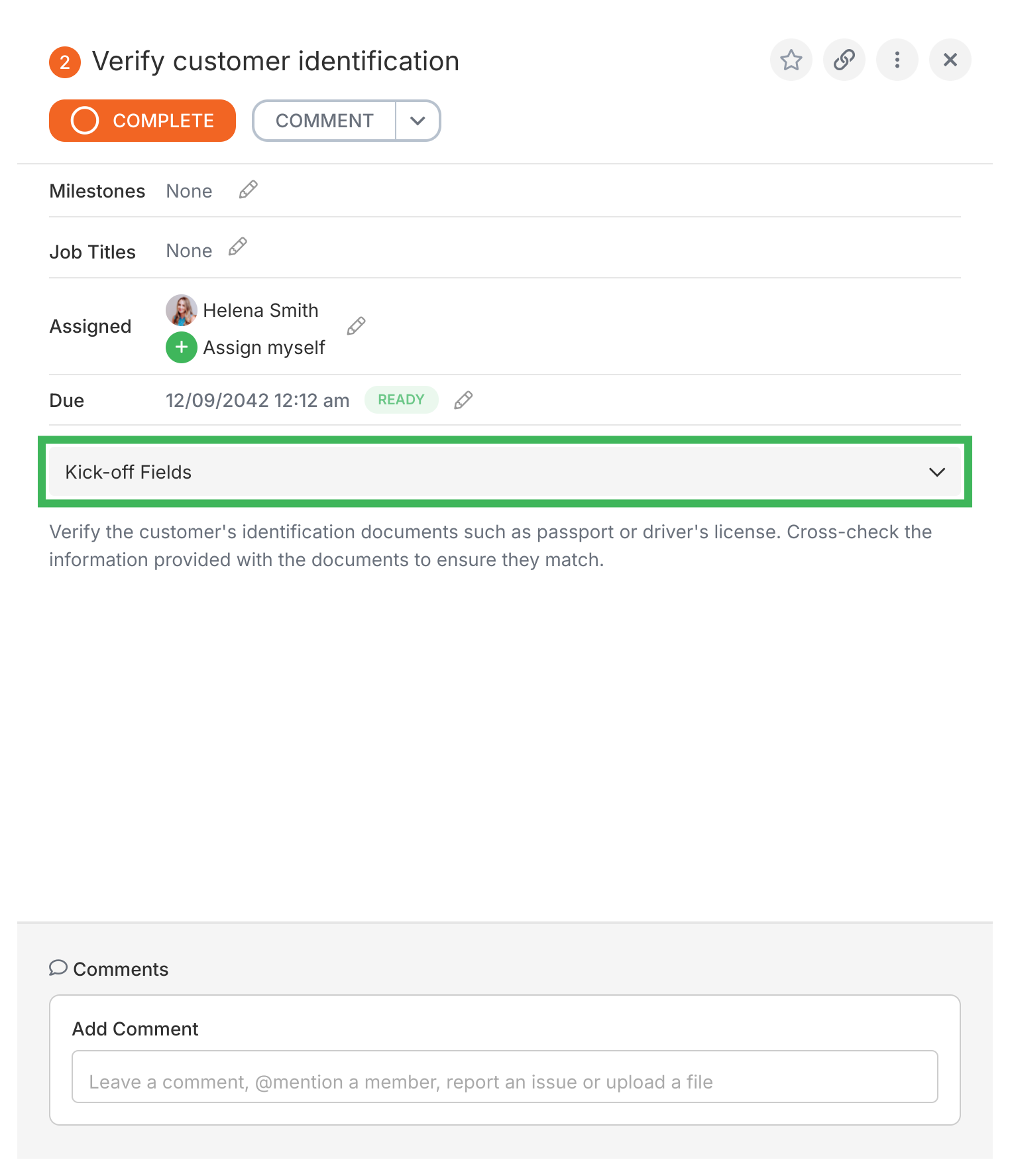
Anyone on the process can see submitted kick-off data:

  1. Open any task in the running process.
  2. Click the Info tab.
  3. Expand the Kick-off Fields section.
Kick-off form information displayed on task

You can fix a kick-off answer on a running process. Re-open the form, change the answer, then complete it again.

  1. Open the running process.
  2. Click the kick-off form at the top of the task list.
  3. Click Re-open. The fields become editable.
  4. Change the answers you need. Each one saves as you go.
  5. Click Complete.

Re-opening the form on a completed process makes that process active again.

Tasks that show a kick-off answer in their title or description pick up the new value right away.

Automations don’t. An automation that already ran when the process launched won’t run again after you change an answer:

  • Steps an automation hid stay hidden, even if the new answer shouldn’t hide them.
  • A deadline an automation set from a kick-off date doesn’t move when you change that date.
  • Completing the form again only runs automations that didn’t run the first time.

To show a hidden step by hand, click More on the process and pick Show Hidden Tasks. Then open the step’s menu and choose Show This Task. To fix a deadline, change it on the task itself.

Guests can’t change kick-off answers, and nobody can change them on an archived process.

Share a kick-off form publicly so anyone - even without a Tallyfy account - can submit it to start a process.

Why use public forms:

  • Instant workflow launch - no delay between submission and process start
  • Submitter tracking - the person who submits gets a unique link to track progress (after email verification)
  • Spam prevention - email verification filters out fake submissions
  • Branding - public forms display your organization’s logo
  • Self-service assignment - mark an Assignee Picker field as “Default to guest” and the submitter is auto-assigned, no manual hand-off needed

Tallyfy uses the kickoff_sharing_user_id to authenticate public form submissions. When that member gets deactivated, Tallyfy automatically reassigns the public form to the template owner. If the template owner is also inactive, the public link won’t work. Check public form assignments before deactivating members. (See Removing Members.)
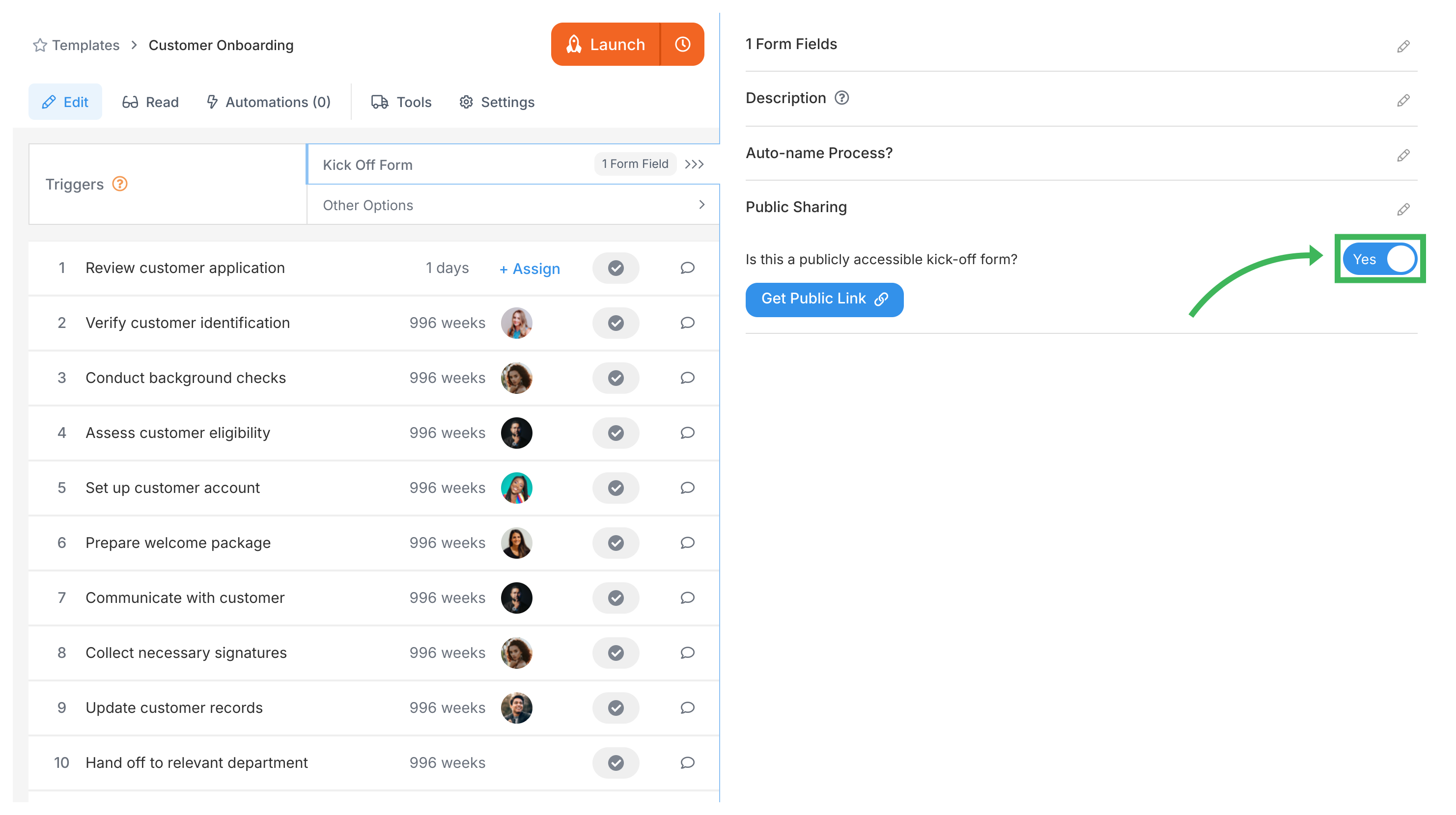
  1. Open the template in Edit mode.
  2. Go to Triggers > Kick-off Form.
  3. Find Public Sharing on the right panel and switch it ON. Template settings enabling public kick-off form
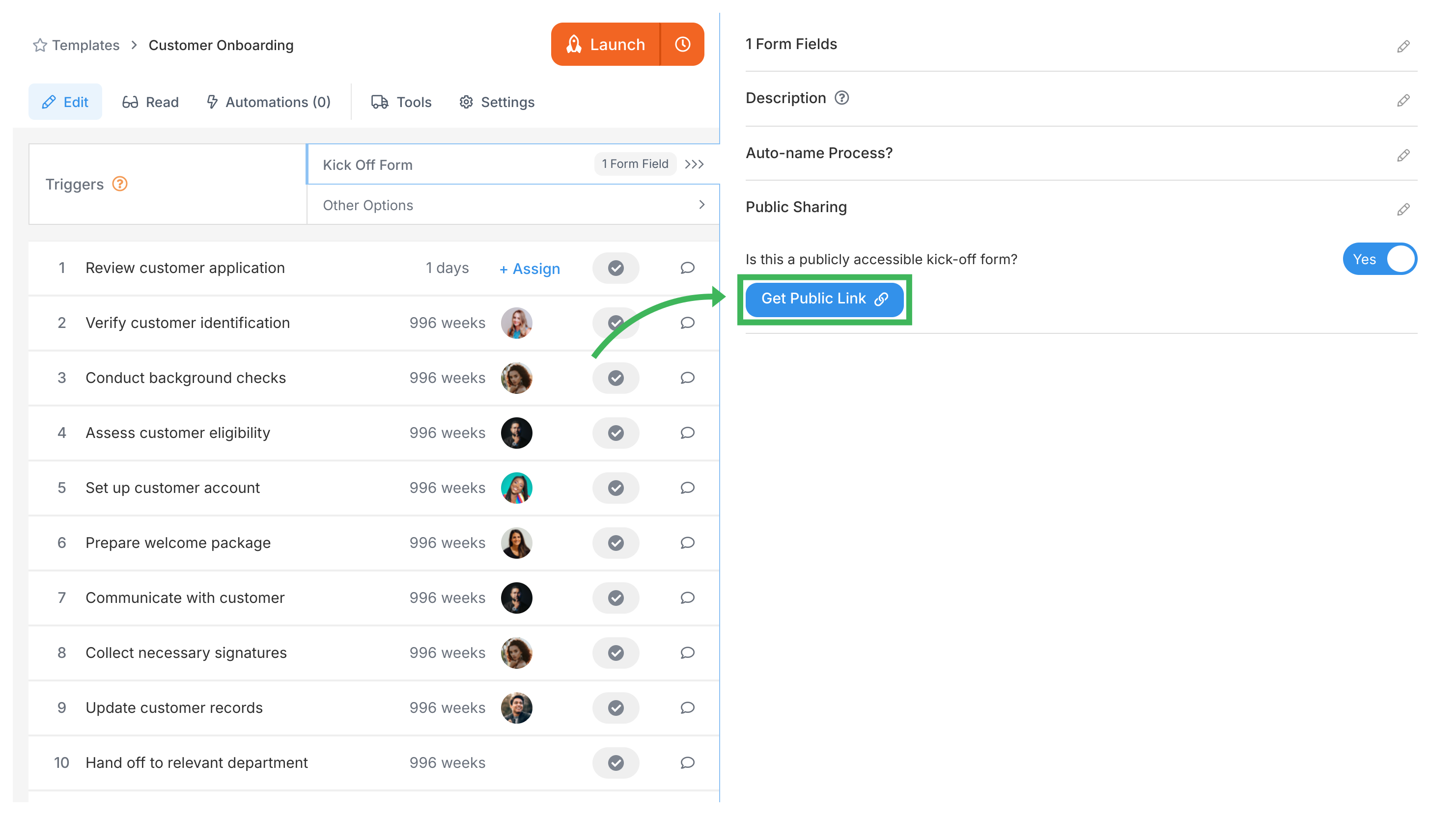
  4. Click Get Public Link. Get Public Link button highlighted in kick-off form settings (60 chars)
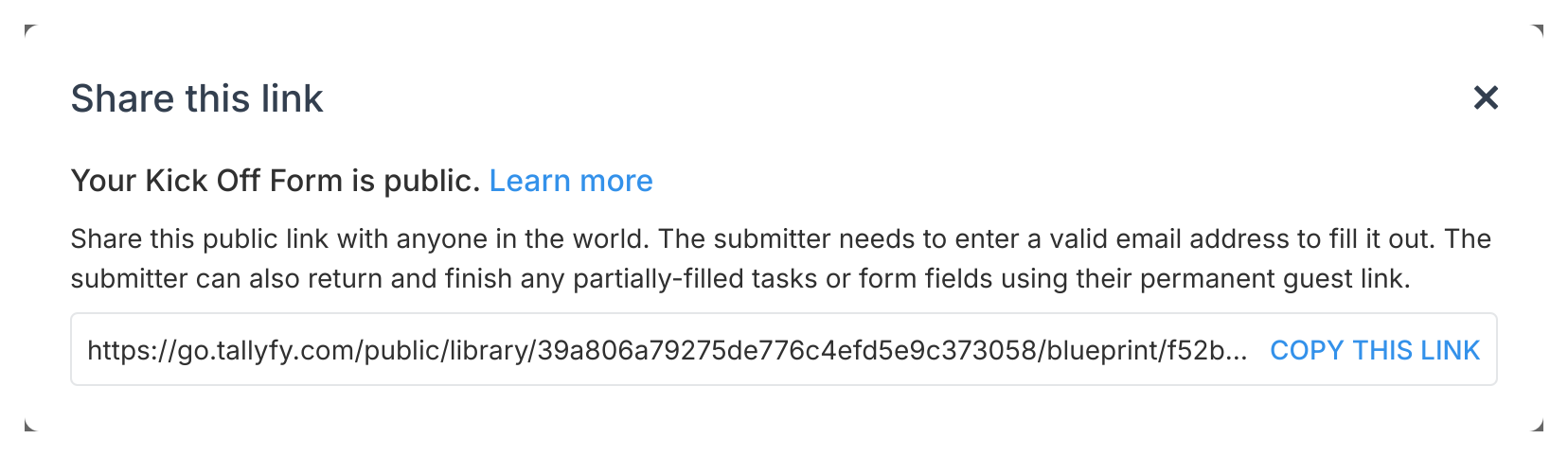
  5. Copy the shareable link from the dialog. Modal displaying shareable public kick-off form link
  6. Share this link with people outside your organization.
  1. The visitor enters their email address.
  2. Tallyfy sends them a private access link via email.
  3. They click the link to open the form.
  4. They fill out and submit.
  5. The process launches inside Tallyfy.
  6. They can reuse their private link to check process status later.
Public kick-off formsInternal process steps
AudienceExternal users without Tallyfy accountsTeam members and assigned guests
PurposeCollect initial data to start a workflowExecute tasks after the process starts
AccessPublic link via email, website, etc.Tallyfy dashboard with login
ExperienceSimple form with your brandingFull task management with comments, attachments, tracking
VisibilitySubmitters track overall progress onlyFull internal task details
  • Ask for data the launcher definitely has right now
  • Save detailed branching questions for later workflow steps
  • Keep the form short. Don’t front-load complexity.
  • Use clear field names - skip jargon
  • Arrange fields in logical order
  • Mark fields required only when truly necessary
  • Add help text for anything that needs explanation
  • Test the form before sharing it widely
  • Front-loading questionnaires - asking for info that isn’t available yet
  • Branching in kick-off forms - conditional logic belongs in workflow steps, not the initial form
  • Over-requiring fields - making fields mandatory when launchers might not have that data
  • Ignoring user context - different users have different information at launch time

Launching > Triggers

Tallyfy offers seven ways to start a process, from manual clicks and form submissions to API…