
Pre-defined groups that everyone belongs to
Why Tallyfy designed workflow assignment around predefined groups instead of individuals. Making all users belong to all groups by default forces role-based thinking and eliminates template updates when employees change roles.
Group-based assignment is fundamental to scalable workflow management. Here’s how we approach it.
Workflow Made Easy
Summary
- Predefined workflow groups - this is our personal, candid experience designing them at Tallyfy. Not theory. The philosophy of “groups over individuals”, the inverted permission model, and why default groups solve the cold-start problem
- Everyone belongs to all groups until removed - this counterintuitive default forces teams to think about roles and responsibilities rather than specific people. The act of removal is intentional
- Search order matters - when assigning work, we search groups first, then members, then guests. This nudges users toward role-based thinking
- The “split” functionality - you assign a group to a task, then decide whether everyone in that group is assigned or just specific individuals. That is an allocation decision
This reflects our experience at a specific point in time. Some details may have evolved since, and we have omitted certain private aspects that made the story equally interesting.
Back in December 2017, I posted a note to our product design team about some patterns I had been thinking through. The discussion that followed shaped how we handle assignment in Tallyfy.
The “groups first” philosophy
I wrote this in our internal design discussion:
“On assigning an owner to a step, some pre-set groups already exist e.g. HR, Sales, etc. and it turns out that all users belong to all groups (until you remove them). This helps make the concept of how assignment should work clear from the outset - you should use groups, not individuals.”
This design decision encodes a philosophy: you should use groups, not individuals.
I learned this the hard way at Tallyfy with healthcare distribution companies, we’ve seen member onboarding processes that touch 28 steps across sales, operations, compliance, and finance. When one implementation used individual assignment, a single employee departure required updates to 12 different process templates. After switching to group-based assignment, the same organizational change required zero template modifications.

Early UI sketch showing the groups list with member counts and delete options - note the mix of functional groups (HR Managers, Interns) and informal groups (Cardinals Fans)
We built Tallyfy because we kept seeing the same failure mode across every team we talked to. Most workflow tools default to individual assignment. You pick a person. That person does the task. Simple.
But what happens when that person leaves? Goes on vacation? Gets promoted? Your carefully designed process breaks.
From our internal design discussions:
“When building templates, users typically know the ‘team’ or ‘role’ that should perform a step rather than specific individuals.”
The inverted permission model
The counterintuitive part is making everyone a member of every group by default. Honestly, this seems wrong at first - why would an engineer be in the Sales group?
The answer lies in how it changes behavior during process design.
When you create a new process and need to assign a step, you see groups like HR, Sales, Marketing already populated with people. Your natural instinct becomes: “Which department should own this?” rather than “Which specific person should do this?”
Only after you’ve thought through departmental ownership do you refine. You remove people from groups they shouldn’t be in. The act of removal is intentional. The default of inclusion forces the right conversation.
This solves what we called the “cold-start problem” - new organizations don’t have to set up elaborate group structures before they can start building processes. The defaults get them moving.
Feedback we’ve received from consulting firms implementing Tallyfy suggests that the first 48 hours of a trial are critical. That number hit us hard. Teams that spend those hours configuring user permissions rarely complete their first process template. Teams that start with pre-populated groups are building workflows within the first hour.
Search order encodes priority
One detail from our design discussions on the unified assignment component combining guests, members, groups, and job titles that seems small but matters:
“If they start entering something, by default we search groups first (if none) > then members (if none) > then guests.”
This search priority nudges behavior. When you start typing “Sa…” you see “Sales” the group before you see “Sarah” the individual. The interface itself encourages role-based thinking.
The same issue noted:
“To a user - the difference between guests and members is just academic, and they should not need to choose/care about this.”
We wanted to hide the complexity of user types behind a simple assignment interface. Groups abstract all of that away. Is this perfect? No. But it works.
Process owners and deadlines
Our design work explored what happens after you assign groups - how do you track who needs to do what by when?
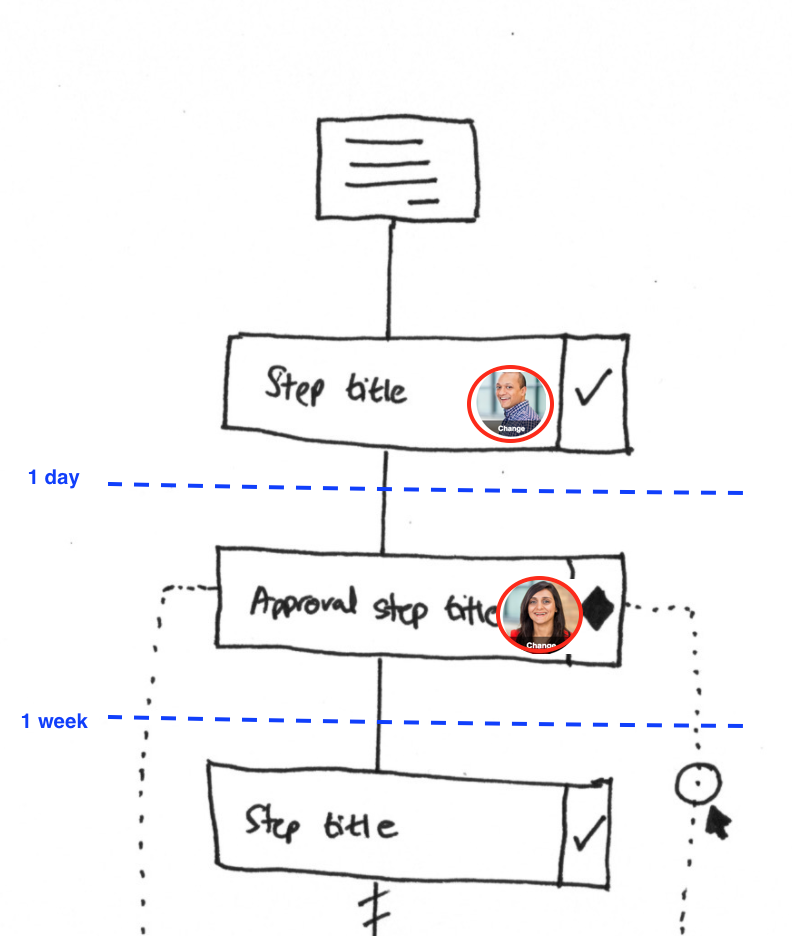
Process view sketch showing owner assignment per step with “Change” buttons and deadline indicators (1 day, 1 week) between steps
Pravina captured the pattern clearly in our discussions:
“Step #, Step title - Who can do step? an example assignee - Deadline? 1 day from start run.”
That format - step, title, assignee, deadline - became the core of our step configuration. Simple enough that anyone can understand it at a glance.
The process manager concept
The same research surfaced another useful pattern:
“The concept of a process manager is interesting - instead of specifically assigning one user at a time for each step, it is a bulk-assignment of people that enables those people to have all permissions over any step in that process.”
This solves a real problem. In complex processes with 20 or 30 steps, assigning owners step-by-step is tedious and painful. A process manager role says: “This person (or group) oversees everything in this process.”
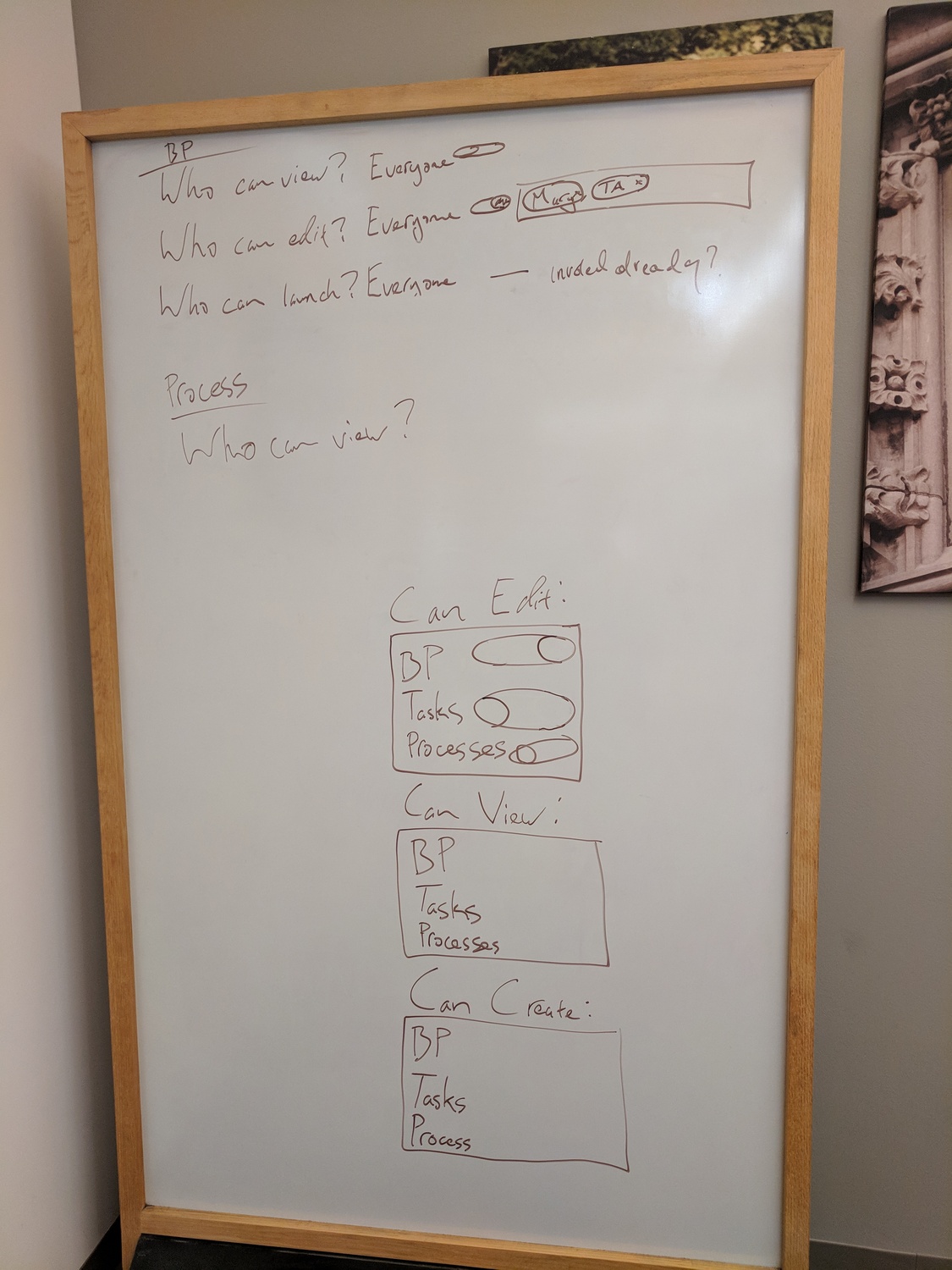
Early whiteboard session exploring permission levels: Who can view? Who can edit? Who can launch? The question “Everyone - invited already?” captures the default inclusion debate
The whiteboard sketches from our design sessions show us wrestling with this. “Who can view? Everyone. Who can edit? Everyone. Who can launch? Everyone - invited already?”
That last question - “invited already?” - captures the tension. Do you restrict by default and require explicit invitation? Or include by default and require explicit removal?
The tracker view

Tracker view sketch with status color annotations: “red, green, orange, gray (not for you)” - the gray state indicating tasks assigned to others
The tracker view sketch reveals another piece of the puzzle. I proposed:
“I propose a new state beyond green, red, orange e.g. gray to indicate the step is not yours to do.”
This matters for group-based assignment, mind you. When a group is assigned to a step, each member sees the task. But they also need to know when it’s not their responsibility - when someone else in the group has claimed or completed it.
The annotation “not for you” next to gray captures this. Red means overdue. Orange means approaching deadline. Green means complete. Gray means someone else is handling it.
The split functionality
A later design discussion on splitting group assignments into individual assignees tackled what happens when you want more granular control:
“You assign a group to a task e.g. ‘IT managers’. You then decide that instead of everyone in that group being assigned, you only want one or more assignees - which is an allocation decision.”
This “split” functionality lets you start broad and narrow down. Assign to the IT Managers group, then split to just the two people who actually need to handle this specific instance.
The allocation decision is separate from the assignment decision. Assignment says “this type of person should do this.” Allocation says “these specific people will do this instance.”
Staff view of work
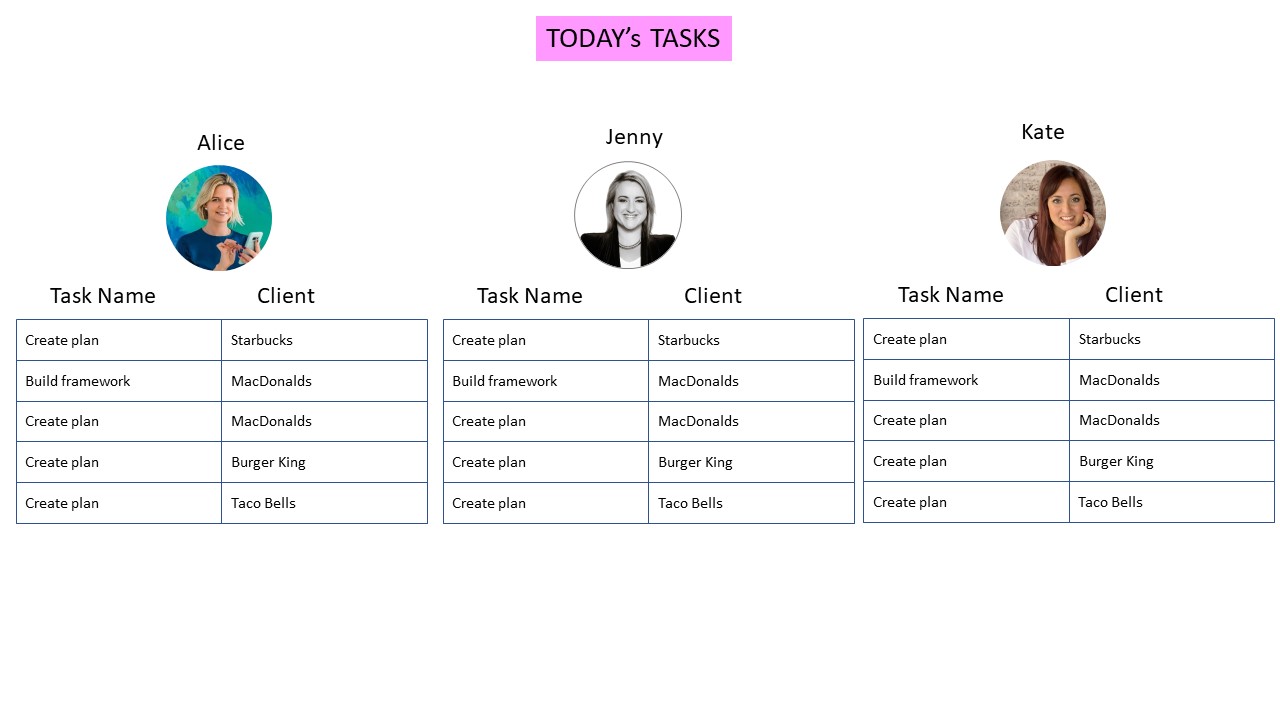
Staff view mockup showing how individual team members see their daily tasks across different clients
The staff view mockup shows the end result of all this group-based assignment. Each person sees their tasks. The task came from a process. The process assigned the step to a group. The group contained this person. Therefore, this task appears on their list.
The person doesn’t need to understand any of that chain. They just see: “Create plan for Starbucks” and get to work.
The member permissions matrix
As we dug deeper into implementation, the discussions got more nuanced.
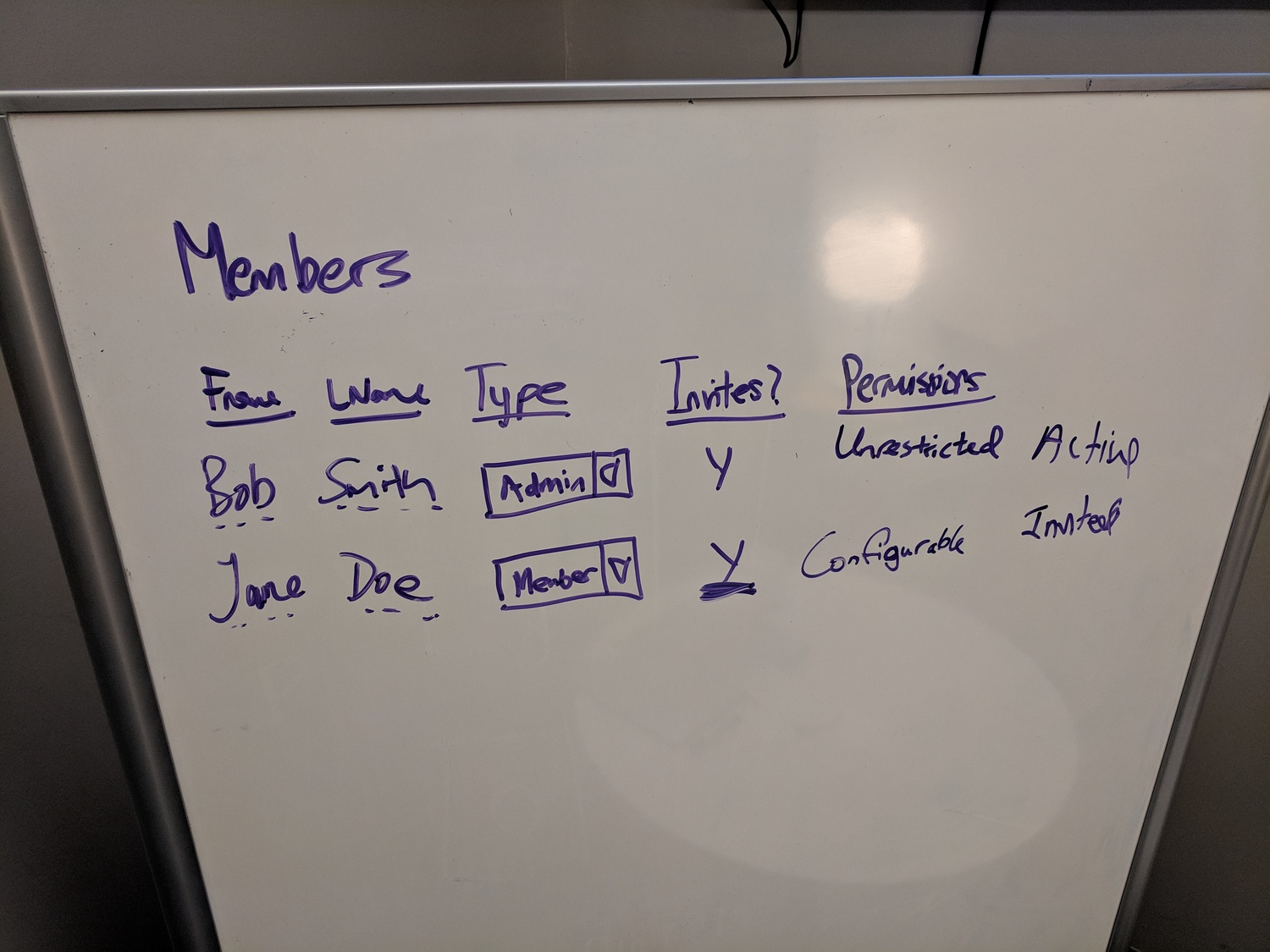
Whiteboard mapping member types: Admins get unrestricted permissions and are “Active,” while Members have configurable permissions and are “Invited”
The sketch shows two member types: Admin (unrestricted permissions, active) and Member (configurable permissions, invited). This maps to real organizational reality - some people need to see and do everything, others need constrained access.
But notice the distinction between “Active” and “Invited.” An Admin is active by default. A Member is invited - they have to be brought in.
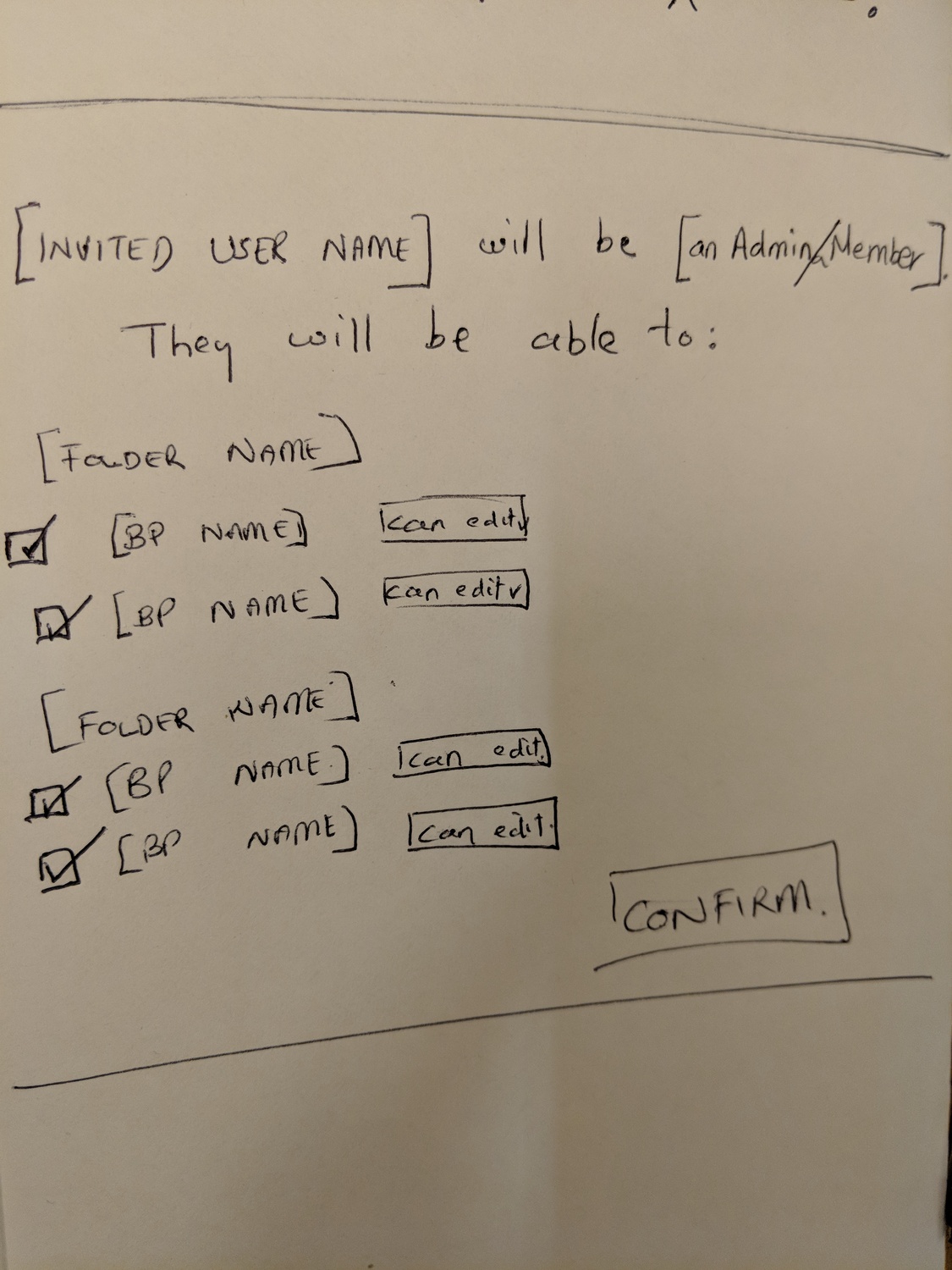
The invitation flow: “[Invited User Name] will be [an Admin/Member]. They will be able to:” followed by folder-based permission checkboxes
This sketch shows what happens when you invite someone: you define their role (Admin or Member) and then configure which folders and business processes they can edit. The checkbox pattern with “Can edit” toggles gives granular control while keeping the interface scannable.
A technical gotcha we discovered
From our work on real-time group availability and searchability in assignment fields, a bug report that revealed a gap in our implementation:
“Users must refresh the page before the newly created group can be searched and assigned.”
This seems like a small technical issue, but it mattered for the user experience. You create a group, immediately try to use it, and it doesn’t show up. That breaks the flow and undermines confidence in the system.
We fixed it, but the bug report illustrates how group-based assignment touches many parts of the system. Creating a group isn’t just adding a row to a database - it has to propagate to search indexes, appear in typeahead suggestions, and be available for assignment immediately.
What we left out
Not everything from these research sessions made it into the product. Some ideas were too complex. Others solved problems we didn’t actually have.
Hierarchical folder permissions: The sketches show folders containing business processes, with permissions cascading down. We simplified this - most teams don’t need three levels of permission hierarchy.
Per-process editing toggles: The ability to mark individual processes as editable or view-only within a folder. Useful in theory, but in practice people either trust someone to edit or they don’t.
The “Can edit” vs “Can view” vs “Can create” distinction: The whiteboard shows three permission levels. We collapsed these because the distinctions created confusion. If you can edit, you can view. If you can create, you can probably edit too.
Dynamic group membership: We considered groups that would automatically include people based on attributes - everyone in the New York office, everyone hired in the last 90 days. The implementation complexity was not worth the benefit for most use cases. Will we revisit it? Probably not.
Role-based automatic assignment: The idea of automatically assigning tasks based on job title or department without explicitly creating groups. This conflated organizational structure with workflow assignment in ways that caused confusion.
Cross-organization groups: For companies with multiple Tallyfy organizations, the idea of groups that span organizations. The security and permission implications were too complex.
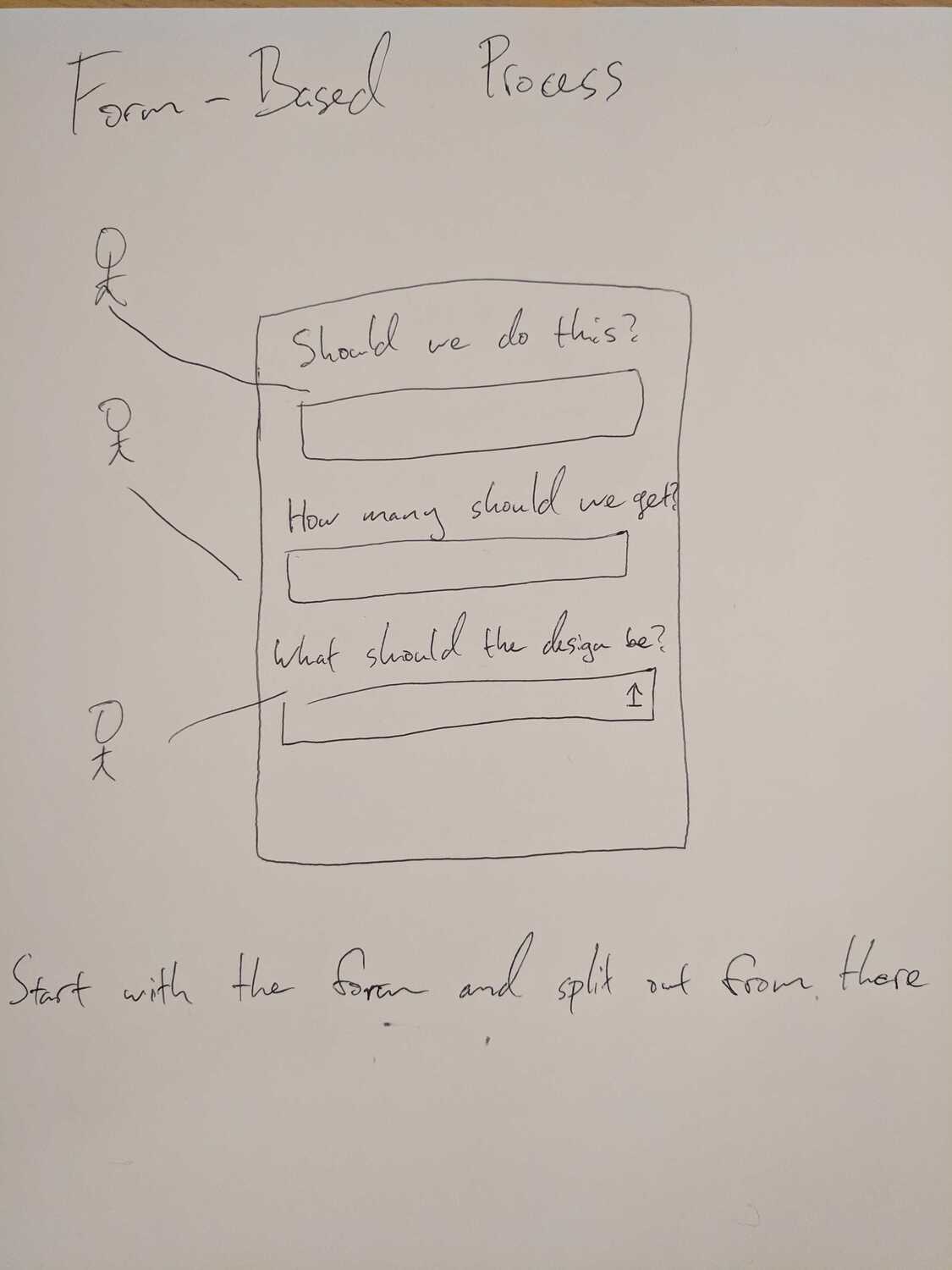
A different approach: form-based processes where different people answer different questions, then “split out from there”
The form-based process sketch shows an alternative model entirely - instead of steps with assignees, you have a form where different people answer different questions. The note at the bottom says “Start with the form and split out from there.”
We explored this but didn’t pursue it. Forms and workflows serve different purposes. Trying to merge them created conceptual confusion.
The ongoing tension
To be fair, “always use groups” is an oversimplification. Years later, we still debate the right defaults. The argument for everyone-in-all-groups: It forces role-based thinking. Processes become more resilient. New employees automatically get access to relevant work. The argument against: It creates noise. People see groups they don’t belong to. Permissions feel unclear. “Wait, am I actually in the Sales group or just by default?” We landed somewhere in the middle. Pre-defined groups exist. New users see them. But membership is explicit - you add people to groups rather than removing them.
The original insight was valuable not because we copied it exactly, but because it forced us to articulate our own philosophy: assignment should encourage thinking about roles and responsibilities, not just individuals.
When a process designer thinks “who should approve expenses?” the answer “the Finance team” is more durable than “someone in accounting.” That person might leave. The Finance team will always exist.
What this means for process managers
If you’re designing workflows, the takeaway is a no-brainer: build around roles, not people.
Create groups that match your organizational reality. “Approvers” rather than a list of three specific managers. “Customer Success” rather than the two people currently in that role.
When someone joins, add them to the appropriate groups. When someone leaves, remove them. Your processes keep working.
The person who designed those processes - the process manager - should have oversight across all steps. Not because they do every task, but because they need to see bottlenecks, reassign work, and adjust the flow when reality diverges from the plan.
That is the insight we extracted from design sessions in 2017, refined through whiteboard debates, and eventually built into how Tallyfy handles groups and task assignment. Groups first. Individuals second. Process managers with broad visibility.
The sketches on the whiteboard evolved into software. The philosophy stuck.
About the Author
Amit is the CEO of Tallyfy. He is a workflow expert and specializes in process automation and the next generation of business process management in the post-flowchart age. He has decades of consulting experience in task and workflow automation, continuous improvement (all the flavors) and AI-driven workflows for small and large companies. Amit did a Computer Science degree at the University of Bath and moved from the UK to St. Louis, MO in 2014. He loves watching American robins and their nesting behaviors!
Follow Amit on his website, LinkedIn, Facebook, Reddit, X (Twitter) or YouTube.

Automate your workflows with Tallyfy
Stop chasing status updates. Track and automate your processes in one place.