
Advanced task settings - the hidden power users discover
Most users complete tasks with a checkmark. Power users discover settings like guest assignment, skip rules, completion windows, and acknowledgement steps that transform how work gets done.
Summary
- Most workflow users never discover advanced settings - They click the checkmark, complete tasks, and move on. The real power lives in tabs labeled “Advanced” that contain settings for guest assignment, skip rules, completion windows, and step types that fundamentally change how work flows
- Task states evolved from boolean to enumerated - Early versions had one action: mark complete. Customer feedback pushed us to add Approve, Reject, and Repeat buttons that guests could understand without training
- Start and end dates solve the Friday 4:30pm problem - When a manager kicks off a process late Friday afternoon, workers returned Monday to tasks marked overdue by two days. Configurable start times fixed this
- Premium features get translucent preview treatment - Free plan users see advanced settings grayed out but visible, teaching them what is possible. See all task settings in Tallyfy
This is our candid experience building advanced task settings at Tallyfy. This reflects our experience at a specific point in time. Some details may have evolved since, and we have omitted certain private aspects that made the story equally interesting.
The settings tab nobody opens
When administrators build processes in Tallyfy, they focus on the obvious: step titles, descriptions, and who does what. The “Advanced” tab sits there quietly, holding settings that transform basic task management into sophisticated workflow control.
Pravina captured this problem in June 2017:
“When a user (mainly administrator) views the whole master process, run or active step, they need a way to quickly view key settings for the step.”
The frustration was real. Process owners had to open each step individually to see its configuration. Multiply that by 20 steps and you have spent 10 minutes just understanding your own process.
The proposed solution was a quick-view panel:
“For example, the ability to see this for each step without opening up too many step tabs: Who can do step? Deadline? Allow to be re-assigned? Allow to be assigned to a guest user? Can step be skipped? Allow to be marked as not done?”
Each of these settings changes task behavior dramatically. But they were buried in tabs most users never explored.
If you want to see how these advanced features fit into the bigger picture, here’s our workflow management approach.
Workflow Made Easy
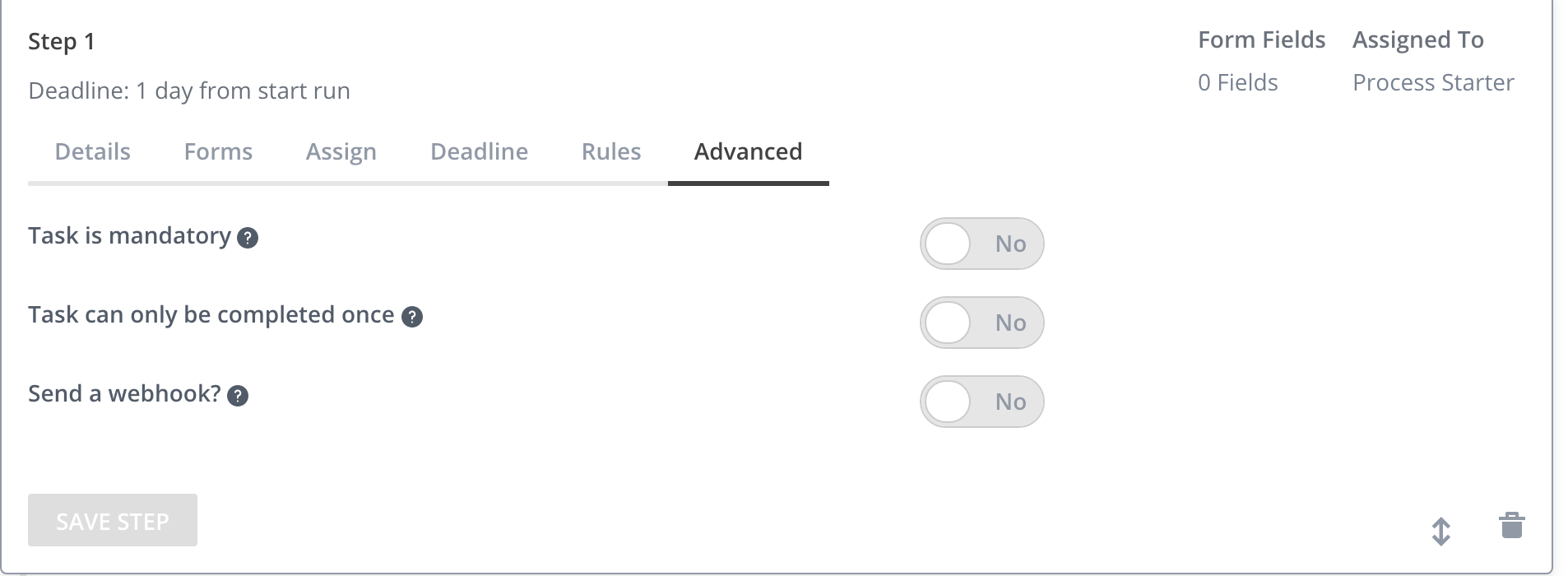
The advanced settings tab from early 2018: each toggle changes fundamental task behavior, but most users never scroll down to see them.
The step type revolution
Early Tallyfy had one step type: a task you complete. That was it. Every step was a checkbox waiting to be checked.
In April 2017, Pravina proposed something more nuanced:
“I believe we should have a tab in the step builder for Type of step. Types listed would be: 1. Approval 2. Form (Captures today) 3. Acknowledgement 4. Instructional (Video) etc.”
The insight was that different work requires different interaction patterns. An approval isn’t just a task - it demands a yes or no decision. A form captures data. An acknowledgement confirms someone read something.
I pushed back on expanding types too quickly, but agreed on one addition:
“I believe we already have step types in builder, and want to look into a new/light kind of step - which is simply about acknowledgement. The use case for this step is for things like policies and/or audit trails which only require viewing something to acknowledge it.”
The acknowledgement step was born from compliance requirements. HR needed to prove employees read the new harassment policy. Legal needed confirmation that contractors reviewed confidentiality terms. A checkmark felt wrong - it implied work was done when really someone just needed to confirm they saw something.
One misconception we see constantly among compliance officers at healthcare and pharmaceutical companies is that a simple checkbox can handle acknowledgement workflows. One biotech organization running member onboarding told us they needed multi-person verification checkpoints for regulatory requirements - a simple checkbox couldn’t capture the approval chain their auditors demanded.
See how templates handle different step types in practice.
From boolean to enumerated
The original task model was brutally simple. A task existed in one of two states: incomplete or complete. Binary. Boolean.
But real work doesn’t fit into two buckets. Pravina identified the gap in October 2016:
“Today Tallyfy only really has one action in a task - Mark as complete (or done and undone) via the check-mark. After speaking to many customers… these buttons also need to exist out of the box: 1. Approve 2. Reject 3. Repeat”
Our CTO framed the technical shift clearly:
“This is, essentially, changing the state of a task from boolean to enumerated. I think that this could be accomplished as an alternate type of task”
The enumerated model opened new possibilities. A task could now be: not started, in progress, completed, approved, rejected, skipped, or marked not done. Each state triggered different downstream behaviors.
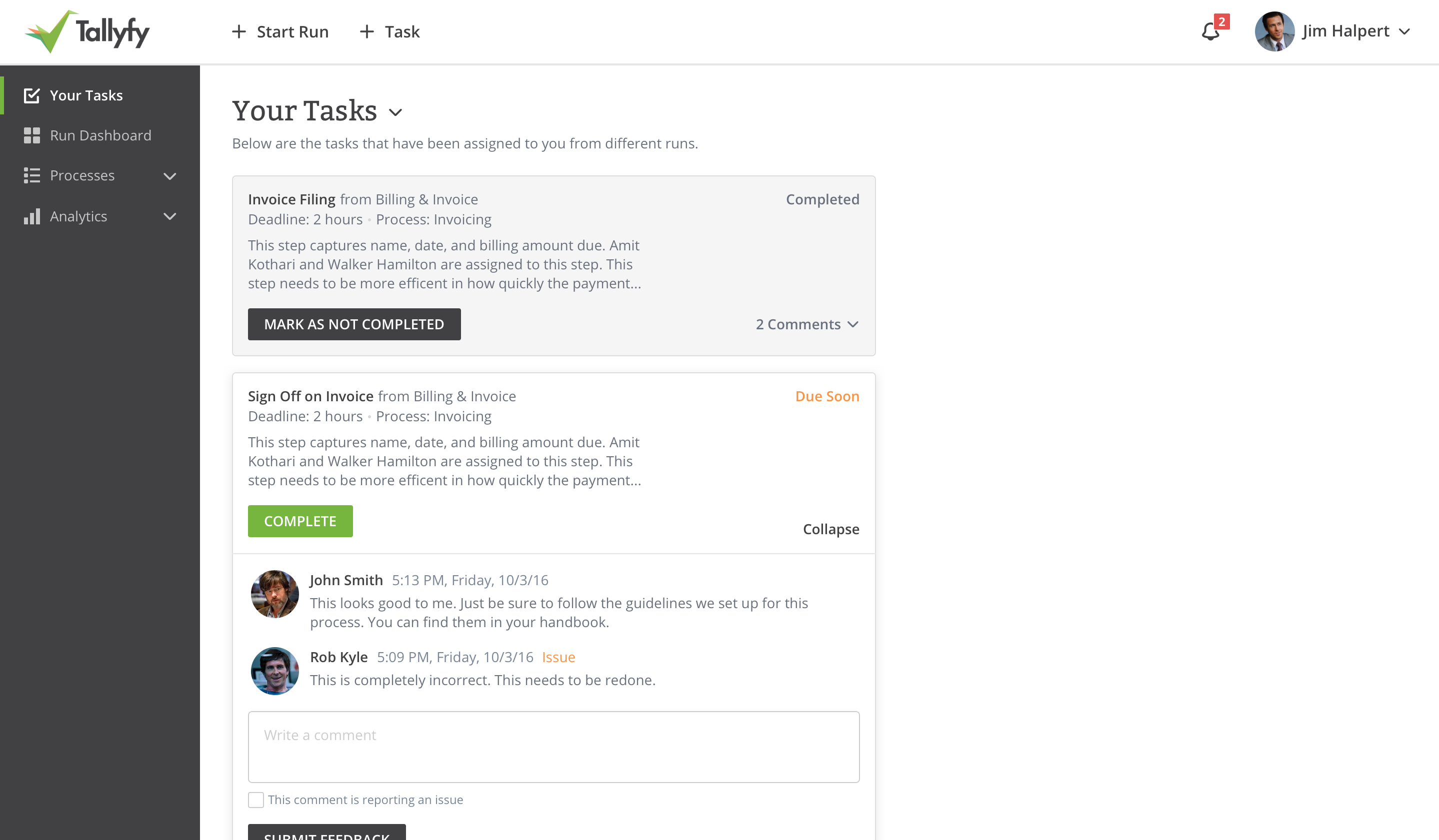
The task dashboard after the enumerated state model: tasks display their actual status instead of just “done” or “not done.”
See approval workflows in action
The guest user constraint
Every feature we built faced one hard constraint: guests had to understand it immediately. No training. No tutorials. No onboarding flows.
Pravina stated this requirement explicitly in October 2016:
“Whatever we come up with, will need to be something a guest user can understand and action without any training.”
This constraint killed many feature ideas. Icon-based interfaces were out - icons require learned associations. Complex multi-step completion flows were out - too much cognitive load for someone seeing the system for the first time.
The solution was radical simplicity: use words instead of symbols. “Approve” instead of a thumbs-up icon. “Reject” instead of an X. “Skip” instead of a fast-forward arrow.
Guest users - vendors, customers, contractors, auditors - interact with Tallyfy through a deliberately stripped-down interface. They see only their assigned tasks, only the actions they can take, and only the words that describe exactly what clicking will do.
The Friday 4:30pm disaster
Deadlines seemed straightforward until we examined real usage. The problem emerged from timing gaps between when processes started and when work actually happened.
In our conversations with operations managers at mid-size professional services firms, we heard the same frustration repeatedly. One estate law firm with 10+ employees told us they were managing 9-month probate timelines with critical filing deadlines - but their attorneys had to memorize 100+ process steps because their old system had no intelligent deadline handling.
In April 2018, I wrote about a fundamental missing feature:
“It is a very primitive thing, but not having a start and end date is a pretty big failure. 1. We do not know when to dispatch i.e. You are up now because there is no start date.”
The request wasn’t just about deadlines - it was about realistic scheduling. Tasks shouldn’t become active until people can actually work on them.
“Perhaps start date can be optional, but we need it. Further - add one advanced setting toggle: Step cannot be completed outside of start/end period - Yes/No.”
That toggle introduced time-windowed tasks. Some steps should only be completable during specific periods. A quarterly review shouldn’t be marked done six months early. A compliance check needs to happen within its designated window.
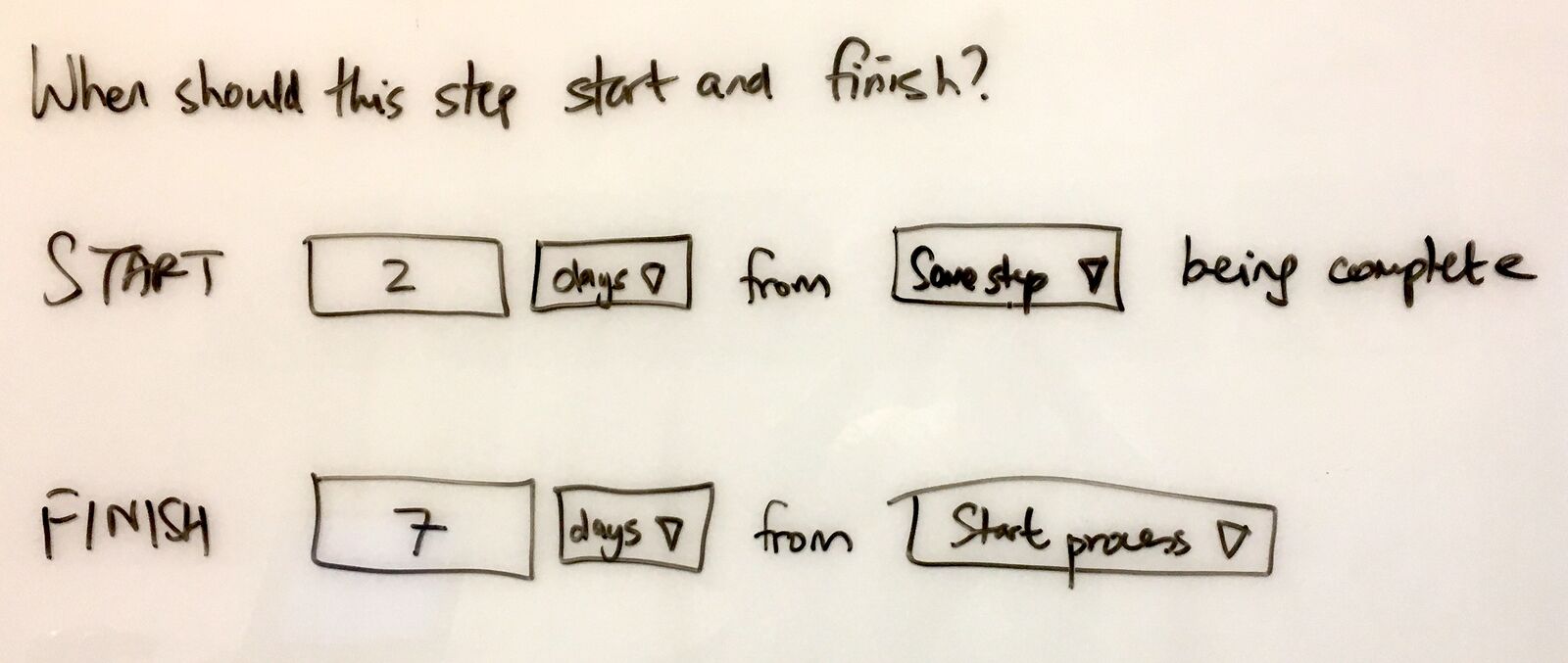
The deadline tab with notification options: two days to complete, with automatic alerts when missed.
Pravina illustrated the problem with a scenario from July 2017 that we called the Friday 4:30pm problem:
“The manager starts the run at 4.30pm on Friday. The employee gets assigned all the steps at 4.30pm on Friday. The employee leaves work on Friday at 5pm and returns on Monday at 9am. Issue: In V1, they would see that step 1 in the process is overdue by over 2 days.”
The system was technically correct - the deadline had passed. But practically, it was nonsense. The employee never had a chance to work on the task. The weekend counted against his deadline even though the office was closed.
Working hours settings eventually solved this, allowing deadline calculations to skip non-working periods. But the deeper insight was that task timing needed as much configuration as task content.
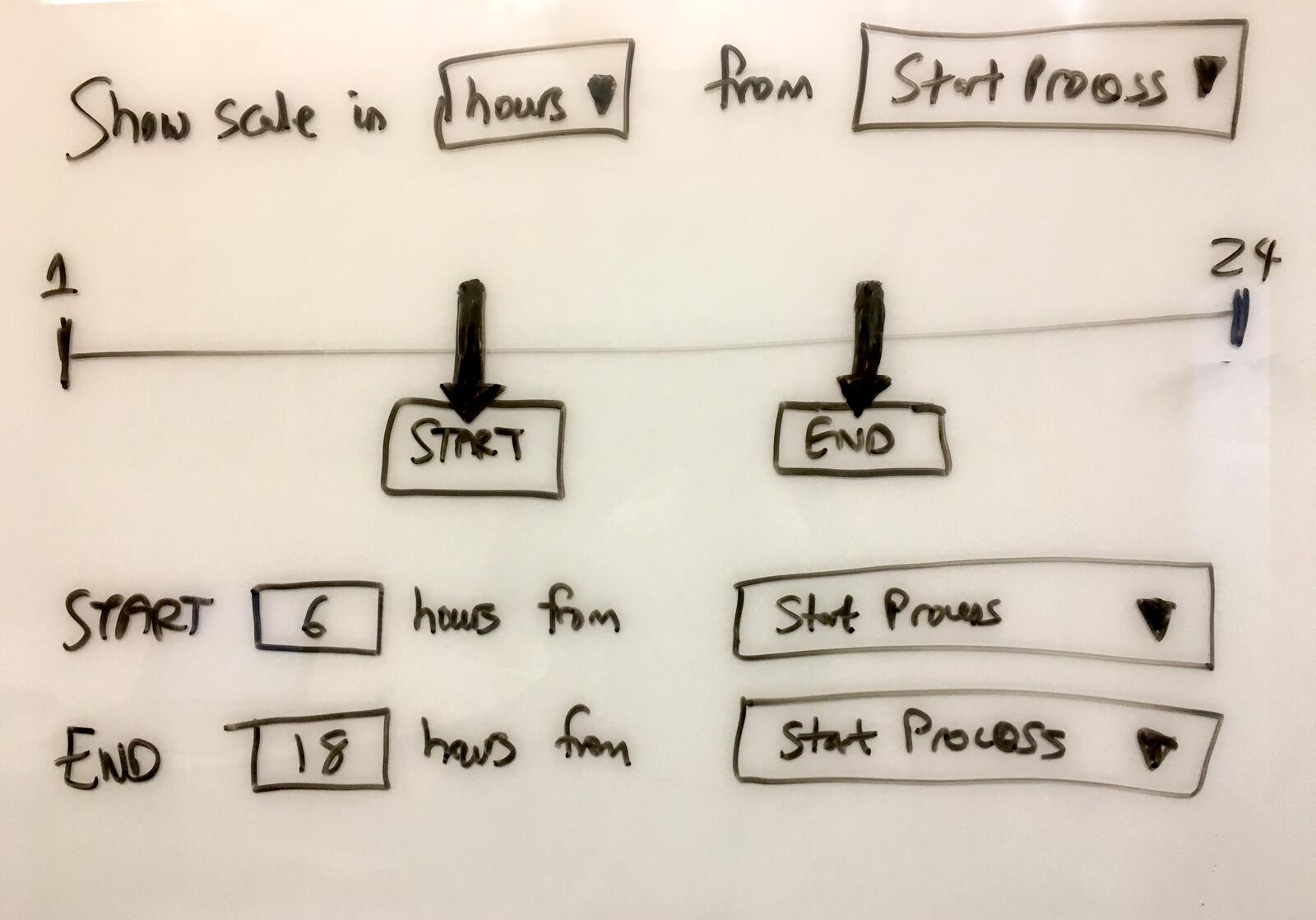
Start and end date configuration: tasks activate when ready and lock when their window closes.
The process manager question
Assignment rules grew complicated. Each step could have individual assignees, but patterns emerged where the same person managed entire processes, not just single steps.
In December 2017, I noted the pattern:
“The concept of a process manager is interesting - instead of specifically assigning one user at a time for each step, I believe it is a bulk-assignment of people”
Process managers needed visibility across all steps. They might not be assigned to every task, but they needed to see progress, intervene when needed, and handle exceptions. This was different from step-level assignment.
The predefined groups feature addressed part of this:
“On assigning an owner to a step, some pre-set groups already exist e.g. HR, Sales, etc. and it turns out that all users belong to all groups (until you remove them).”
Groups simplified assignment for new users. Instead of learning who owns what, new employees started in sensible defaults. HR processes went to HR. Sales tasks went to Sales. Adjustments happened as needed, but the starting point made sense.
Finding the conditionals
One advanced setting proved particularly elusive: conditional logic. Users could configure when steps appeared or disappeared based on form field values, but finding this feature was a challenge.
Pravina documented the feedback in October 2016:
“Recent feedback from customers regarding the current builder: 1. Conditionals is hard to find 2. Conditionals should be at step level (not whole process level)”
The architecture decision here mattered. Should conditional rules live at the process level, governing all steps from one place? Or at the step level, letting each step define its own visibility rules?
We went with step-level conditions. Each step could specify when it appeared, when it was skipped, and what triggered it. This distributed the logic closer to where it mattered, even though it meant configuring each step individually.
The tradeoff was discoverability. Process-level rules would be visible in one place. Step-level rules required opening each step to understand the full flow. We eventually added process-level summary views to address this.
Premium feature visibility
Not every user could access every setting. Free plans had limitations. But how should limited features appear?
In February 2018, I specified the approach:
“Please put a free plan barrier/crown motif/benefits selling on everything in the advanced tab. In this case, there is not much data to enter, so simply freeze out the entire section - but show it translucently”
The translucent preview was deliberate. Users could see exactly what features existed, understand what they would unlock by upgrading, and learn the system’s full capabilities even before paying.
This isn’t dark pattern manipulation. It’s honest communication. The feature exists. It does something valuable. You can’t use it yet. Here’s why you might want to.
Hiding premium features entirely feels cleaner but teaches users less. A grayed-out option with a crown icon says “this exists and it’s worth having.” An absent feature says nothing.
The expiring step type
One step type emerged from specific regulatory needs: expiring steps. These tasks had hard deadlines after which they could no longer be completed.
Normal deadline logic sends reminders and marks tasks overdue. Expiring step logic closes the window entirely. If you miss the deadline, the opportunity is gone.
Use cases included: timed certification tests that invalidate after the time limit, approval windows that close automatically, and compliance acknowledgements that must happen within specified periods.
The expiring type wasn’t about punishing slowness. It modeled real-world constraints where timing wasn’t just important but actually binding. A contract approval period ends at midnight. A grant application window closes Thursday. A training module expires after 30 days.
What we left out
Some advanced settings never shipped, and the reasons tell you as much about product philosophy as the features we did build. We considered letting users mark tasks as high, medium, or low priority, but priority is subjective and constantly changing - a field that needs constant adjustment isn’t useful, so we let deadline urgency and workflow position communicate priority implicitly instead. Early designs included time estimates for each step, but estimates are notoriously inaccurate, and displaying wrong estimates undermines trust, so we kept deadlines (when work must finish) without predictions (how long it will take). Some enterprise tools score task complexity to load-balance assignments, but this requires calibration data we didn’t have and assumptions about worker capacity that varied too much - we left assignment decisions to humans who understood their teams. When tasks became overdue, should they automatically escalate to managers? We considered and rejected automatic escalation because the appropriate response varies - sometimes the right answer is a reminder, sometimes it’s reassignment, sometimes it’s waiting, and automation that guesses wrong causes more problems than it solves. Traditional project management tools let you specify that Task C cannot start until Tasks A AND B both complete, but our sequential model was simpler: steps happen in order, with conditional logic for variations. Complex dependency networks created confusion without proportional value for the process types our users ran. Every one of these omissions came down to the same instinct - if a feature requires constant manual calibration or creates more ambiguity than it resolves, it does not belong in the product.
The discovery problem
The fundamental challenge with advanced settings is discoverability. Users don’t know what they don’t know.
The quick-view request from Pravina addressed one aspect: administrators who knew features existed but found them tedious to check. But what about users who never explored the Advanced tab at all?
We tried several approaches:
- Contextual hints when users created certain step types (“Did you know approval steps can require rejection reasons?”)
- Process templates with advanced settings pre-configured
- Documentation that walked through settings with use cases
- Tooltips explaining each toggle
None of these fully solved the problem. At Tallyfy, we’ve learned that advanced features remain advanced precisely because most users don’t need them. The users who do need them eventually find them through frustration with default behavior.
The best solution was making defaults smart enough that most processes worked without advanced configuration, while ensuring power users could find the depth when they needed it.
The ongoing evolution
Task settings continue to evolve based on usage patterns and customer requests. The original question - what settings should a step have? - has no final answer.
Each new setting adds capability but also complexity. Each default value makes assumptions about how people work. Each toggle in the Advanced tab is a decision about what behaviors should be explicit rather than implicit.
The users who discover these settings transform how their organizations handle work. Tasks become more than checkboxes. Deadlines become realistic. Assignments become intelligent. The workflow stops being a sequence of items and starts being a model of how work actually happens.
That transformation happens one discovered setting at a time.
Explore how advanced task settings can transform your workflows.
About the Author
Amit is the CEO of Tallyfy. He is a workflow expert and specializes in process automation and the next generation of business process management in the post-flowchart age. He has decades of consulting experience in task and workflow automation, continuous improvement (all the flavors) and AI-driven workflows for small and large companies. Amit did a Computer Science degree at the University of Bath and moved from the UK to St. Louis, MO in 2014. He loves watching American robins and their nesting behaviors!
Follow Amit on his website, LinkedIn, Facebook, Reddit, X (Twitter) or YouTube.

Automate your workflows with Tallyfy
Stop chasing status updates. Track and automate your processes in one place.