
Why templates and processes live in separate folders
Templates and processes live in separate folders at Tallyfy because they represent different modes of work. The blueprint versus instance mental model, influenced by tag-based models like Gmail, took years to communicate effectively.
Template organization affects how teams discover and launch processes. Here’s how we approach SOP management.
SOP Management Made Easy
Summary
- The blueprint vs instance mental model is counterintuitive - Users expect to find “everything about employee onboarding” in one place, but templates (the how) and processes (the actual work) serve fundamentally different purposes and need different homes
- Tags beat folders because of multi-membership - Gmail figured this out years ago. A template can belong to multiple categories simultaneously. Folders force single-assignment, which doesn’t match how people actually think
- Documentation friction blocks everything else - Getting a template into the system is the hardest step. All our pricing and unlimited users strategy was designed around reducing that friction
- The tracker groups by template because that’s how operations teams think - When you ask “how are our client onboardings going?” you want to see all instances of that process type together, not scattered across project folders
- We renamed the whole product tier to Blueprint because the metaphor matters - The name change wasn’t marketing fluff. It signaled the architectural distinction we were trying to teach users. Learn how templates work
This is our candid experience designing template and process organization at Tallyfy. This reflects our experience at a specific point in time. Some details may have evolved since, and we’ve omitted certain private aspects that made the story equally interesting.
Here’s something I wrote back in April 2018 that captures years of frustration:
“We need to really strengthen the basic use of Tallyfy to just document processes, as opposed to tracking and execution. That is where all the friction lies.”
The friction wasn’t in the workflow engine. It wasn’t in the automation rules. It was in the painful question of where things should live. Users would create a template, then expect to find their running processes inside that template. Or they’d look at their running processes and wonder where the template went.
Turns out, the mental model separation between blueprints and instances took us years to figure out how to communicate.
The blueprint metaphor
We didn’t call them templates at first. We called them blueprints. And we believed in this so strongly that in April 2018, I pushed for a product naming change:
“In Recurly, API + client - rename basic to ‘Blueprint’ plan.”
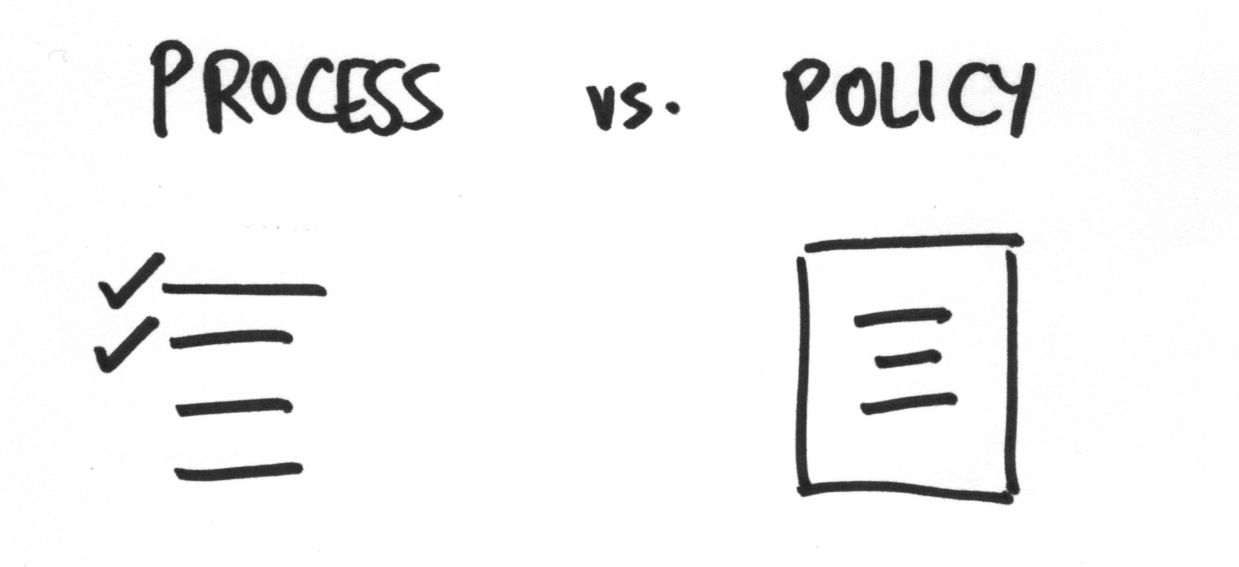
The core mental model: a policy/template/blueprint is like an architect’s drawing. A process is like the actual building. You don’t edit the blueprint after the building is half-constructed.
The metaphor is architectural. Actually, the analogy isn’t airtight. A blueprint tells you how to build something. The building itself is the instance. You wouldn’t expect to find William Lamb’s Empire State Building inside the folder containing its original blueprints. They live in different places because they’re different things.
But users kept expecting exactly that. They’d go to Templates, click on “Employee Onboarding,” and wonder why they couldn’t see the 47 onboardings currently in progress.
Why we show processes grouped by template
Our Product Manager proposed a view that made this clearer. From August 2018:
“This is a design I came up with to view all processes stemming from a single blueprint.”

Our Product Manager’s design: the tracker groups running processes by their source template. This answers the question “how are all my onboardings going?” without mixing them with the template itself.
The insight was subtle but important. Users weren’t wrong to want “everything about employee onboarding” in one place. They were basically wrong about what “one place” meant. The tracker should show all instances of a process type together, but that’s different from putting them inside the template.
Think about it from an operations manager’s perspective. They want to know:
- How many client onboardings are in progress?
- Which ones are stuck?
- What’s the average completion time?
These questions are about instances, not about the template. But they’re scoped by template. The grouping in the tracker gives them exactly that view - all instances of a specific process type, without having to drill into the template itself.
A bank we worked with during their transaction banking transformation had this exact mental model. Their implementation workflow moved through five distinct phases - handover from sales, solution validation, documentation, registration and setup, and client training. Each phase involved different teams: Sales, Implementation, Legal, Operations. Grouping by template meant the implementation team could see all client onboardings at a glance, regardless of which specific client or which phase.
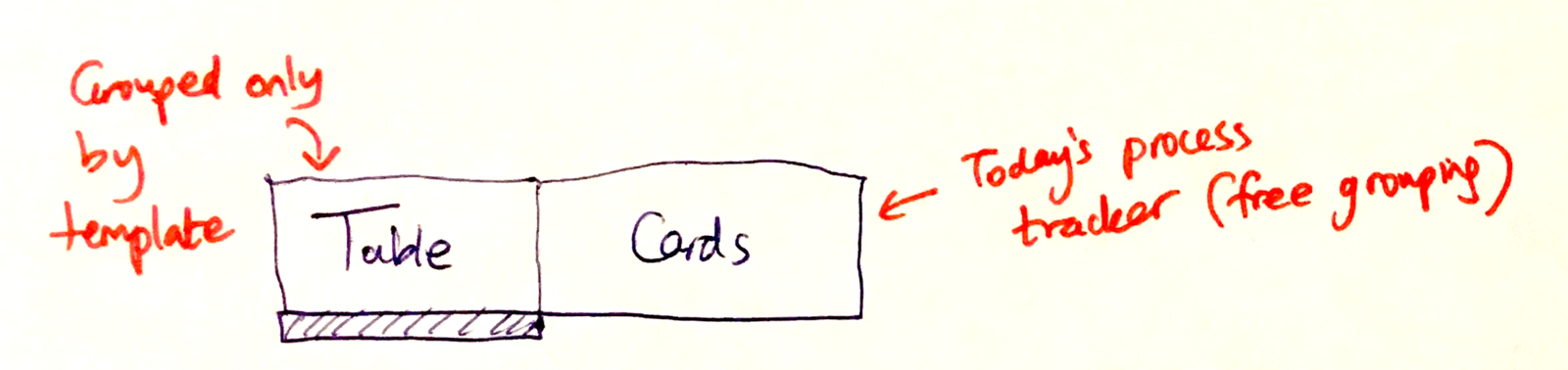
The tracker table view: high density, grouped by template, editable inline. This is what operations teams actually need to manage work at scale.
Tags versus folders
The folder debate went deeper than just templates versus processes. We argued about how to organize templates themselves.
In April 2018, I wrote:
“Tags provide the same functionality as folders, but are even more flexible. You can apply multiple tags to a template, but you can not put a template into multiple folders. That is why Gmail and lots of other well-designed apps only have tags, and not folders.”
This wasn’t a new insight. Paul Buchheit’s Gmail figured it out in 2004. But honestly, the muscle memory of folders runs deep. People have been organizing documents into folders since the Xerox Star in 1981. Telling them to use tags instead feels like telling them to forget how to ride a bike.
The practical problem with folders: your employee onboarding template belongs in “HR” and also in “Compliance” and also in “New Hire Setup.” Where do you put it?
- If you put it in HR, the compliance team can’t find it
- If you put it in Compliance, the HR team gets confused
- If you duplicate it, now you have two templates to maintain
Tags solve this. Tag it with #HR, #Compliance, and #NewHireSetup. Everyone finds it in their own context. No duplication required.
We eventually landed on a hybrid approach. From product planning notes in April 2018:
“User is able to group templates together by tag (same UI as creating custom process views, but we will be calling them ‘folders’, not ‘views’).”
So we gave people the visual metaphor of folders while implementing tag-based organization underneath. The UI says “folders” but the data model says “tags.” Best of both worlds.
The documentation friction problem
Here’s the dirty secret of workflow software: nobody wants to document processes. They want processes to already be documented. They want the benefits of documentation without the work of creating it.
The friction point isn’t running workflows. Once a template exists, launching it and tracking it is easy. The friction is getting that first template created. Does anyone actually enjoy documenting processes? No.
I wrote about this in April 2018 when we were discussing pricing strategy:
“Getting a template into our tool is the biggest hurdle. Hence the low price and unlimited users is a paid method of gaining traction.”
Read that again. Our entire pricing strategy was shaped by the documentation friction problem. We priced low and allowed unlimited users because we needed people to actually create templates. Once they had templates, they would use the system. But getting them over that initial hump was the challenge.
This connects to why templates and processes live separately. If templates lived inside the same navigation as running work, users would see their processes but never look at the templates section. The templates would rot. Nobody would update them. Nobody’d create new ones.
By making templates their own first-class location, we force users to think about documentation as its own activity. Not a side effect of running work, but a deliberate act of capturing how things should be done. We built Tallyfy because we kept seeing that teams who treat documentation as a separate, intentional activity end up with far better processes than those who try to document while doing the work.
Template states complicate everything
Templates aren’t just static documents. They have lifecycles. From a thread in April 2018:
“This thread is about having the idea of a template state i.e: Published, Approved, Draft… and then having the library filterable by state too.”
Now your organizational scheme has another dimension. Templates can be:
- Draft (work in progress, not ready to use)
- Published (ready for anyone to launch)
- Approved (validated by a manager or compliance officer)
- Archived (no longer active, but kept for audit purposes)
How do you handle this in a folder structure? Do you have a “Drafts” folder? What happens when a draft gets published - does it move folders? That’d create broken links and confused users.
With tags, a template can be both “HR” and “Draft” simultaneously. When it gets published, you update the state tag, not its location. Mind you, the HR team still finds it in the same place.
That’s why the template library ended up with state filters rather than state folders. You browse by category (the tags) and filter by state (the lifecycle). Two orthogonal dimensions that’d collapse into confusion if forced into a single folder hierarchy. Good luck explaining that in a sales demo.
For the full story on how draft and published versions work together, see our post on editing templates without breaking running processes.
The encouragement of multiple templates
Something subtle happens when you separate templates from processes. It encourages people to create more templates.
From March 2018:
“It encourages people to think of processes by ‘template’ - so if someone just has one template e.g. ‘employee onboarding’ - they might want to make more.”
When templates have their own home, users see them as a collection to grow. The empty space in the template library is an invitation: “What other processes could you document?”
If templates were buried inside process folders, this psychological effect disappears. You wouldn’t see “Hmm, I only have one template, I should create more.” You’d just see your running work.
This connects to the empty state design philosophy we developed. An empty template library is a prompt: here’s where your documented processes will live. What will you create first?
Something I’ve noticed across industries - this pattern shows up repeatedly: documentation friction is the silent killer of workflow software adoption. One software company that runs customer loyalty programs told us they were adding new internal processes to their Tallyfy library every week. But that only happened after they’d overcome the initial hurdle. Before that, they were using printed checklists, digital forms, kanban boards, and support tickets - all disconnected. Getting templates into a central system was the hardest step. Once they did, the library grew organically.
Pride as a design factor
The emotional dimension matters more than you might think. From December 2018:
“Sees the blueprint they can make and how ‘nice it will look’ when they are done and how others will like it too, making user feel proud.”
And:
“Sees that after making a blueprint they can actually launch the process which makes their blueprint actionable.”
Pride in creation is a powerful motivator. If templates were hidden inside process folders, you wouldn’t have a showcase for your documentation work. Nobody would see the beautiful process you designed until they happened to launch it.
By giving templates their own space, we let users admire their work. They can browse their template library and feel good about the processes they’ve documented. It sounds fluffy, but it drives real behavior. People maintain what they’re proud of. They update templates they can see.

Template variations: one master template with regional differences. This complexity lives in the template library, not scattered across process instances.
Process variation management
The separation becomes even more important when you consider template variations. One template can have multiple variations - USA, China, Australia - each with slightly different steps.
From May 2018:
“Process variation management is a key strength lacking in traditional approaches like Visio, etc.”
Where do these variations live? In the template. Not in the processes that run from them.
When you launch a process, you select which variation to use. The resulting process instance contains only the steps for that variation. But the master template - with all its variations - stays in the template library.
If templates and processes shared a location, this’d be confusing. Users would see a process with 12 steps and wonder why the template shows 18 steps. The variation filtering would feel like magic.
By keeping them separate, the mental model stays clean. The template is the complete picture with all possible variations. The process is one specific execution with one specific variation selected.
The completed runs problem
Another question that drove the separation: what happens to finished work?
From August 2017, Pravina asked:
“Where am I able to view a history of completed runs? …we may need a default way to just see completed and/or archived runs here.”
Completed processes aren’t templates. They’re not active work either. They’re historical records - proof that work happened, audit trails for compliance, references for troubleshooting.
If everything lived in one folder structure, where would completed runs go? Inside the template folder? That would clutter the view of active work. In their own folder? Now you have three locations instead of two.
The tracker handles this with filters. Active processes, completed processes, archived processes - all queryable from the same interface, all grouped by template, all separate from the template library itself.
This is what allows operations teams to ask questions like “show me all completed employee onboardings from last quarter” without wading through draft templates and active work.
What we left out
The separation wasn’t without trade-offs. Here’s what we deliberately didn’t build:
Template-embedded process views. Some users wanted to click into a template and see all its running instances right there. We decided against this because it conflated two activities: designing processes (template editing) and managing work (process tracking). Mixing them would’ve made both worse.
Process-to-template navigation. We didn’t build a prominent “view template” button inside running processes. The worry was that users would accidentally jump away from their work to look at the template, get confused about which context they were in, and make changes they didn’t intend.
Unified search. Early designs had a single search box that returned both templates and processes. We split this into separate searches because the intent behind each query is different. Searching for “onboarding” in templates means you want to find a process to run or edit. Searching for “onboarding” in the tracker means you want to find specific work in progress.
Inheritance hierarchies. We never built folder hierarchies that inherit properties. No “HR > Onboarding > New Hires” nested structure where permissions cascade down. The tag model’s intentionally flat. Hierarchy creates maintenance burden and hidden dependencies.
Automatic archiving rules. Some users wanted templates to auto-archive their completed processes after 90 days. We decided this should be explicit - you archive what you choose to archive. Automatic deletion of historical records is dangerous in compliance-heavy environments.
The deeper pattern
Looking back, the template versus process separation is really about respecting different modes of work.
Template editing is slow, deliberate, and creative. You’re designing how work should happen. You’re thinking about edge cases, exceptions, and improvements. This is architect mode.
Process tracking is fast, reactive, and operational. You’re managing work that’s actually happening. You’re dealing with deadlines, blockers, and handoffs. This is construction manager mode.
These modes have different rhythms. Different cognitive demands. Different UI needs. Forcing them into the same space means optimizing for neither. The separation lets us build the best possible template editor - something that encourages careful design and variation management. And separately, build the best possible tracker - something that handles high-density data views for operations at scale. That architectural decision echoes through everything else we built. The tag system, the state filters, the grouping in the tracker, the empty state design - all of it traces back to this fundamental separation. Every time we revisited this question, the answer came back the same: keep them apart.
Templates are the how. Processes are the doing. They live apart because they’re different.
Learn more about how templates work in our documentation on templates and see how process tracking functions in tracking and tasks.
Related questions
Why can’t I see my running processes when I click on a template?
Templates and processes are intentionally separated. Templates are your documented procedures - the design of how work should happen. Processes are actual work in progress. To see all instances of a specific process type, use the tracker view and filter by template. This groups all running processes by their source template without mixing them with the template editing interface.
Should I use tags or folders to organize my templates?
Use tags. Tags let a single template belong to multiple categories simultaneously. Your employee onboarding template can be tagged with #HR, #Compliance, and #NewHires all at once. If you try to use folders, you have to pick one location, which means other teams can’t find it in their context. The folder UI in Tallyfy is actually tag-based underneath - it gives you the familiar visual metaphor while providing tag flexibility.
What happens to the template when I complete a process?
Nothing. The template stays exactly where it was - in your template library. Completing a process just marks that instance as complete. You can still view completed processes in the tracker by adjusting your filters. The template remains available for launching new processes. They’re decoupled by design.
Can I archive a template without archiving its running processes?
No. Archiving a template archives all its instances - running and completed. This is intentional. If a template’s archived, you shouldn’t be running processes from it anymore. If you need to keep running processes active while deprecating a template, consider creating a new version of the template for future use while letting existing processes complete naturally.
Why does the tracker group processes by template instead of by project or team?
Because operations questions are usually template-scoped. “How are our client onboardings going?” is more common than “How are all processes assigned to the marketing team going?” The template grouping answers the first question directly. For team-based views, use filters and custom views - the underlying data supports both perspectives.
About the Author
Amit is the CEO of Tallyfy. He is a workflow expert and specializes in process automation and the next generation of business process management in the post-flowchart age. He has decades of consulting experience in task and workflow automation, continuous improvement (all the flavors) and AI-driven workflows for small and large companies. Amit did a Computer Science degree at the University of Bath and moved from the UK to St. Louis, MO in 2014. He loves watching American robins and their nesting behaviors!
Follow Amit on his website, LinkedIn, Facebook, Reddit, X (Twitter) or YouTube.

Automate your workflows with Tallyfy
Stop chasing status updates. Track and automate your processes in one place.