
Deadline rules that calculate from user input
How Tallyfy built deadline rules that calculate task due dates from form field values. A customer on a 100% discount forced this feature, resulting in four distinct rule types and months of timezone debugging.
Summary
- Calculated deadlines workflow - this is our personal, candid experience building dynamic deadline rules at Tallyfy, told through actual internal discussions and the friction we hit along the way
- A customer on a 100% discount forced our hand - they were going to cancel until we committed to this feature, so we put them on a free coupon while we built it
- The Friday 4:30pm problem - what happens when someone starts a 1-hour deadline task at 4:30pm on Friday? That question shaped our entire working hours approach
- Timezone bugs nearly derailed us - storing dates in UTC while displaying in user timezones created edge cases that took weeks to untangle
Calculated deadlines workflow - this is our personal, candid experience building a feature that seemed simple on paper but turned into months of internal debate, timezone headaches, and one customer who almost left us. This reflects our experience at a specific point in time. Some details may have evolved since, and we have omitted certain private aspects that made the story equally interesting.
Deadline automation is core to workflow management. Here is how we approach it.
Workflow Automation Software Made Easy & Simple
The problem nobody warned us about
Every workflow tool starts with fixed deadlines. Task due in 3 days. Step completes by Friday. Simple enough.
But real processes do not work that way.
A sales team needs to send a meeting reminder one day before the meeting date that the customer chooses. A podcast publisher needs all audio files submitted one week before the launch date that the host enters in a form. An HR team needs onboarding paperwork completed two days before the start date that new hires provide.
In conversations we have had with legal firms managing estate probate cases - which run 9-month timelines with critical filing deadlines - the pattern became clear. One law firm told us their attorneys were tracking deadlines manually across hundreds of active cases, with “work frequently slipping through the cracks” due to lack of visibility. They needed deadlines that calculated automatically from court dates entered in intake forms, not deadlines set when the template was built.
The deadline depends on a date the user enters. You cannot know it when you build the template. And this gap - between what we built and what people actually needed - kept showing up in support tickets.
Our automations documentation now covers this, but getting here was messy.
What we were trying to solve
Our product team captured the core use cases in internal discussions. The first example came from sales workflows:
“Step 1: Please pick a date for a meeting with our account executive. Step 2: Send meeting reminder email. Rule here: If step 1 meeting date is not empty THEN update deadline 1 day before step 1 meeting date.”
The second example came from content production:
“KO Form: Date form field - Enter launch date for podcast. Step 1: Send final audio file. Rule here: If KO date enter-launch-date-for-podcast is not empty THEN update deadline 1 week before KO step enter-launch-date-for-podcast.”
Simple enough on paper. Calculate a deadline relative to a date field value.
Templates that benefit from calculated deadlines
These workflows demonstrate where dynamic deadline rules add the most value
The debate that would not die
We had an internal disagreement about how rules should work together. Should you be able to mix deadline rules with visibility rules in the same automation? It seemed flexible, but our CTO pushed back hard:
“Every rule type exists in its own little package and the UI should be such that adding one rule type is entirely different from adding another rule type. For deadline rules - ALL the rules will be deadline rules, they would not be mixed with visibility rules.”
Some of us wanted more flexibility. Why not let users chain different rule types together? The answer was practical:
“You cannot mix rules across rule types. Each rule type has an independent set of rules. This is to prevent conflicts but also to enable parallel execution - the deadline rules might fire even though the visibility rules do not.”
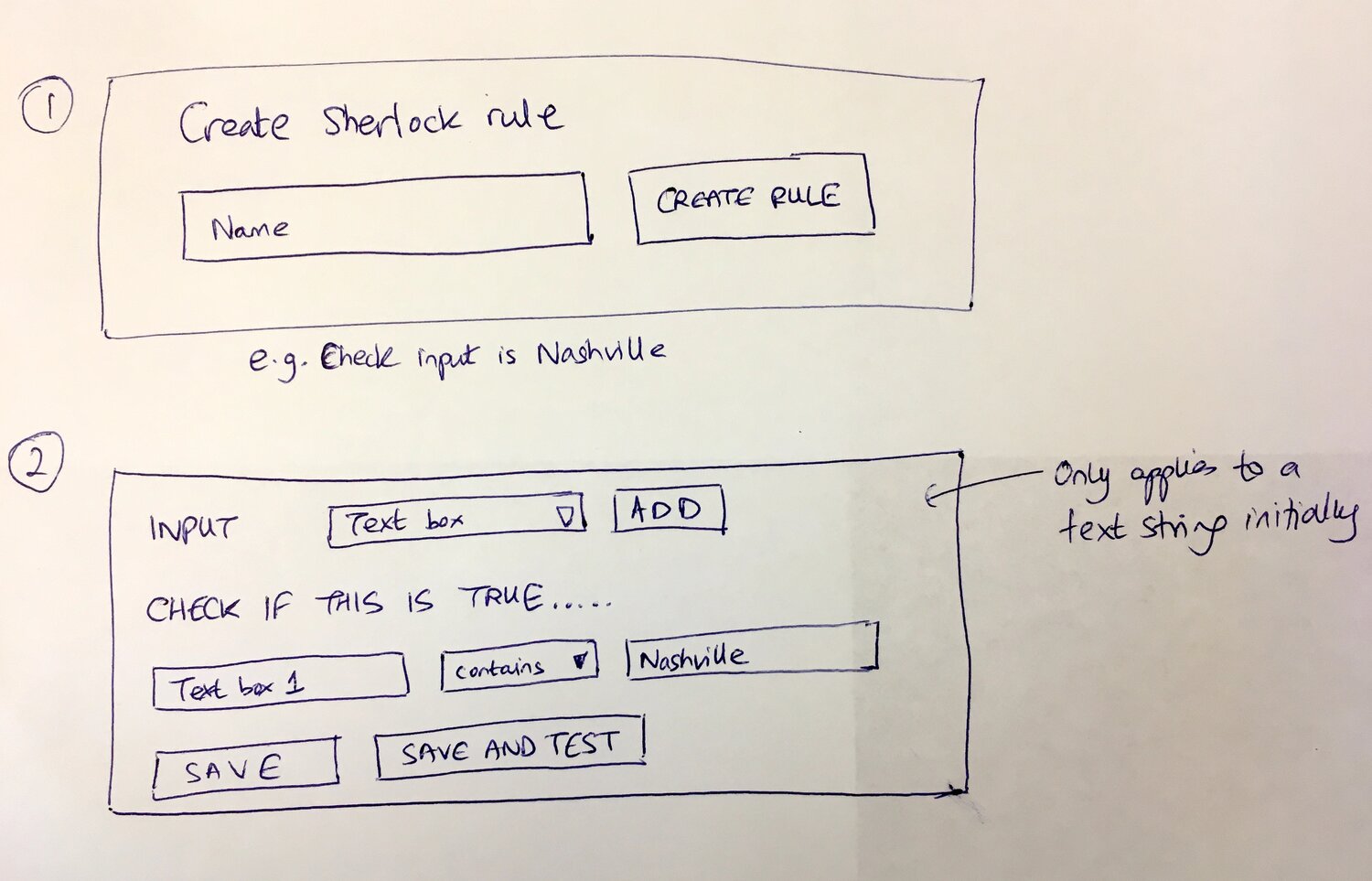
We eventually settled on four distinct rule types that we internally called Sherlock rules. Each type handles one concern:
- Visibility rules - show or hide steps based on conditions
- Assignee rules - change who owns a task based on conditions
- Deadline rules - adjust when tasks are due based on conditions
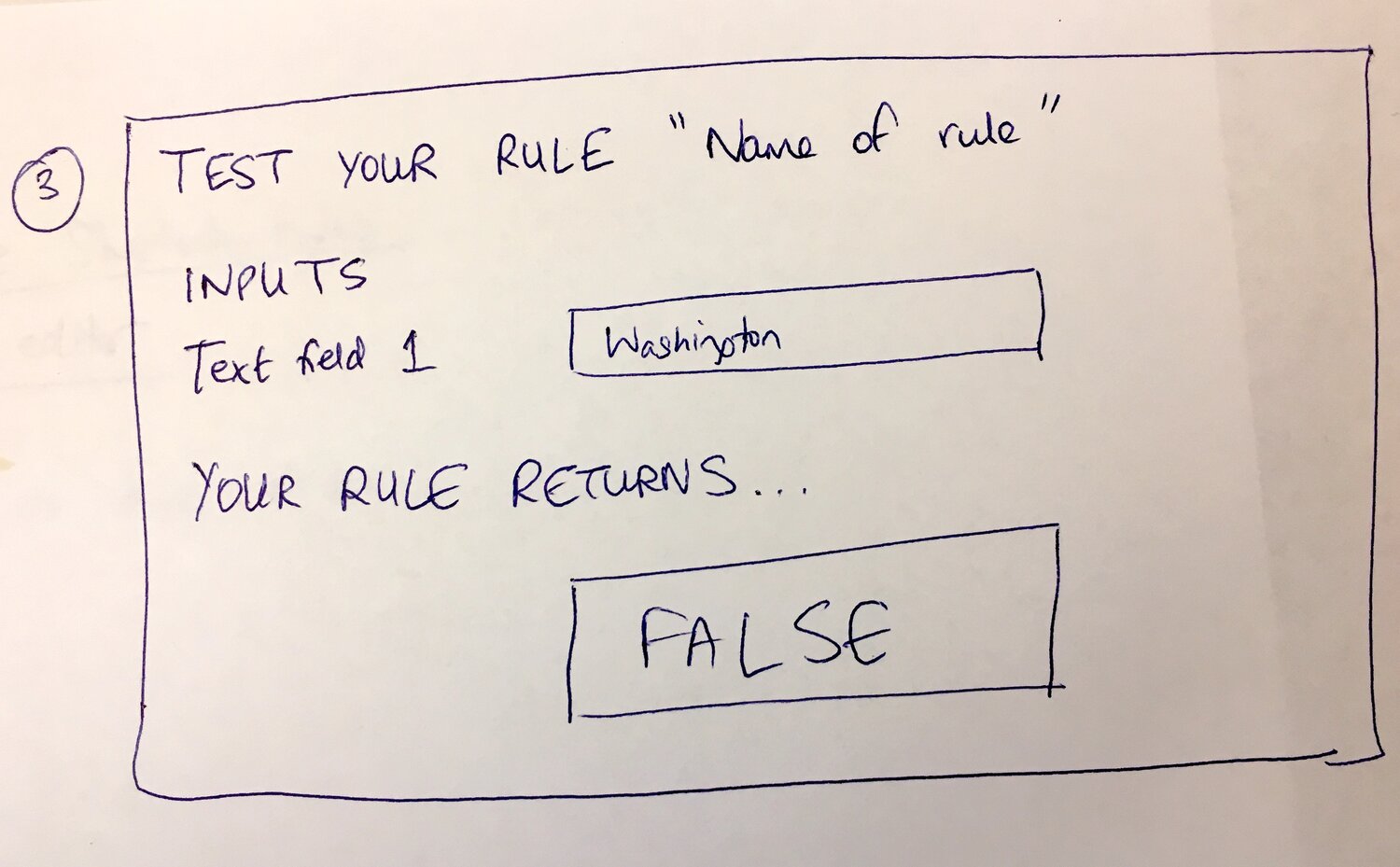
- Form validation rules - validate user input against custom patterns
The THEN action format
The engineering discussion focused on what the output should look like. Our lead developer proposed a format that covered all the cases:
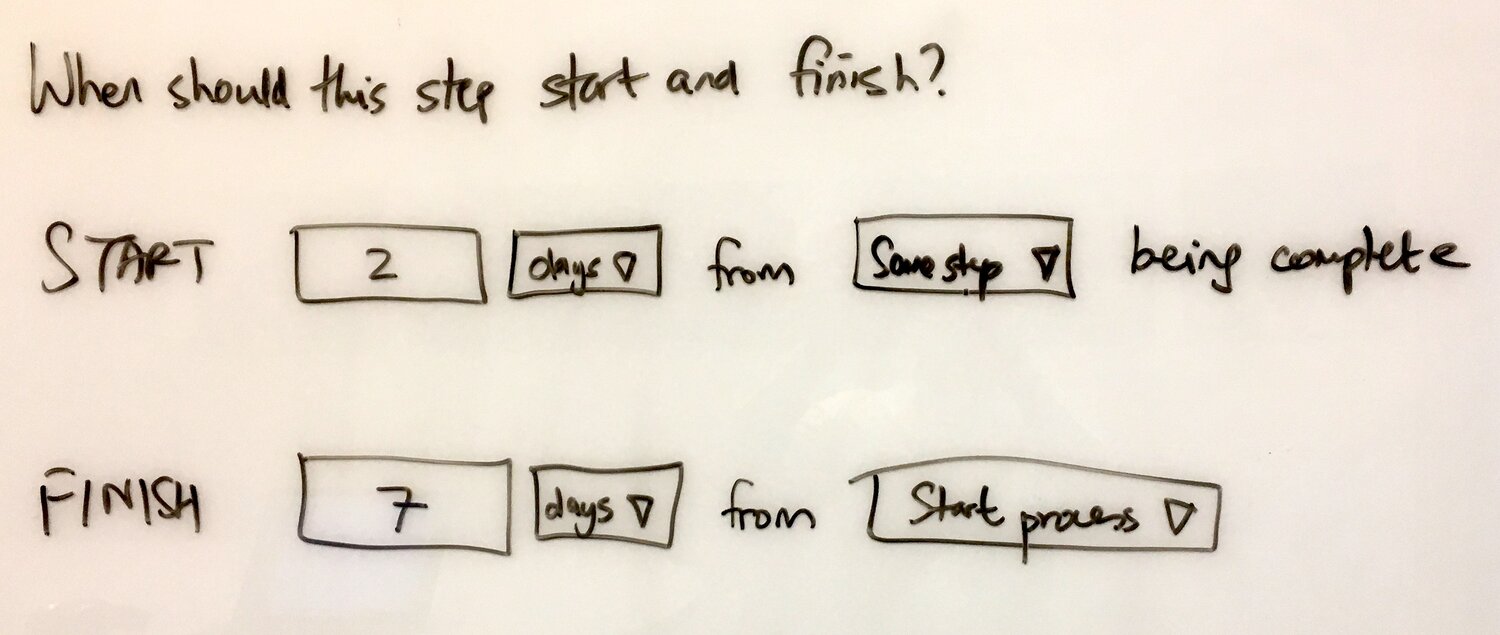
“Update Step deadline to number of Hours/Days before/after the date Selected Date Field.”
That is the canonical format we landed on. But which date fields should be selectable? The team pushed for full coverage:
“In the THEN action, we should pull up all date fields in the process.”
The developer confirmed what that meant:
“Yes, if by all date fields of process you mean: All Kick-off Form Fields, All Steps Deadlines, All Steps capture form fields for date.”
This created a dropdown with every date in the entire workflow as a potential anchor for deadline calculations. More flexibility than we originally planned, but the use cases demanded it.
A customer forced our hand
We had the design, but implementation kept getting delayed. Other priorities. Technical debt. Honestly, the usual excuses.
Turns out, a customer conversation changed everything:
“FYI - a customer who was considering cancellation really needs this. They were going to cancel, but we put them on a 100% off coupon until we launch this feature.”
That is right. We gave a customer a 100% discount - free - just to keep them around while we built what they needed. Nothing motivates engineering like a real customer waiting with money on the line.
The developer responded:
“I am speeding up the work on the new rules types. Expecting more progress after deploying the upgrades.”
And we did. That customer is still with us.
The before/after toggle
A product manager raised an important use case during implementation:
“Could this accommodate a condition where we can assign + (after) or - (before) time unit on a date field? For instance, if employee type is contractor then step deadline is 2 days before start date which is a date field from the KO form or a previous step in the procedure.”
This was not just about calculating from a date - it was about calculating in either direction. Two days before. Three days after. The developer confirmed the approach worked:
“Yes, the format of THEN is: Update Step deadline to number of Hours/Days before/after the date Selected Date Field.”
The four input types for conditions
We also had to define what could trigger a deadline rule. The initial implementation was too narrow. After discussion, we expanded the IF conditions:
“The input date for a rule appears to be one of 4 things - a date form field or the deadline date of a task or the date a task was completed or any other field criterion e.g. text field contains, dropdown contains, etc.”
This meant you could set deadlines not just based on form inputs, but also based on when other tasks finished or what values appeared in any form field. If region is “International” then deadline is 2 weeks after order date. If priority is “Urgent” then deadline is 4 hours after submission.
The tracking and tasks documentation shows how this works in practice.
The timezone problem that nearly broke us
What seemed like a straightforward feature became a nightmare during QA. A tester reported:
“If the basis of the Initial Date will come from a KO/STEP Date form field then the time value is not accurate no matter what.”
When users picked a date in their timezone, the time component got mangled. The developer investigated and found the root cause:
“I checked both examples and I noticed that the difference you said is caused by timezone not considered when storing the KO field date. The KO field value stored is 2023-10-20T04:00:00.000Z in GMT timezone while it shows the same value on the UI 20/10/2023 04:00am.”
The mismatch got worse:
“The Specific task deadline is stored as 2023-10-23T00:00:00Z while on the UI it is applying the timezone and showing Oct 23, 2023 08:00am.”
Same data, different representations. Users saw one thing, the system stored another. The fix required coordination between frontend and backend:
“So I think the solution should be from Client side, by handling the Date form fields the same way the Task deadline is handled, by removing the timezone when the user picks a date and only send UTC format to API, and when displaying the date adding the timezone back.”
This took longer than the actual rule logic. Timezones always do.
The Friday 4:30pm problem
A related feature that shaped our thinking was working hours. A product manager captured the core scenario that became our reference case:
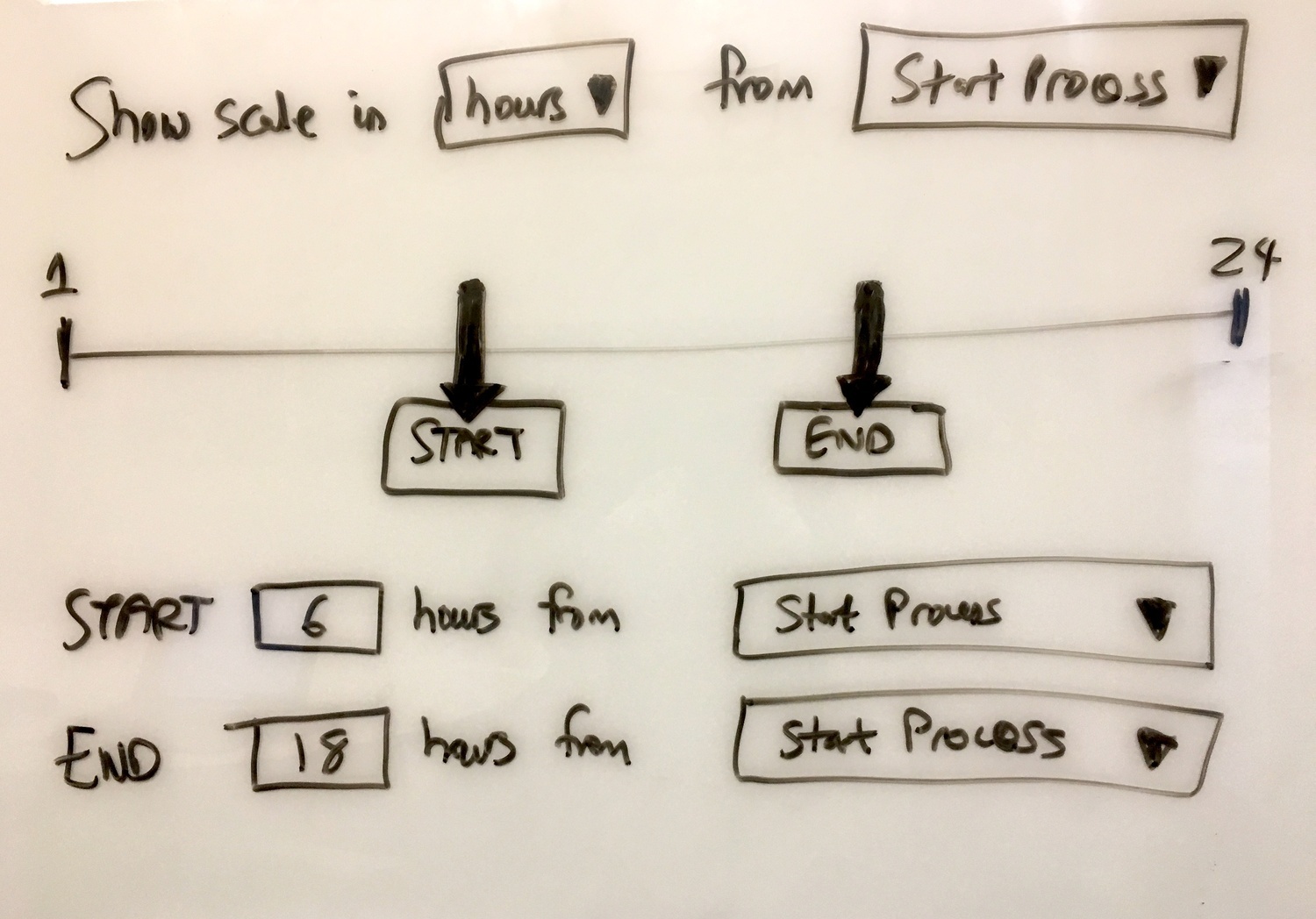
“Company X has working hours of Mon-Fri 9-5pm. The manager builds this process: Step 1 - Call client - Deadline 1 hr from run start time. Step 2 - Email proposal - Deadline within 24 hr from Step 1 being done.”
Simple enough. But then:
“The manager starts the run at 4.30pm on Friday. The employee gets assigned all the steps at 4.30pm on Friday. The employee leaves work on Friday at 5pm and returns on Monday at 9am.”
Here’s where it gets interesting:
“Issue: In V1, he would see that step 1 in the process is overdue by over 2 days. What should happen: In V2, he should see that he has 30 minutes to do step 1.”
The Friday 4:30pm problem. A 1-hour deadline assigned at 4:30pm on Friday is not really due at 5:30pm on Friday - it’s due at 9:30am on Monday, because the weekend does not count.
This scenario came up repeatedly in feedback from property management teams we spoke with. One organization running 400+ active daily workflows across their teams said their field staff would see tasks marked overdue on Monday morning for work that was legitimately scheduled before the weekend. The visible “overdue” count created false urgency and eroded trust in the system’s deadline accuracy.
Our CTO pushed back on complexity:
“Let us only do company working hours first. User working hours will be much more complicated, particularly where several users in different time zones are working with the same run/org. We can revisit user working hours post v2.2”
And separately:
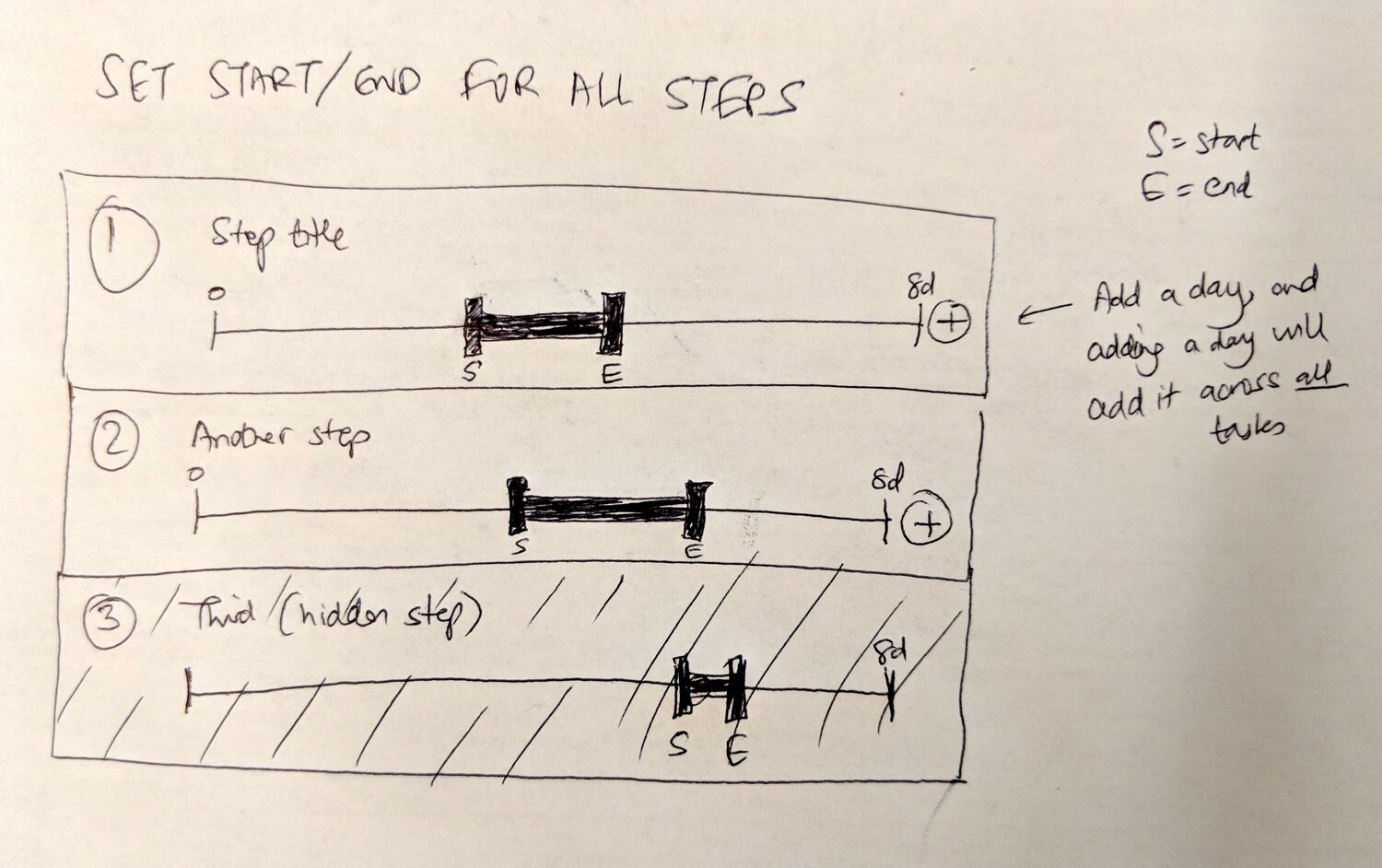
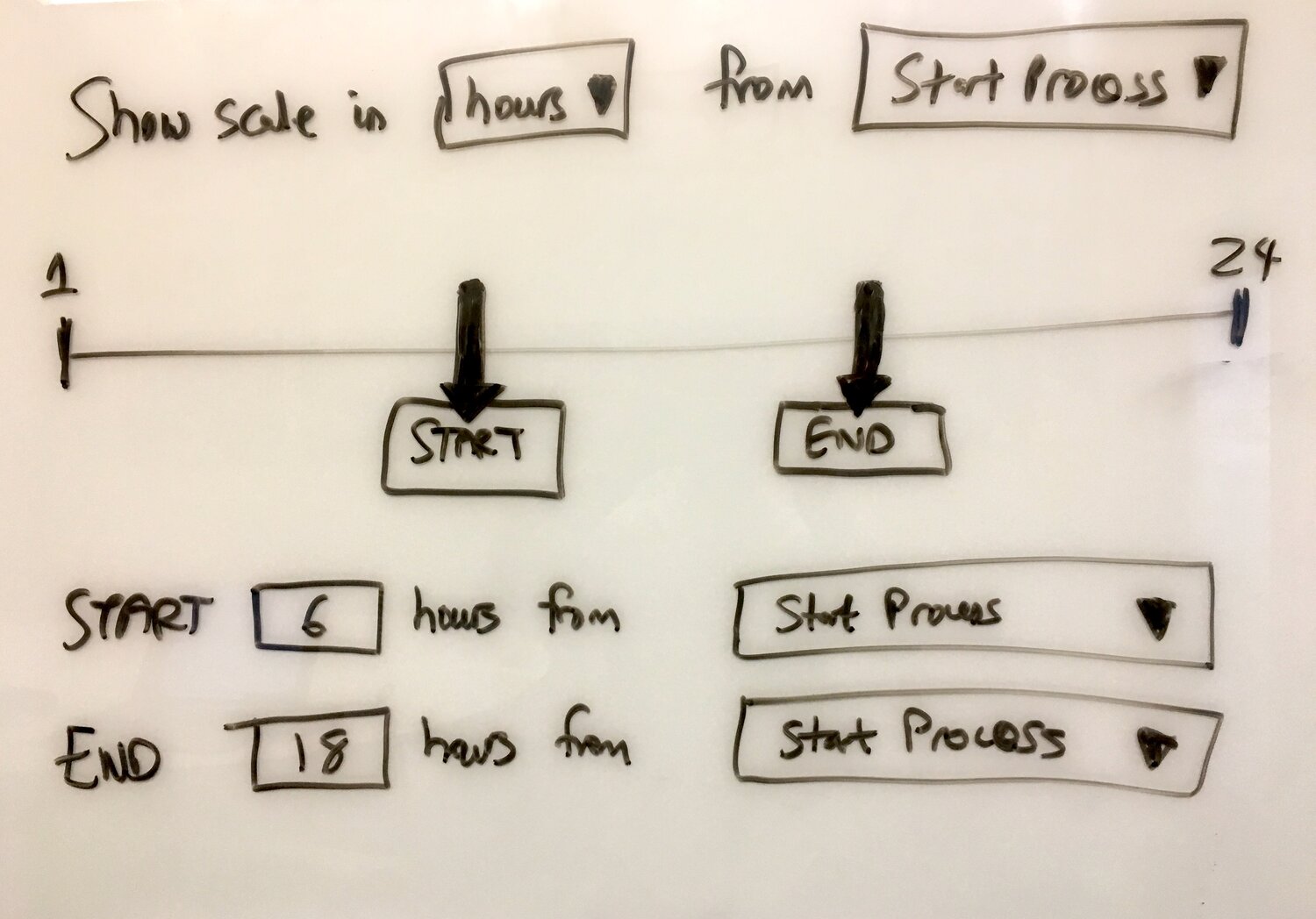
“It’s a very primitive thing, but not having a start and end date is a pretty big failure.”
That last comment stung a bit. But it was spot on. Deadline calculations without working hours awareness are nearly useless for real businesses. No way around it.
What we left out
Could we have shipped everything at once? Not a chance. Several features did not make the initial release:
User-level working hours - as our CTO noted, handling individual schedules across timezones added complexity we deferred. Company hours were hard enough.
Deadline-triggered automations - the ability to fire rules when a deadline becomes overdue required a separate scheduled job architecture. We later designed this as a separate feature:
“New IF condition deadline is overdue for watching task deadlines. Works with any task type, not just expiring tasks. Supports watching multiple steps simultaneously. Triggers once when deadline transitions to overdue.”
Drive-through testing - we wanted a sandbox mode where users could test their deadline rules without launching real processes. The concept was internally called “mock process - a nameless process with no assignees or due dates” but implementing it properly required its own engineering effort.
Minutes and seconds granularity - our deadline offsets worked in hours and days. Some workflows need minute-level precision, but the UI complexity was a tough sell for the initial release.
The pattern that emerged
Looking back, deadline rules taught us something about building workflow features. Actually, that understates it. You cannot abstract away time. Every seemingly simple requirement - “due 3 days before the meeting” - explodes into questions about timezones, working hours, daylight saving transitions, and what “before” means when the meeting time has not been entered yet. I learned this the hard way at Tallyfy - we assumed a deadline feature would take a few sprints and instead it consumed months of back-and-forth, edge case hunting, and rewriting timezone logic that looked correct until real users touched it. At Tallyfy, our approach was to build the simplest version that solved real problems, then iterate based on actual usage. The customer who almost cancelled - the one on the 100% off coupon - is still with us, and their workflows now set deadlines dynamically from form fields. The four rule types - deadline, visibility, assignee, and validation - remain separate, and that architectural decision has held up because each type can evolve independently without breaking the others. Parallel execution means a slow visibility rule does not block a fast deadline rule. The pattern we keep running into is that teams underestimate how much complexity hides behind the word “deadline” until they try to automate it across timezones and working-hour boundaries. Sometimes the best engineering decision is drawing a boundary and saying “this rule type does one thing only.”
About the Author
Amit is the CEO of Tallyfy. He is a workflow expert and specializes in process automation and the next generation of business process management in the post-flowchart age. He has decades of consulting experience in task and workflow automation, continuous improvement (all the flavors) and AI-driven workflows for small and large companies. Amit did a Computer Science degree at the University of Bath and moved from the UK to St. Louis, MO in 2014. He loves watching American robins and their nesting behaviors!
Follow Amit on his website, LinkedIn, Facebook, Reddit, X (Twitter) or YouTube.

Automate your workflows with Tallyfy
Stop chasing status updates. Track and automate your processes in one place.