
Summary
- The hard part of leaving ClickUp is flattening it, not exporting it - ClickUp nests work seven levels deep across Spaces, Folders, and Lists, and Tallyfy is one sequential flow. Most of the migration is deciding which Lists are genuinely repeatable processes and letting the rest stay where they are.
- ClickUp’s export is straightforward, the data comes across fine - you can export any List or Table view to CSV or Excel, and the complete path is ClickUp’s public API. The export was never the bottleneck.
- The concept map is clean once you accept the flatten - a List becomes a Tallyfy blueprint, Tasks become steps, custom fields become captured form fields, and the deep Space and Folder nesting collapses into tags.
- Set aside weeks, not a weekend - export, audit your hierarchy depth, rebuild your top three processes, parallel-run, then switch. Book a 30-minute migration walkthrough and we’ll level with you about whether it’s a fit.
If you’ve landed here, you’ve probably hit the point where ClickUp does too much, and you want one of your processes to run the same way every time instead of living inside a tool that can be reshaped into anything. Fair. Let’s talk about the real mechanics, because the part people brace for, the export, is the part that goes easily.
Let’s start with the honest shape of it. Migrating from ClickUp to Tallyfy is mostly a flattening problem. ClickUp lets you stack Workspaces, Spaces, Folders, Lists, Tasks, Subtasks, and checklists into a deep tree, and you have to walk that tree and decide which Lists are actually repeatable processes, the work that comes back every week with the same steps, and which were just a place to park tasks. That single decision drives the whole migration, and it’s the same sorting decision underneath most workflow software choices. It’s the same friction I dug into when looking at why project management tools struggle with recurring work.
Why teams move off ClickUp
ClickUp is a capable tool, and I’ll say so up front, because a migration guide that pretends the thing you’re leaving is junk helps no one. ClickUp genuinely can be your docs, your tasks, your sprints, your goals, and your whiteboards all at once. For a team that wants one app to hold everything, that breadth is the whole appeal.
The friction has one clear source. It arrives when the everything-app gets heavy and a bit clunky.
The two reasons people start looking elsewhere both trace back to that weight. The first is that the depth becomes a tax. Seven levels of nesting means a new person has to learn where everything lives before they can do anything, and a simple recurring process ends up buried four clicks down.
The second is that flexibility quietly becomes drift. Every team builds its Spaces a little differently, so the same onboarding process exists in four shapes across four teams, and nobody can say which version is current. Turns out that for genuinely repeatable work, that drift is the problem, and fourteen views won’t fix it. The depth was the cost, not the value.
What ClickUp’s export actually gives you
Look at the export first, because its shape decides the rest of the plan. ClickUp lets you export any List or Table view from the Customize menu to CSV or Excel, and you get a choice of scope: visible columns only, task names only, or all columns. So a single List comes out cleanly as a spreadsheet of tasks, statuses, assignees, due dates, and custom field values.
Read that and notice the shape of it. The per-view export is per List or per Table view, not the whole Workspace in one click. If you want a complete, structured pull of everything, the path is ClickUp’s public API, which is built for exactly this kind of programmatic extraction of tasks, fields, and comments.
For most migrations you don’t script against the API at all. You export the Lists you actually care about, you keep the old ClickUp account read-only for a few months as your archive, and you rebuild the processes fresh. Knowing that early stops you from trying to drag every historical task and comment into the new tool, which is effort nobody needs.
Work Management Made Easy
How ClickUp concepts map to Tallyfy
This is the part that makes people nervous, and it’s more orderly than the seven-level tree makes it look, because the Tallyfy team maintains an explicit object mapping. Every ClickUp concept has a home.
| In ClickUp | In Tallyfy | What actually changes |
|---|---|---|
| Workspace | Organization | Direct match |
| Space | Blueprint category | Becomes organizing metadata |
| Folder | Sub-category / tag | Folds into tags |
| List | Blueprint | Your reusable process definition |
| Task | Step | The unit of work |
| Subtask | Sub-step | Nested item under a step |
| Custom field | Form field (capture) | Captures data at the right step |
| Custom status | Closest step status | Original kept as metadata |
| Formula field | Read-only value | The calculation is documented, not run |
| Automation | Rule (IF-THEN) | Rebuilt by hand, not imported |
| Watcher | Follower | Direct match |
| Priority (P0 to P3) | Urgent to Low | Maps one to one |
The single biggest mental shift is the hierarchy. ClickUp’s strength is depth: Workspace into Space into Folder into List into Task into Subtask into checklist, seven levels if you want them. Tallyfy is three or four: Organization, category, blueprint, step. So the deep nesting flattens. Spaces and Folders become categories and tags, and the List you cared about becomes a single blueprint. You lose some of the filing-cabinet structure, but for a repeatable process that structure was mostly a place for drift to hide.

The views shift too. ClickUp lets you see a List as a board, a calendar, a Gantt, a table, a mind map, all at once. Tallyfy is a single sequential flow, with parallel branches only where you truly need them. The data itself transfers without drama. The fourteen-views flexibility does not, and for repeatable work that’s a feature, because fourteen views is a preference, not a process.
Picture a purchase-approval process. In ClickUp, that probably lives as a List called “Purchase Requests” sitting four levels down, under a Finance Space and a Procurement Folder, with custom statuses running from Requested to Approved to Ordered, a Table view stuffed with custom fields, and a subtask under each request for the sign-off. Migrate it and that buried List becomes one purchase-approval blueprint. The custom statuses stop being columns and become the step a run is sitting on. The fields land on the steps that need them, the approval step actually blocks until someone signs, and the whole thing lives one click from the top instead of four. Same work, none of the nesting.
A realistic migration timeline
If a vendor promises you a weekend migration, that’s marketing talking. For a team with a handful of active processes, a real move takes about five to six weeks, and most of those weeks go to decisions, not data entry.
Week one is export and audit, and for ClickUp the audit has an extra question: how deep is our hierarchy actually going? Pull your Lists out and sort them with one test: does this work come back, or did it happen once? At the same time, walk your Spaces and Folders and notice how much of that tree is real organization versus stuff that accumulated. Teams are usually surprised how much of their nesting nobody relies on. That pruning is a big part of the value.
Week two is for rebuilding your top three processes as Tallyfy blueprints. Three. Not your whole list. Pick the ones that hurt most when they go wrong, and define them properly, with owners, order, and the approvals that matter. Week three is a parallel run: pick one or two teams and have them run the new Tallyfy process alongside the old ClickUp List, so you catch the gaps while the safety net is still there.
Week four, switch your power users over fully and set the ClickUp version read-only. Weeks five and six, bring the rest of the teams across and wind ClickUp down to an archive.
Why move this carefully?
Because the goal isn’t to recreate ClickUp in a new tool. It’s to turn the deep, drifted versions of your processes into clean, flat ones on the way through, and that’s worth doing slowly.
What breaks, and what Tallyfy won’t replace
Here’s where things actually break, because every migration trips on a few of these. The seven-level hierarchy doesn’t survive intact; you flatten it with tags and accept that some of the filing structure goes away. The fourteen views are a preference, not data, so only the data migrates and your team adjusts to one flow. Sprints and Goals have no native home in a workflow engine, so they become process cycles and tracked outcomes rather than dedicated modules. And automations don’t transfer one to one; ClickUp automations get rebuilt as Tallyfy rules, which is usually quick but is real work.
Here’s the section other guides leave out: what you give up. There are things ClickUp does that Tallyfy does not.
ClickUp is an everything-app, and Tallyfy is deliberately not. ClickUp’s native docs, its whiteboards, its mind maps, its dashboards, and its built-in time tracking have no equivalent in a tool built to run one process well. The object mapping is explicit that mind maps and dashboards cannot migrate at all. A misconception we run into constantly is that leaving an everything-app means giving up all that surface area and missing it. In practice, teams find most of it was breadth they admired and rarely used, but if your team genuinely lives in ClickUp docs and dashboards every day, keep ClickUp for that and move only the repeatable processes across. Plenty of teams run both: ClickUp for the sprawling all-in-one work, Tallyfy for the processes that have to run the same way every time.
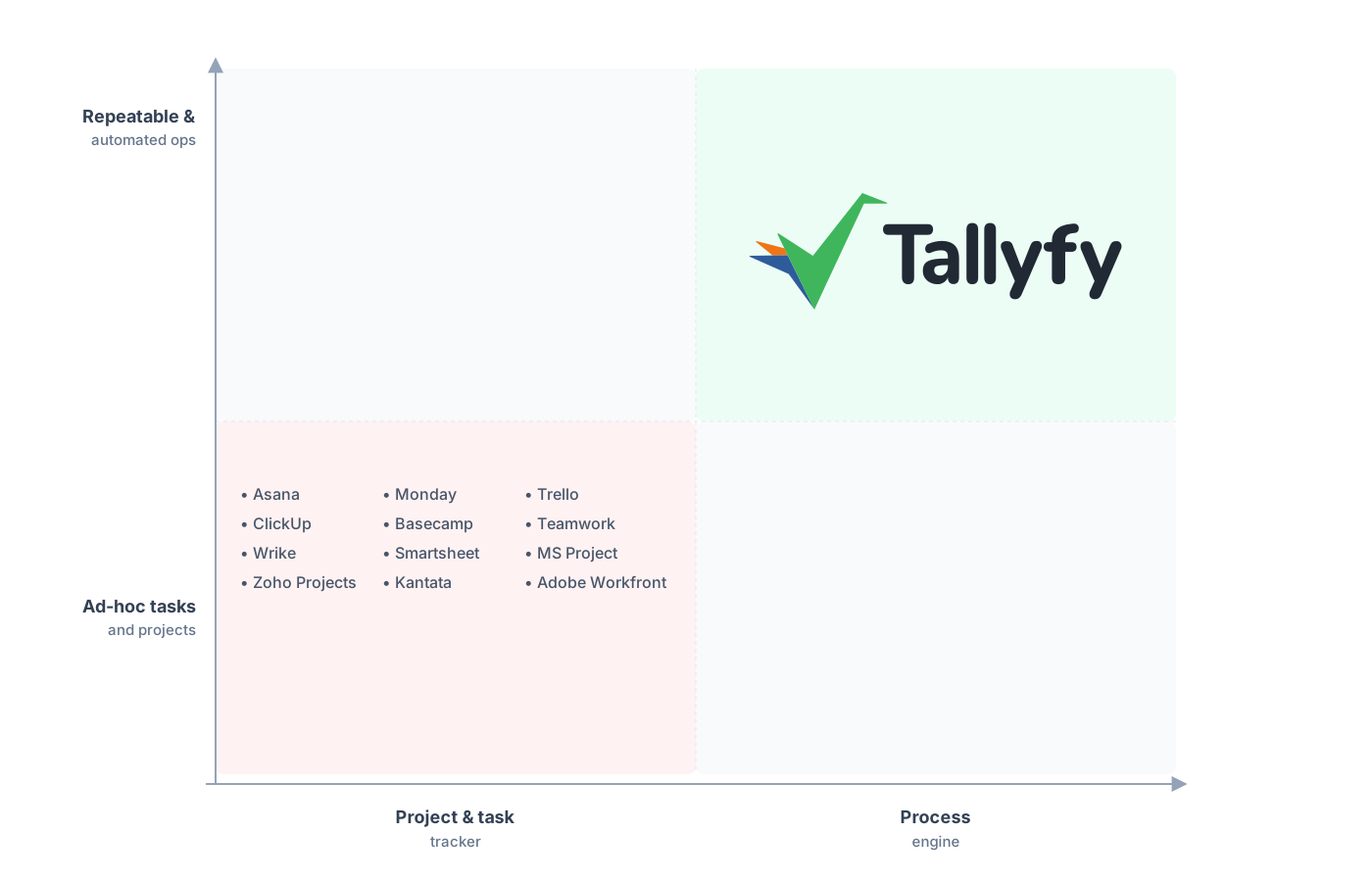
Repeatable and automated operations, not an everything-app.
Teams worry the flatten costs them visibility. It sharpens it instead. In ClickUp, a process scattered across a deep List with custom statuses takes interpreting before you can say where anything stands. In Tallyfy, those same runs show up in one live status view, each sitting on a named step, so you can see at a glance which two are stuck and where. The flatten you were nervous about is what makes the work easier to see.
Common questions about migrating from ClickUp
How long does a real migration from ClickUp take?
How do I export my ClickUp data completely?
What happens to my deep Space and Folder hierarchy?
Do my ClickUp automations come across?
How does the pricing compare?
If you’re still deciding rather than ready to move, our ClickUp alternative comparison covers why teams switch, feature by feature. This one is the hands-on moving guide.
Ready to plan it for real? Book a short call. We’ll walk your ClickUp setup together and I’ll tell you plainly which Lists are worth migrating and which should stay where they are.
Book a 30-minute migration walkthrough and bring your two or three deepest ClickUp Spaces. An hour like that beats any feature comparison.
